Spelling
φ Poiesis checks your spelling as you write and puts a wavy underline under a misspelled word. You can fix each word when you see it, or check the whole document in one pass when the draft is done. Poiesis never corrects a word for you.
Check a whole document
- Open the document.
- Press
⌘;. You can also choose Edit → Check Spelling…, or Check spelling… in the document's ⋮ menu or in the command palette. - Poiesis stops at the first misspelled word. Choose what to do with it (see the table below).
- Repeat for each word, until Poiesis says it's all done.
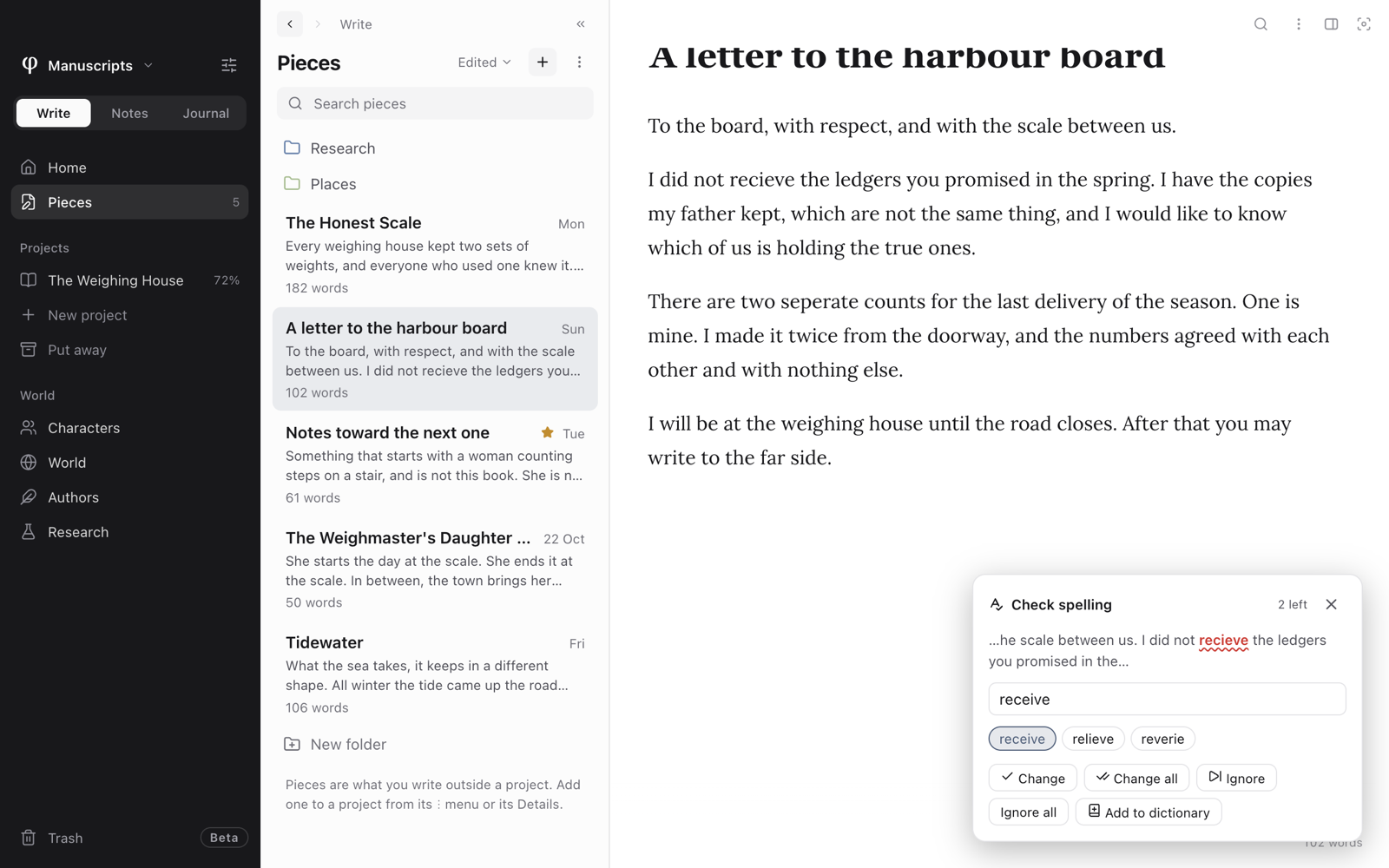
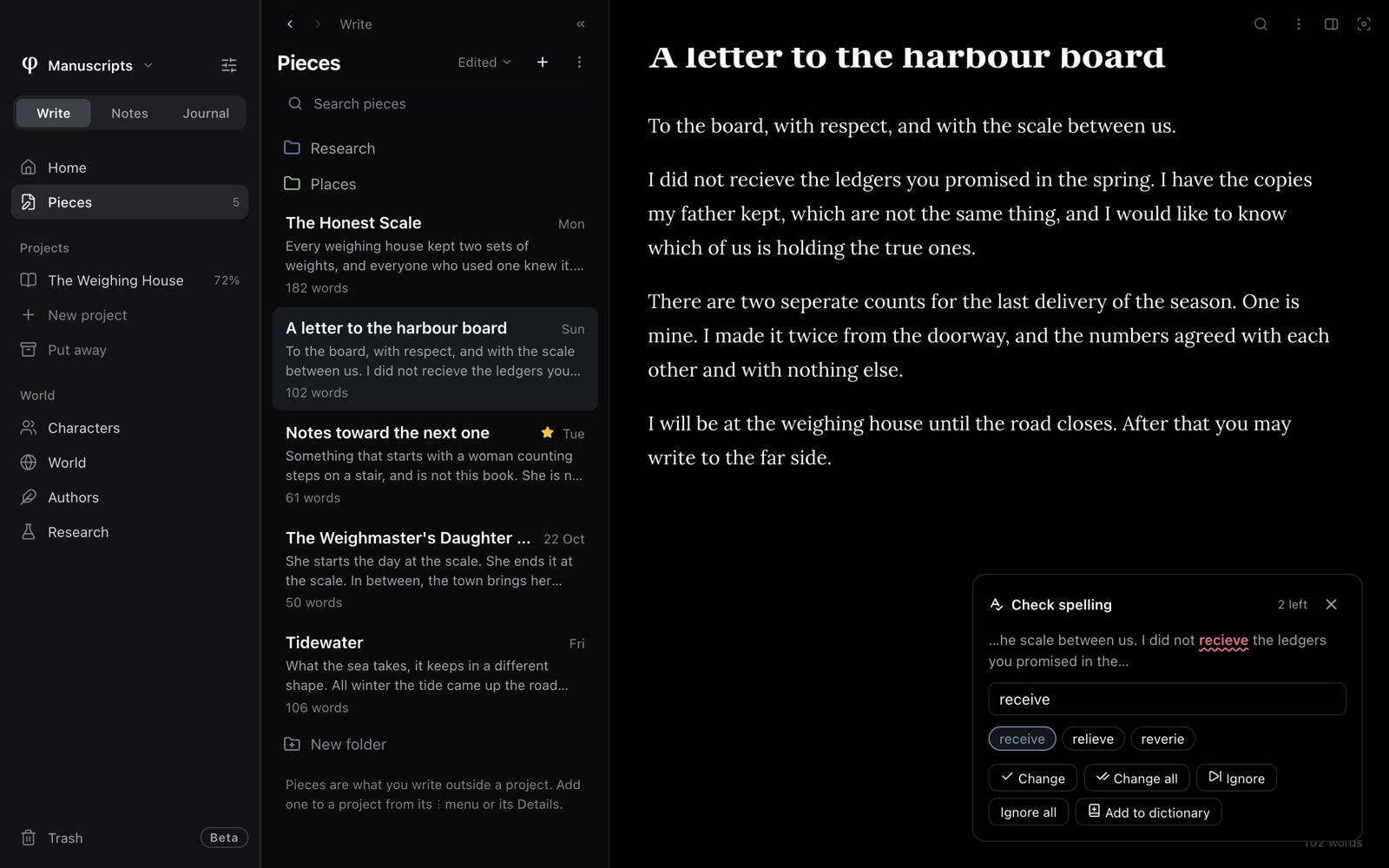
Poiesis highlights the word in the text, so you can read it in its sentence. A counter shows how many words are left.
| Choice | What it does |
|---|---|
| Change | Replaces this word with the suggestion, or with what you typed in Correction. |
| Change all | Replaces every occurrence in the document. |
| Ignore | Skips this one. |
| Ignore all | Skips every occurrence, for the rest of this pass. |
| Add to dictionary | Keeps the word, here and in every other document. |
When Poiesis has no suggestion, it says No suggestions. Type the correction yourself in Correction.
The whole-document check uses Poiesis's own dictionaries: English, Spanish, Spanish (Mexico) and French. If Poiesis has no dictionary for any of the languages you check, it tells you and offers Open settings. There you can choose a language that Poiesis has.
Fix a word as you go
- Right-click an underlined word. Poiesis's suggestions are at the top of the menu.
- Click a suggestion to replace the word. Or choose Add to Dictionary to keep the word, so Poiesis stops underlining it.
A word that is spelled right can show Synonyms in the same menu, when an installed dictionary has them. See Replace a word with a synonym.
Choose how Poiesis checks
Open Settings → Language → Spelling. There are three settings:
- Check spelling turns the underlining on or off.
- Engine sets how Poiesis checks as you type.
- Native, the default, uses your computer's own spell-checker.
- Enhanced uses Poiesis's dictionaries. The results are the same on every computer.
- Languages sets which languages to check. If you pick more than one, Poiesis accepts a word that is correct in any of them. This helps when a document uses two languages. With Native on a Mac, the system detects the language automatically.
A vault (the folder that holds your writing) can have its own setting. Under Settings → Language → This vault, set Default for this vault to Use global, Native or Enhanced. With Enhanced, you can also choose the languages for that vault.
Add a language Poiesis doesn't bring
The Enhanced engine can check any language that has a Hunspell
dictionary. LibreOffice and Firefox use this kind of dictionary. It is a
folder that holds an .aff file and a .dic file.
- Under Settings → Language → This vault, set Default for this vault to Enhanced.
- Next to Add a language, press Add… and pick the dictionary's folder.
- Tick the new language in that vault's Languages.
Your personal dictionary
When you keep a word, where it is saved depends on the engine:
- Enhanced, and the whole-document check: Add to dictionary saves the word in Poiesis's own list. To see the list or remove a word, open Settings → Language → Personal dictionary. Poiesis underlines a removed word again.
- Native: Add to Dictionary in the right-click menu saves the word in your computer's spell-checker. The word is not in Poiesis's list.