Annotations & margin notes
φ Poiesis gives you two ways to write notes to yourself about a document:
- An annotation is about one passage. You can highlight the passage, write a comment on it, or both.
- A margin note is about the whole document. For example, a reminder of what the chapter still needs.
Both are saved with the document.
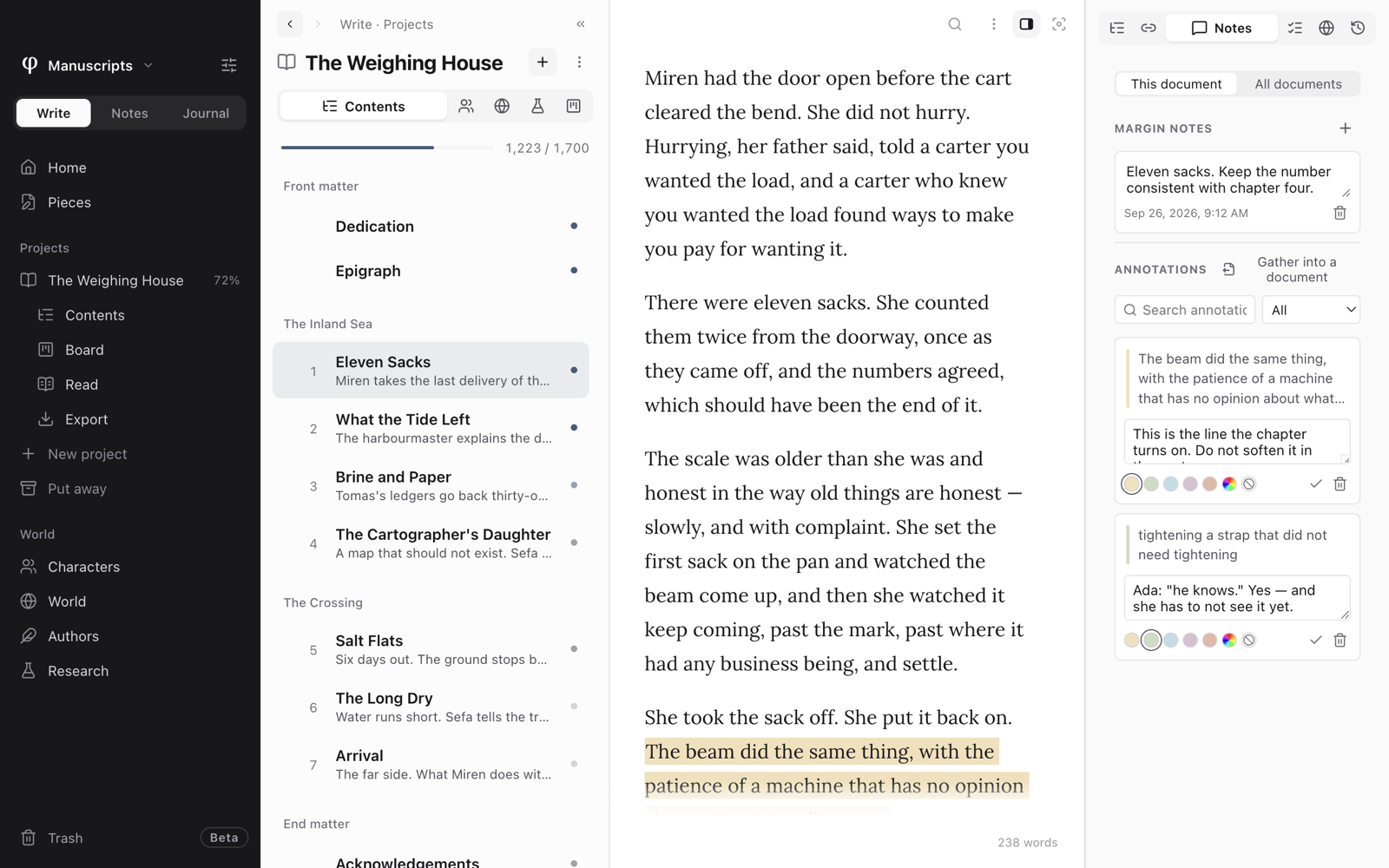
Annotate a passage
- Select the text. A toolbar appears.
- Click the colour swatch (Highlight & comment) and choose a colour. Or click Comment (no highlight) to leave the text without a colour.
- The Info panel opens on its Notes tab, with the new annotation ready. Write your comment in its box.
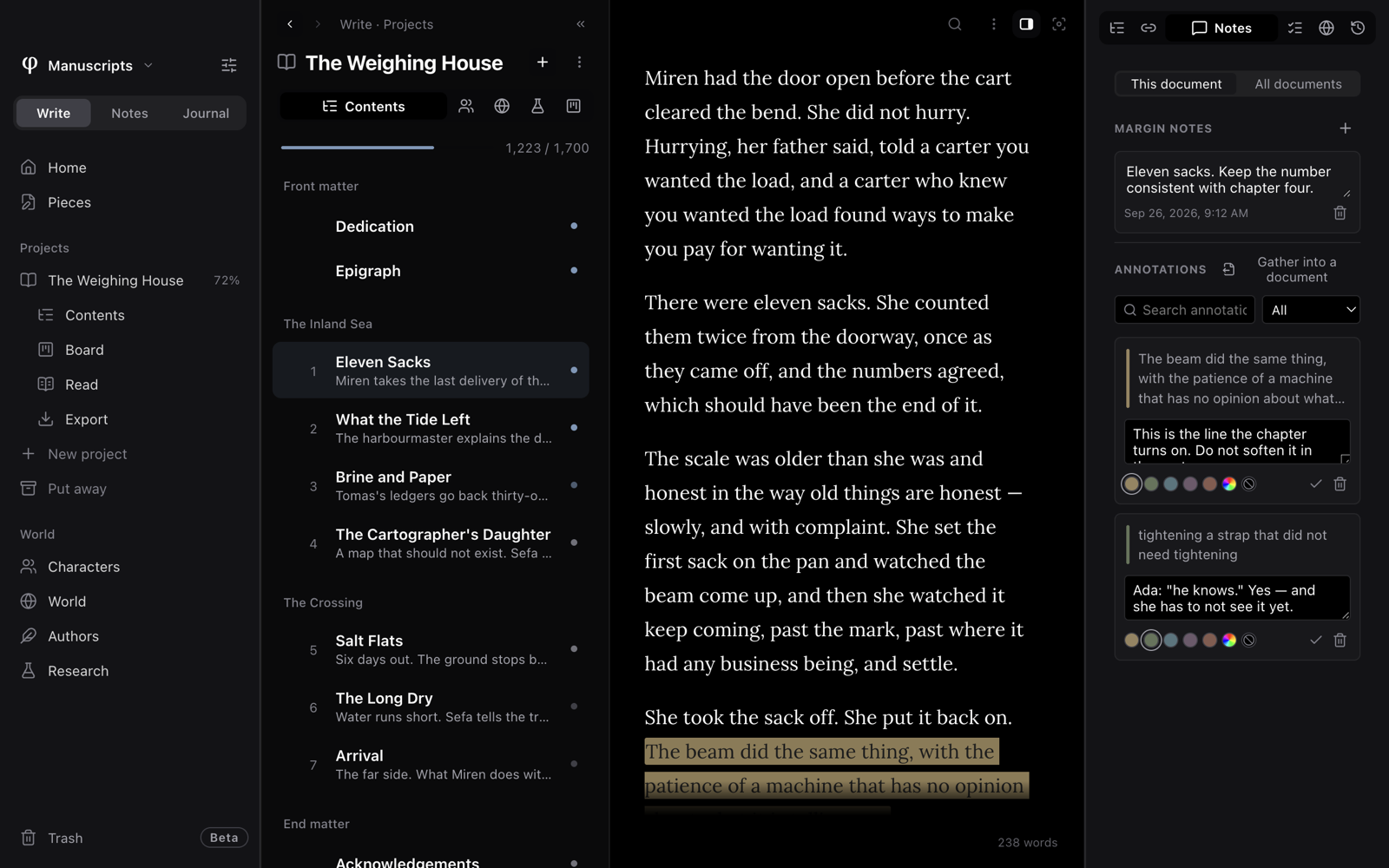
There are five colours: Yellow, Green, Blue, Purple and Orange. They are soft, so the text is easy to read in light and dark themes. Custom colour opens the system colour picker, where you can choose any other colour.
To remove a highlight:
- Select the text.
- Open the swatch's menu again.
- Choose Remove highlight.
Find your notes
All annotations and margin notes for a document are on the Info panel's Notes tab. There are two ways to open it:
- Press
⇧⌘A. - Open the Info panel (
⇧⌘I) and click its Notes tab.
The tab has two parts: Margin notes at the top, then Annotations.
Work with an annotation
Each annotation is a card. The card shows the passage, its colour and your comment.
| To | Do this |
|---|---|
| Go to the passage | Click the quoted passage. Poiesis scrolls to it and selects it. |
| Write or change the comment | Type in the card's box (Add a note…). |
| Change its colour | Choose another colour or Custom colour. Choose No highlight (comment) to keep only the comment. |
| Mark it as finished | Click the check (Mark resolved). A resolved annotation is dimmed but kept. Mark unresolved makes it open again. |
| Remove it | Click the bin (Delete annotation). |
When a document has annotations, two more tools appear:
- Search annotations… finds annotations by the passage or by your comment.
- The menu beside it filters the list: All, Highlights, Comments, Open or Resolved.
When the text is gone
If you delete or rewrite the passage of an annotation, the annotation is kept. It is marked Detached from text.
To attach it to a new passage:
- Select the new passage.
- Click Reattach to selection.
Search every highlight and comment
At the top of the Notes tab, switch from This document to All documents. Poiesis then lists the highlights and comments of every document in the vault.
- Type in Search every highlight and comment…. Poiesis searches the words each one covers and your comments on them. Case and accents don't matter.
- Use the filter to show only Highlights, Comments, Open or Resolved ones.
- Click one to open its document.
You can also open it from the command palette (⌘P): choose Search all
highlights and comments.
Gather them into a document
To collect a document's annotations in one place, open the Notes tab and click Gather into a document at the top. Poiesis makes a new document, Notes on and the document's title. It has every highlight and comment in reading order: the words each one covers as a quote, with your comment under it. The margin notes come after them.
- Resolved annotations are marked resolved.
- An annotation whose text was deleted keeps the words it was made on.
To do the same for a whole book, right-click the project in the sidebar and choose Gather notes and highlights. The new document goes chapter by chapter, under the chapters' titles.
In the command palette, Gather this document’s notes and highlights does it for the open document.
Write a margin note
- Open the Notes tab (
⇧⌘A). - Click + beside Margin notes (Add a margin note).
- Write in the box (Write a note about this document…).
Each margin note shows when you wrote it. Its bin icon (Delete margin note) removes it.
Annotations and margin notes are saved in the document's own file. When you copy or back up the file, they are copied with it. Nothing leaves your computer.
See also
- Boards: checklist items you can track on a board are on the Tasks tab.
- The editor
- Versions & backup