Versions & backup
φ Poiesis saves your work as you write. It also keeps a history of each document, so you can go back to any earlier draft.
If you want a copy away from your computer, Poiesis can send that history to a backup that you own. Nothing leaves your computer unless you set that up.
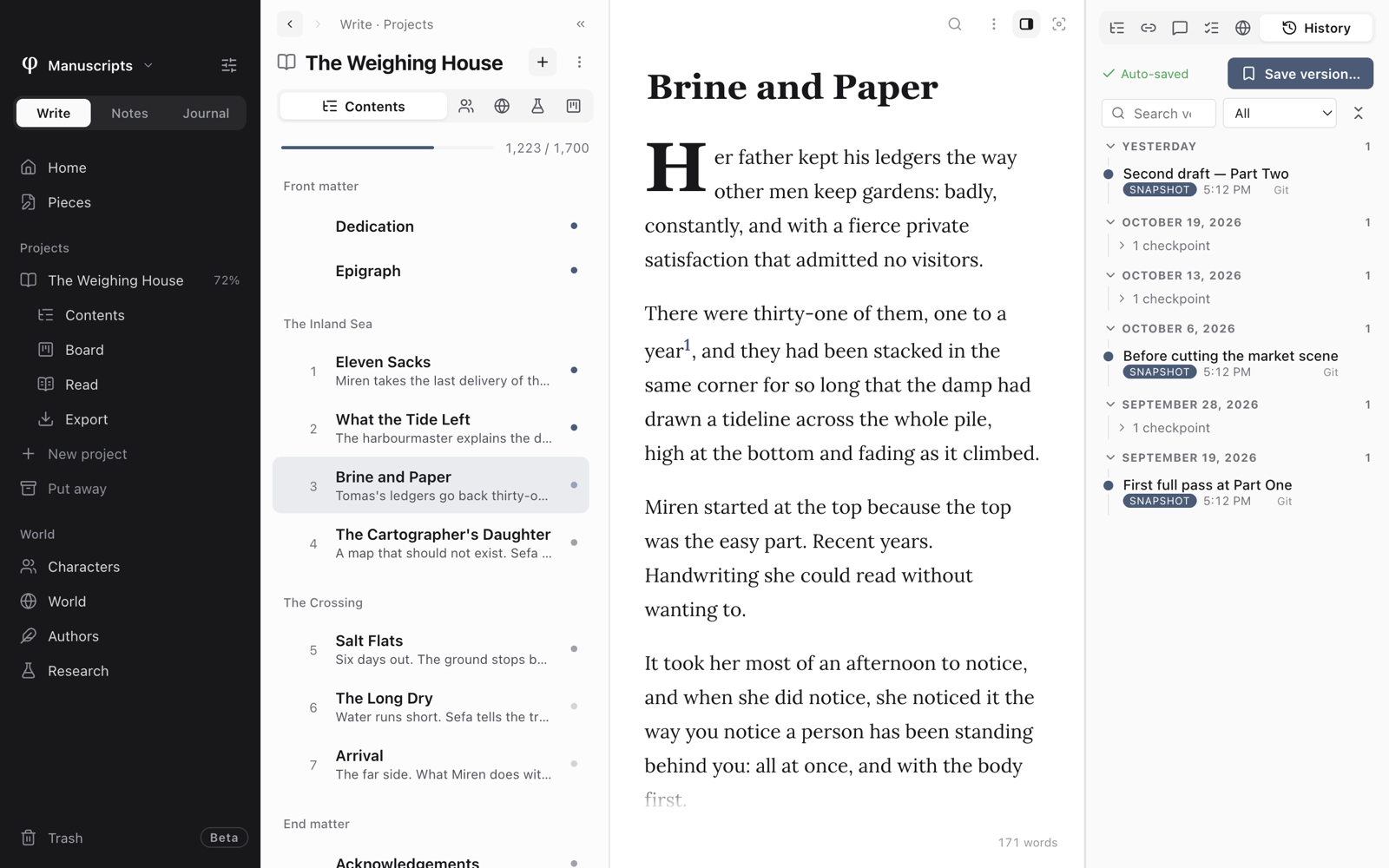
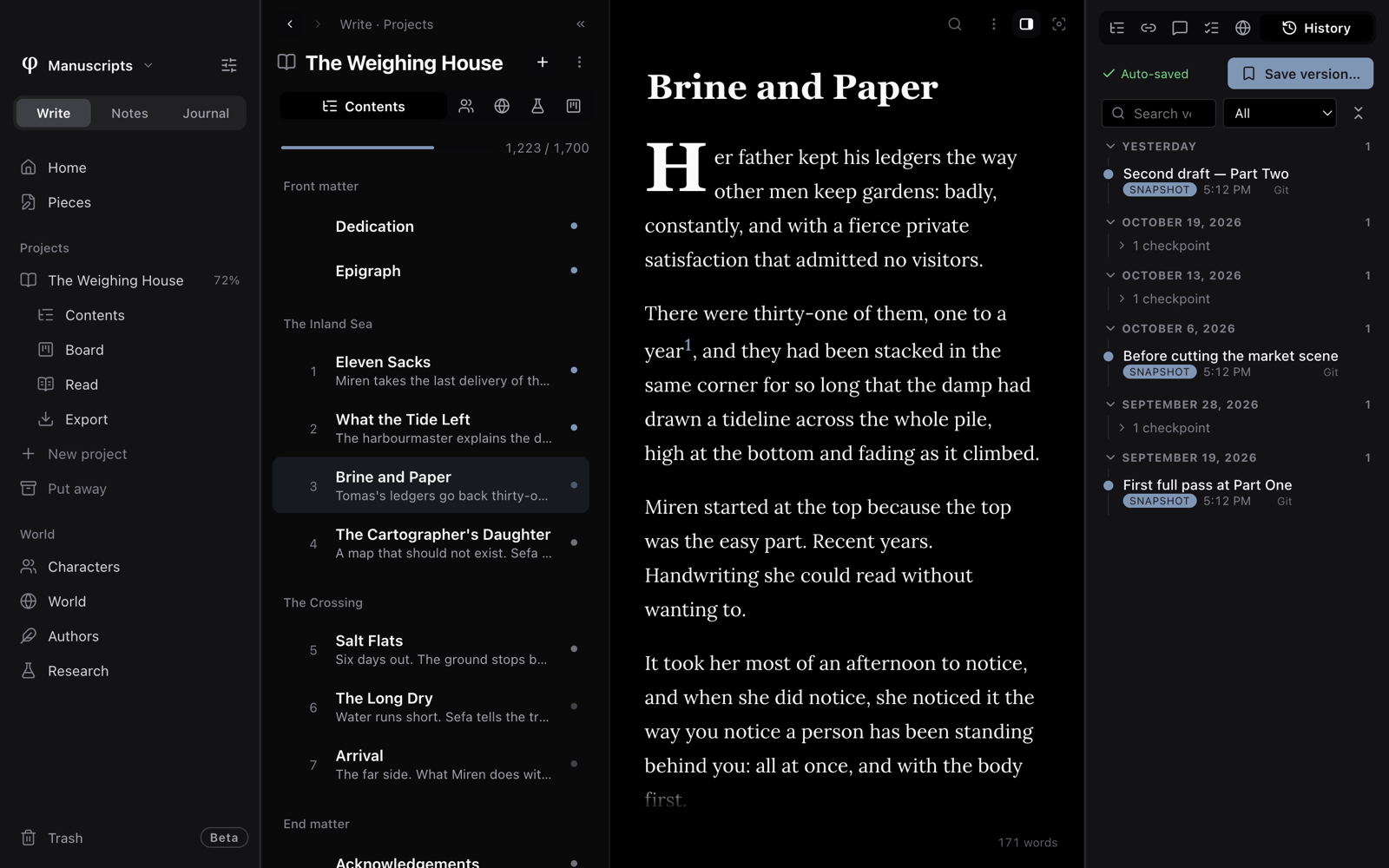
Save a snapshot
A snapshot is a version that you name. Use it to mark an important point: the end of a chapter, a finished draft, or the moment before a big cut.
- Open the document.
- Press
⌘⇧S, or choose Save version… in the document's ⋮ menu. - Give it a name, such as "Second draft, Part Two".
The snapshot appears in the document's History tab, marked Snapshot.
How Poiesis keeps your work
- Poiesis saves every edit. It saves a moment after you stop typing. While it saves, the bottom of the sidebar says Saving…. There is no Save button.
- Poiesis makes checkpoints for you. A checkpoint is a version that Poiesis makes
without being asked. It makes one every five minutes while you work, when
you close the window, and when it updates your documents to a new file
format. To change how often, open Settings (
⌘,) → Versioning → Auto-checkpoint every. ⌘Ssaves at once and makes a checkpoint. Use it when you want a version at a moment you choose.- Poiesis saves a version before a change to the whole vault. A vault is the folder that holds your work. When you replace a word in every document (see Search & replace), Poiesis first saves a version of the whole vault. So you can undo the change.
Find an old version
A document's history is in the History tab of the Info panel, the panel
beside the document. To open it, press ⇧⌘I (or click Info above the
page), then click the History tab. The tabs are icons; point at one to
see its name.
In the History tab:
- Auto-saved, at the top, tells you that your edits are already saved.
- Save version… makes a new snapshot.
- Below, the versions are grouped by day. The checkpoints of one day are folded into a single line, so snapshots are easy to see. Click the line to see the checkpoints.
- You can search versions by name.
- You can show All, Snapshots, Checkpoints or Restores.
- You can fold or unfold every day at once.
Compare and restore
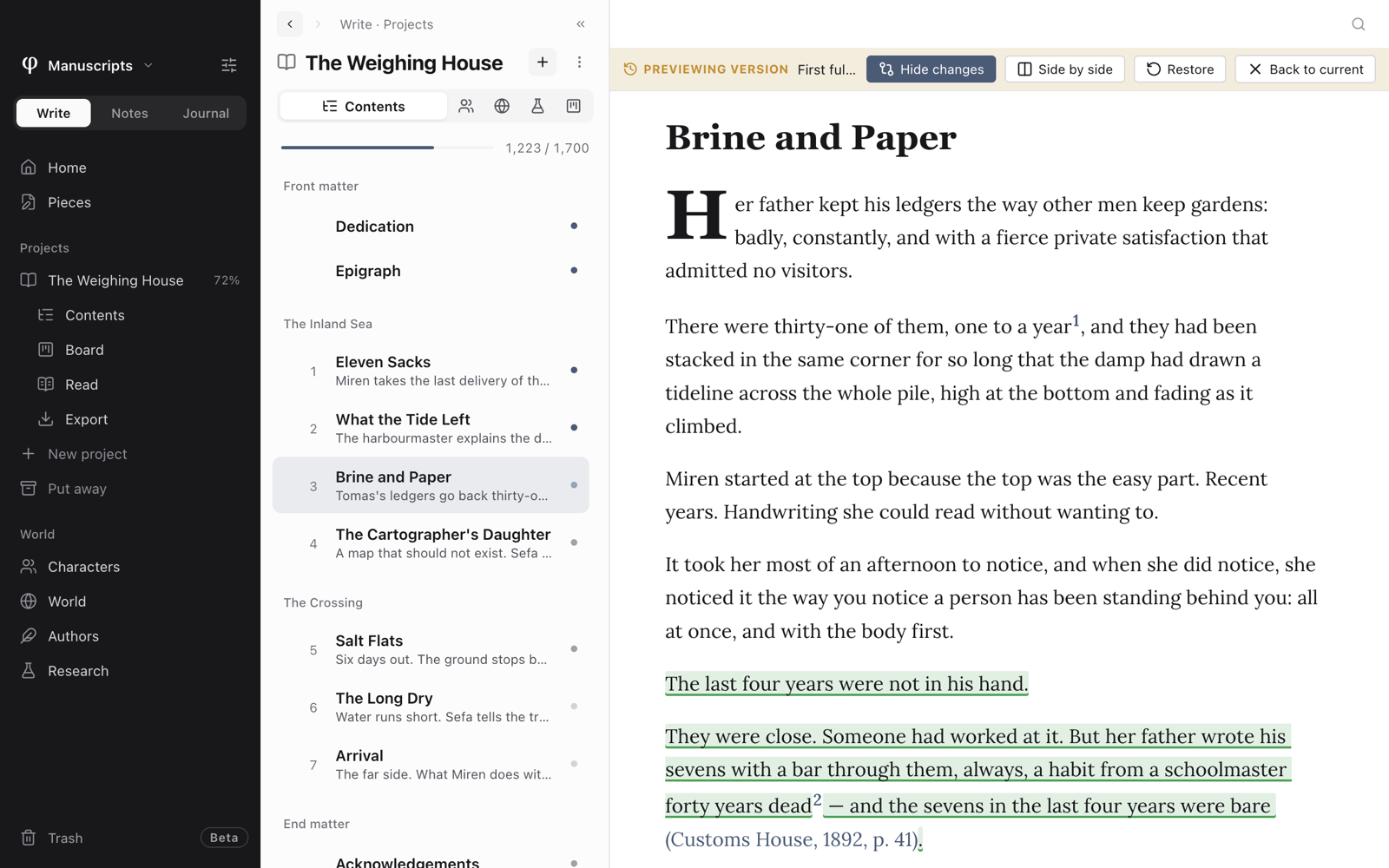
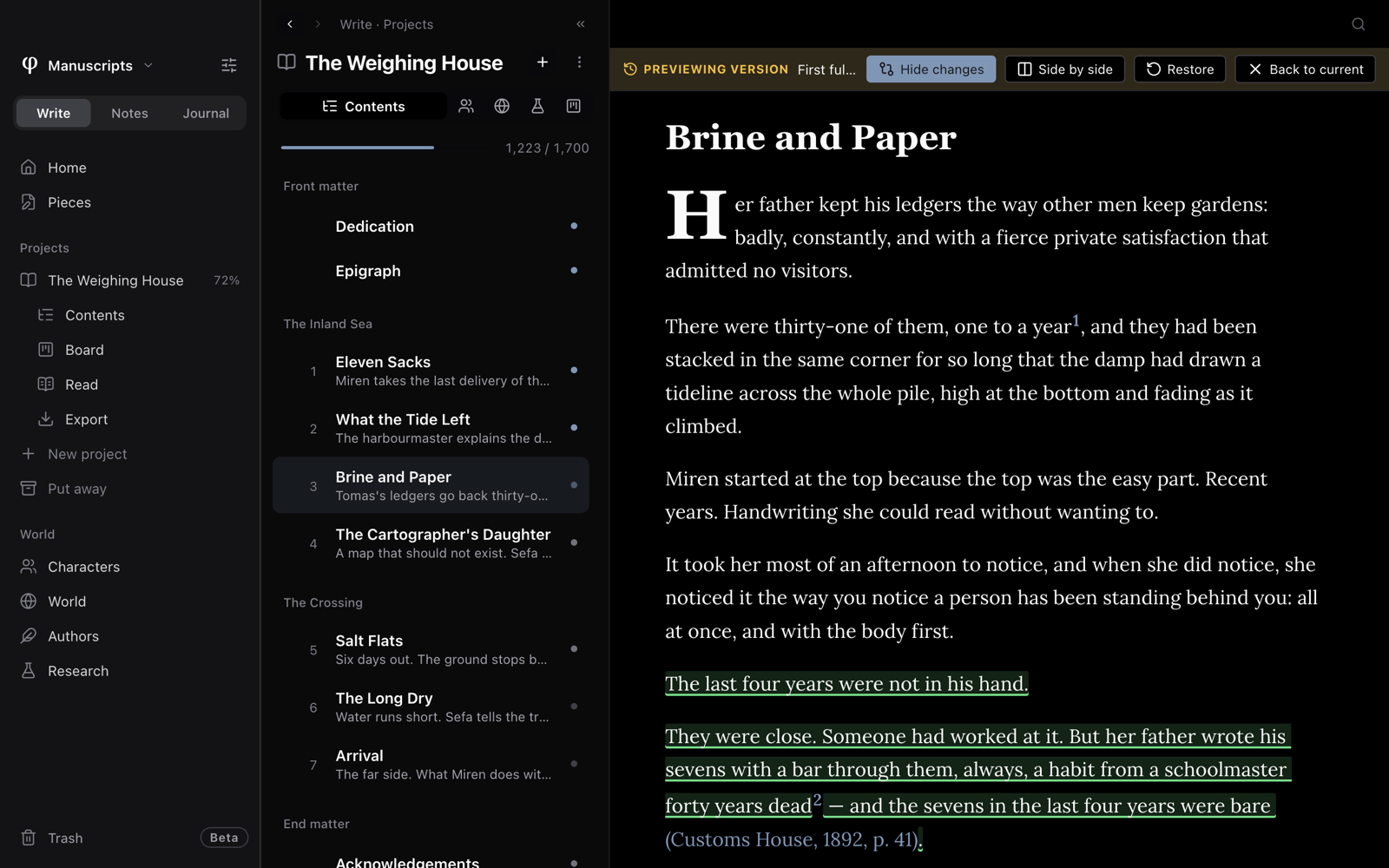
Click a version to open it. It takes the place of the document, under a Previewing version bar. You can read it but not edit it.
| Button | What it does |
|---|---|
| Show changes | Marks what is different from the document as it is now. Switch between Side by side and In content. With In content, Metadata changes also lists changes to the title, tags, status and similar details. Hide changes removes the marks. |
| Restore | Makes this version the document again. Poiesis first saves the document as it is now as a new version, so nothing is lost. |
| Back to current | Returns to the document as it is now. Esc does the same. |
Poiesis marks changes letter by letter. To mark whole words, choose Word under Settings → Editor → Version diff detail.
Choose where history is kept
Each vault keeps its history in one of two ways. Choose the way in Settings → Versioning → Backend.
| Backend | What it gives you |
|---|---|
| Native | The default. You don't need to install anything. It keeps up to 50 versions of each document and removes the oldest. Change the number in Local history limit. |
| Git | History with no limit, and a backup to a place that you own. Git is a separate, free program for keeping history. You can choose this once git is installed on your computer; until then the choice reads Git (needs git). |
Think before you move a vault to git: Poiesis can't move it back for you. Poiesis explains
the change first, in Convert this vault to git?. Your existing history
moves across. To go back to Native later, you must delete the vault's
.git folder yourself.
Vaults in a cloud folder
If the vault is in a cloud folder, such as iCloud Drive or Dropbox, Poiesis keeps the git history on this computer, outside the vault. Sync services copy files one at a time, in any order, and this can break a git history. Your documents are safe: each document is one file.
iPhone and iPad
Poiesis on iPhone and iPad (coming soon) uses the same vault but never runs git.
Versions made there are kept in the vault's .poiesis-history folder. Both
apps use that folder.
Back up your history with git
With git, Poiesis can send your history to a private repository on a service such as GitHub or GitLab. A repository is a storage place for a git history. Then a copy exists somewhere other than your computer.
- Make a private, empty repository on GitHub, GitLab or another git host.
- Copy its address. It looks like
[email protected]:you/novel.git. - In Poiesis, open Settings → Versioning and switch the vault to Git.
- Under Git backup, paste the address into Backup remote URL.
- Turn on Auto-push backups.
- Choose Push every. It starts at 15 minutes.
- Press Push now to send the first copy.
Poiesis sends the history in the background. A slow service, or one that can't be reached, never stops your writing. If a send takes more than two minutes, Poiesis stops it and tries again next time.
Backup now shows the state of the backup: Up to date with the remote,
unpushed commits (history not sent yet), or no remote yet. You can also send
the history from the command palette: press ⌘P and choose Back up now (git
push to remote).
The other settings under Git backup are for writers who want to keep this work separate from their main git account:
| Setting | What it's for |
|---|---|
| Commit name and Commit email | The name and email recorded in the history. If they are blank, Poiesis uses your computer's git identity. |
| SSH key path | The private key Poiesis uses to send the history, such as ~/.ssh/id_ed25519. With it, Poiesis can send as a different account. Only you must be able to read the key file (chmod 600). |
| Backup remote URL | If it is blank, Poiesis uses the repository's existing origin. |
| Sign commits | Signs each commit with an SSH or GPG key, so the host shows it as verified. |
Your history holds every draft. Back it up to a private repository. If you can, use an identity that you keep only for this.
Back up a vault in one click
To keep a copy of a whole vault, for a drive or another computer:
- Click the vault's name at the top of the sidebar and choose Back up vault…. It is also in Settings → Data → Vault backup.
- Choose where to save it.
φ Poiesis saves one dated ZIP file of the open vault, such as
My Novel Backup 2026-10-19.zip. Inside is one folder named for the vault,
with every document, folder, record, attachment and the vault's own
settings. Version history and the trash stay out. When the file is saved
from the vault menu, φ shows it in its folder. In Settings, Show in
folder does the same.
A vault is an ordinary folder
A vault is an ordinary folder. It holds your .poiesis files, an assets
folder for images, and the version history. So any backup you already trust
also works: Time Machine, a synced folder, or a copy on a drive.
See also
- Vaults: vaults on several devices, and what happens when two of them change the same document.
- Search & replace
- Settings