Organizing
φ Poiesis gives you four simple tools to organize your documents: folders, tags, stars, and a sort for every list. They change only how you find a document, never how it is written. Use as many or as few as you like.
File a document in a folder
- Open Pieces in Write, or a folder in Notes.
- If you need a new folder, click New folder at the bottom of the list and name it.
- Drag the document onto the folder.
- Click the folder to open it.
The folder path above the list (All › Drafts › Poems) shows where you are. Click a step in the path to go back to it.
Pieces and notes
Chapters, journal days and morning pages have their own places. Every other document is one of two kinds:
- Pieces are in Write, under Pieces. A piece is a poem, an essay or a story outside any project. A piece can have a status and a word goal. You can add it to a project at any time (see Projects).
- Notes are in Notes. A note is an idea, a source or a line you overheard. Notes have no status and no word goal (see Notes & capture).
Pieces and notes share the same folders. Notes shows every folder. Pieces shows the folders that contain pieces, and any new, empty folders.
Folders
You do not have to use folders. A document in no folder is shown at the top of the list.
Make a folder
There are four ways:
- Click New folder at the bottom of a folder listing. The new folder is made inside the folder you are looking at.
- Click + beside Folders in the Notes sidebar.
- Click the list's ⋮, then New folder (in Write or Notes). Inside a folder, the new folder is made inside it.
- Right-click a folder, then choose New folder inside.
Poiesis asks you to Name the new folder.
A folder's menu
Right-click a folder in the Notes sidebar or in a list:
| Item | What it does |
|---|---|
| New piece / New note here | Makes a new document in this folder. Write shows New piece; Notes shows New note here. |
| New folder inside | Makes a folder inside this one. |
| Rename this folder | Gives it a new name. |
| Icon… | Chooses an icon for it (see below). |
| Colour | None, Grey, Red, Orange, Yellow, Green, Blue, Purple or Pink. The folder's icon takes this colour. |
| Delete this folder | Removes the folder, after asking you. Its documents are not deleted; they move to the top level. You cannot undo this. |
Icons and colours
A folder or a project can have its own icon. Right-click it and choose Icon…. For the project you are in, the list's ⋮ also has Icon… and Colour….
The icon picker has a search field, a row of colours, and icons in groups. Default brings back the plain folder or book icon.
The icon and colour appear everywhere the folder or project is named: the sidebar, the list, the folder path and Home.
Move a document
| To move it | Do this |
|---|---|
| Into a folder | Drag it onto the folder, in a list or in the Notes sidebar. Or right-click it and choose Move to folder. Or choose the folder under In on its Details… page. |
| Out of every folder | Drop it on All in the folder path, or choose No folder. |
| Up a level | Drop it on a step of the folder path. |
| Into a different order | Drop it between two other documents. The order is kept while the list is sorted by Edited. |
| From Notes to Write, or back | Right-click it and choose Move to Write's pieces or Move to Notes. The same choice is on the document's ⋮ and on its Details page. |
| Into a project | Right-click a piece and choose Add to project or Move to project. Or choose Add it to a project… on its Details page. A note moves to Write's pieces first. |
| Out of a project | Right-click the chapter and choose Remove from project. |
| To another vault | Right-click it and choose Move to vault…. This appears when you have more than one vault (see Vaults). |
Tags
A tag groups documents from any folder. A document can have any number of tags.
- Add a tag: open the document's Details…, type in + Tag and press Return.
- Remove a tag: click the × on the tag.
- See a tag's notes: click the tag in Details, or under Tags in the Notes sidebar. Poiesis lists every note with that tag.
Sort and search a list
Every list has the same header:
- Back and forward buttons (
⌘[and⌘]). - The list's name.
- +, which makes a new document or folder in this list.
- ⋮, which holds the mode's other actions.
You can do these things in a list:
- Sort. Pieces and notes sort by Edited, Created or Title. The button shows the current sort.
- Search. Type in the field under the header. The list is filtered by
title, first lines and tags as you type. Inside a folder, the search also
covers the folders inside it.
Escclears the search. - Go to the next or previous document.
⌥⌘←and⌥⌘→open the document above or below the open one. - Open beside.
⌥-click a row to open it next to the document you are reading (see Side by side).
Details
A document's Details… page holds everything about the document except its text. There are two ways to open it:
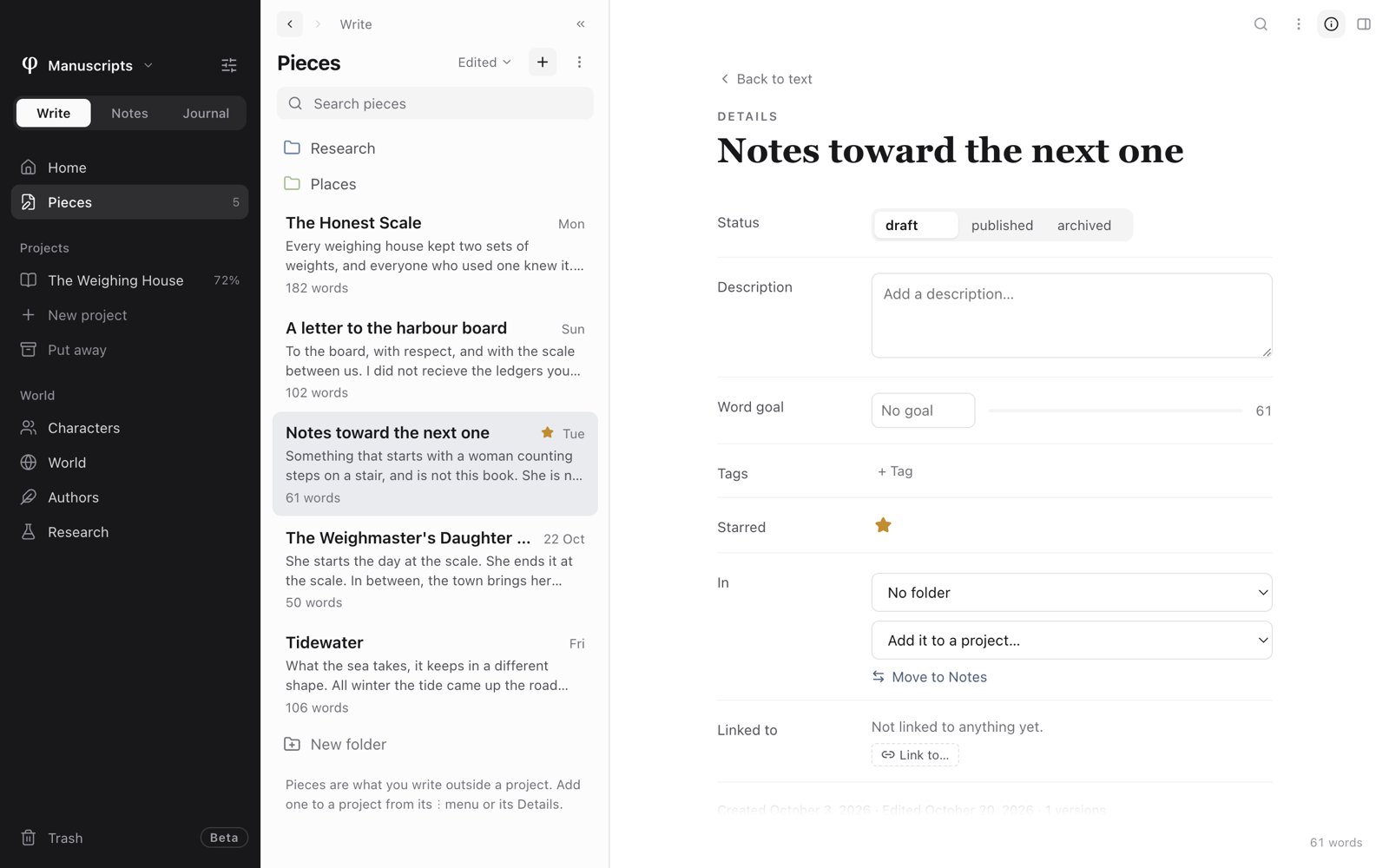
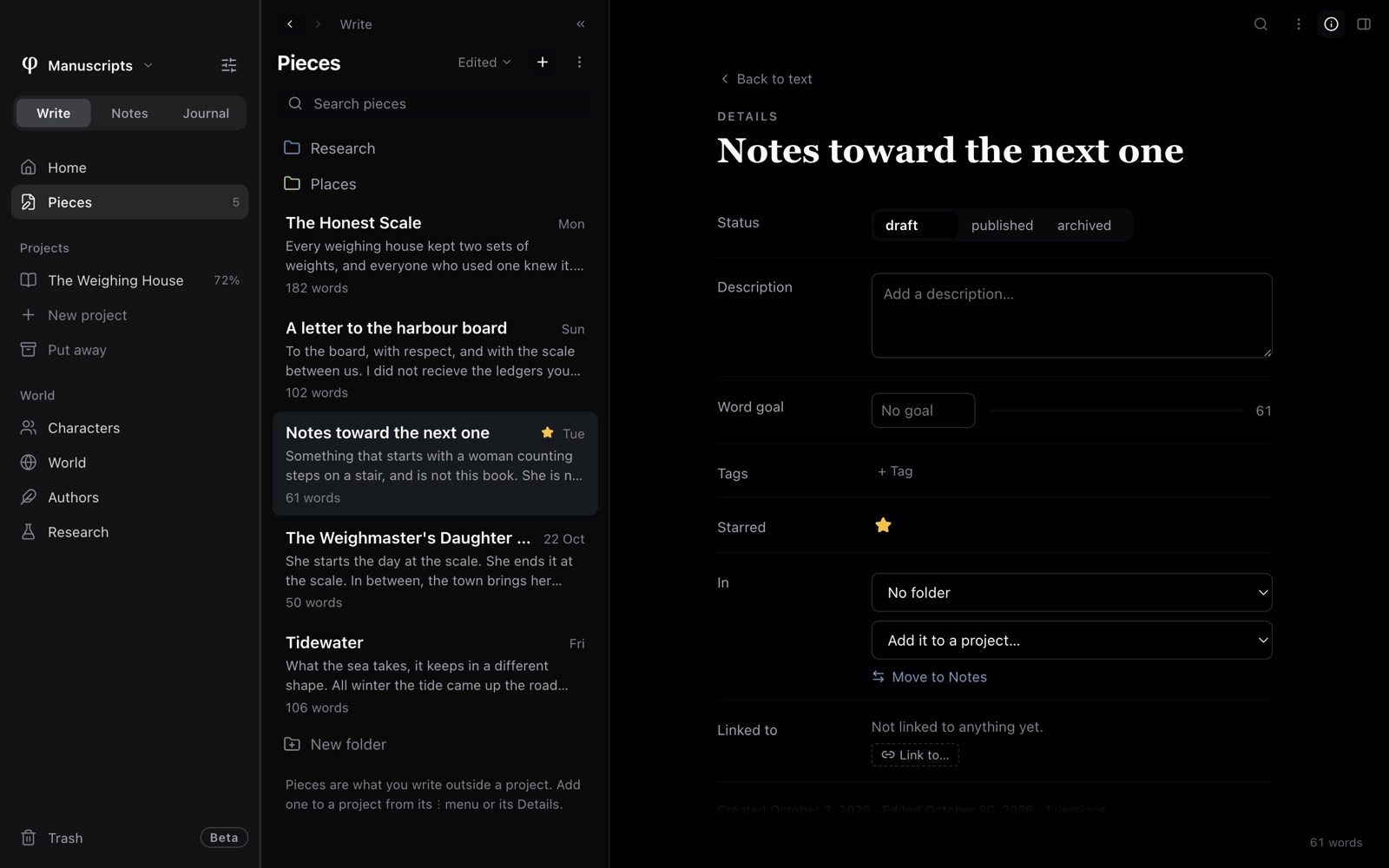
- Click ⋮ above the page, then Details….
- Right-click the document's row in a list, then Details….
While Details is open, an ⓘ shows at the top of the page. Click it, or Back to text, to return to the page.
The rows you see depend on the kind of document:
| Row | Shown for |
|---|---|
| Status | Pieces: draft, published or archived. Chapters: Todo, Draft, Revised or Final. |
| Synopsis or Description | A chapter has a synopsis. Every other document has a description. |
| Word goal | Pieces and chapters, with a bar that compares the goal with the word count. |
| Tags | Every document. |
| Colour | Chapters: Grey, Red, Amber, Green, Blue or Violet. |
| Starred | Every document. |
| In | A chapter: its project, part and number, Leave out of the numbering, and a link that opens the project. A piece or a note: its folder, and the choice to move it to the other mode. Any board card that links to the document is also listed here. |
| Linked to | Pieces and notes: the documents, projects and characters this document is about (see Research). |
The bottom of the page shows when the document was created, when it was last edited, and how many versions it has.
A document's menu
Right-click a document in any list, or click its ⋮. The menu has:
- Details…, Open beside, and Star or Unstar.
- Done with it (out of the Inbox), for a note in the Inbox (see Notes & capture).
- The moves listed in Move a document.
- Hide from lists (or Show in lists).
- Mark as morning pages (see Journal & morning pages).
- Rename… and Copy as Markdown.
- A submenu with every export format (see Exporting).
- Delete, which moves the document to the trash.
The document's outline, links, notes and versions are not in this menu.
Open them from the tabs of the Info panel
(⇧⌘I).
Clear out empty documents
A document you made and never wrote in stays in its list. To clear them out, click the list's ⋮ in Write or Notes and choose Delete empty documents. It shows how many there are: documents with no title and no words that are not in a project. In the Journal, Delete empty days in the ⋮ does the same for days and morning pages with no words. Both ask first, and both move what they delete to the trash, so you can still restore it.
Trash
A deleted item is not removed at once. It goes to the Trash, at the bottom of the sidebar. The trash holds deleted documents, projects, characters, author profiles, world entries (places, lore and events), boards and board cards.
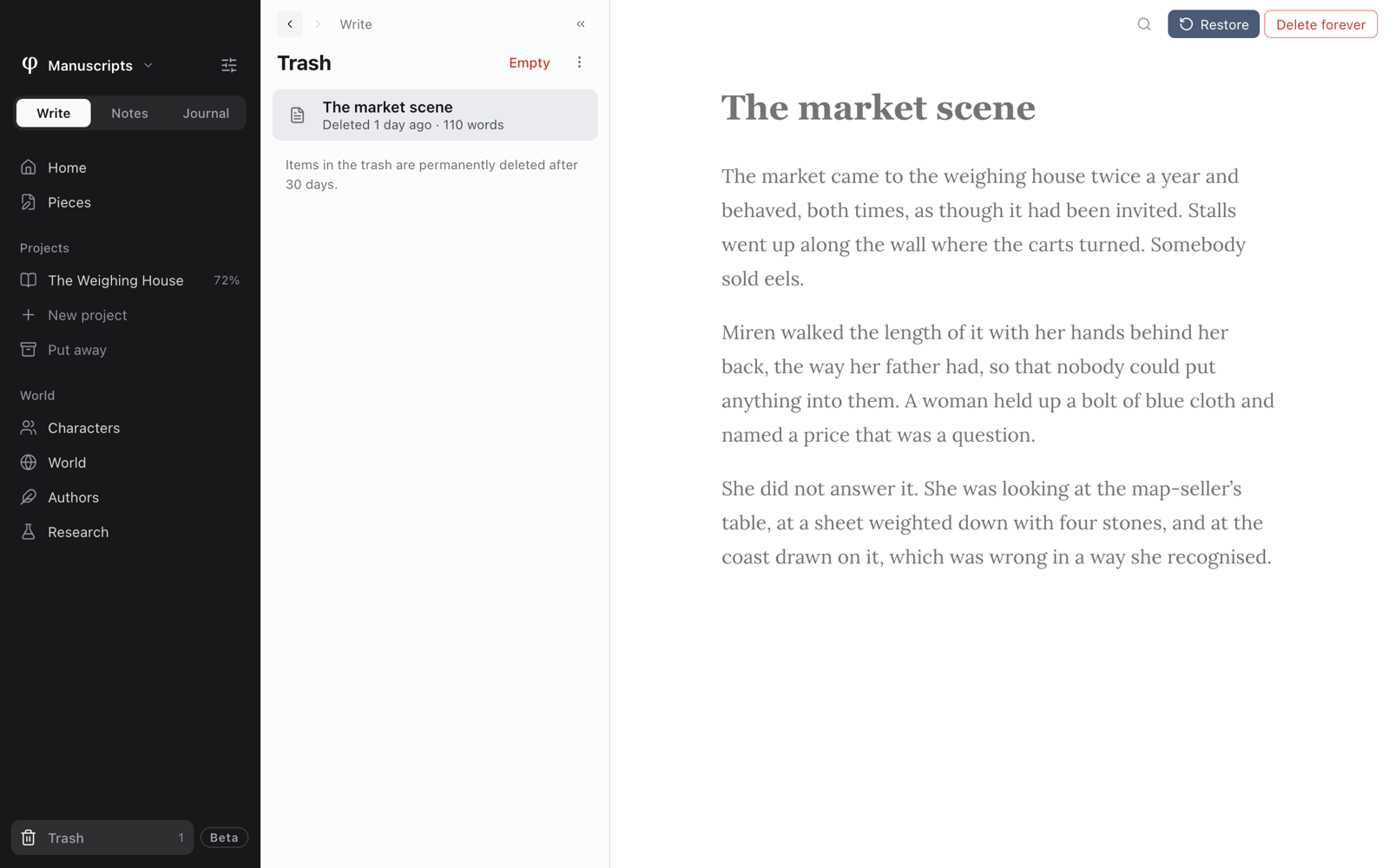
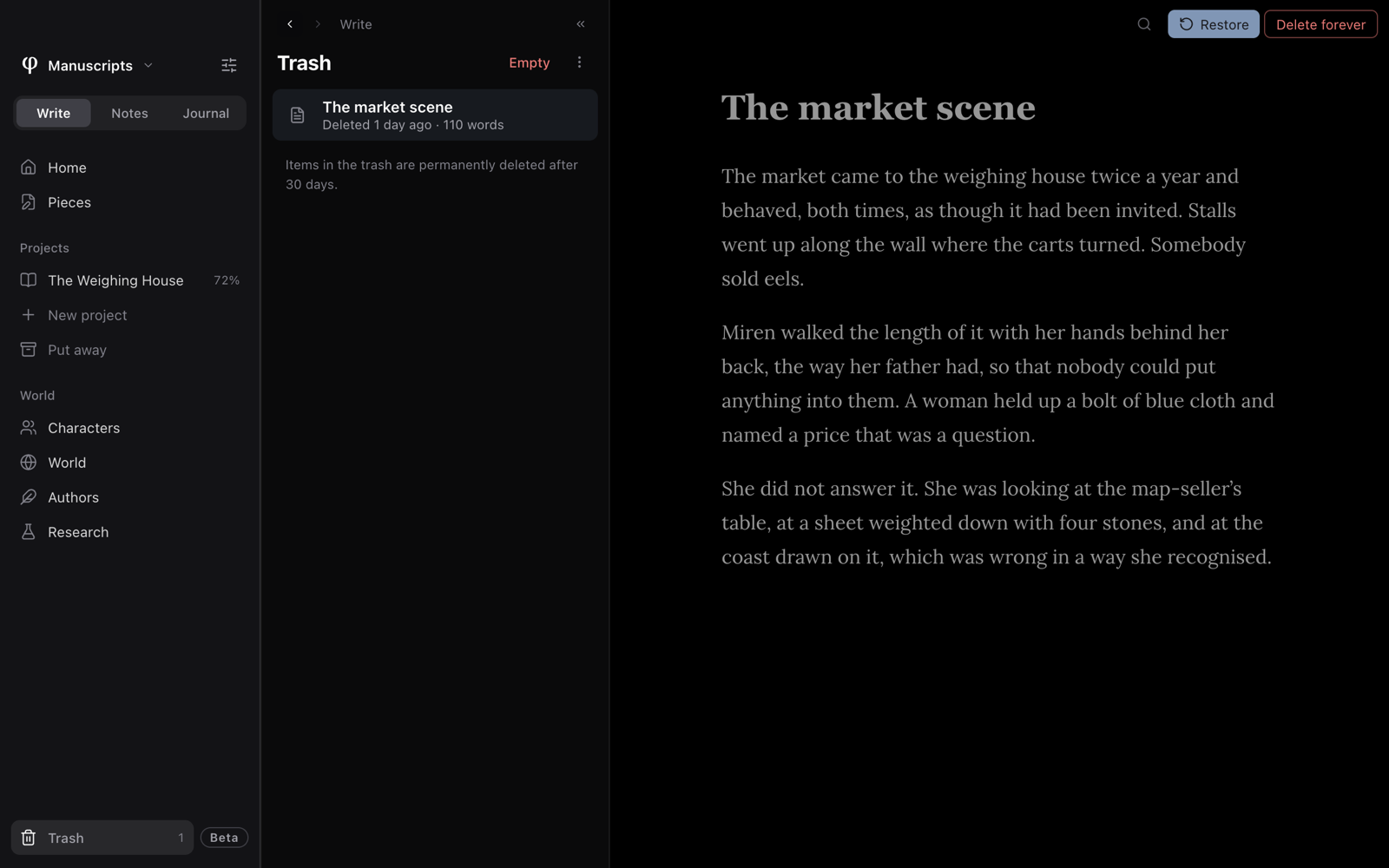
To get something back, or to remove it for good:
- Click Trash.
- Click an item to see it. A document opens read-only.
- Press Restore to put it back. Or press Delete forever to remove it now.
Empty, at the top of the trash list, removes everything, after asking you. Items in the trash are permanently deleted after 30 days.
⌘⌫ moves the open document to the trash, after asking you.
See also
- Notes & capture
- Finding your way: the sidebar, the list and the page.
- Search & replace
- Projects: organizing chapters and parts.