The calendar
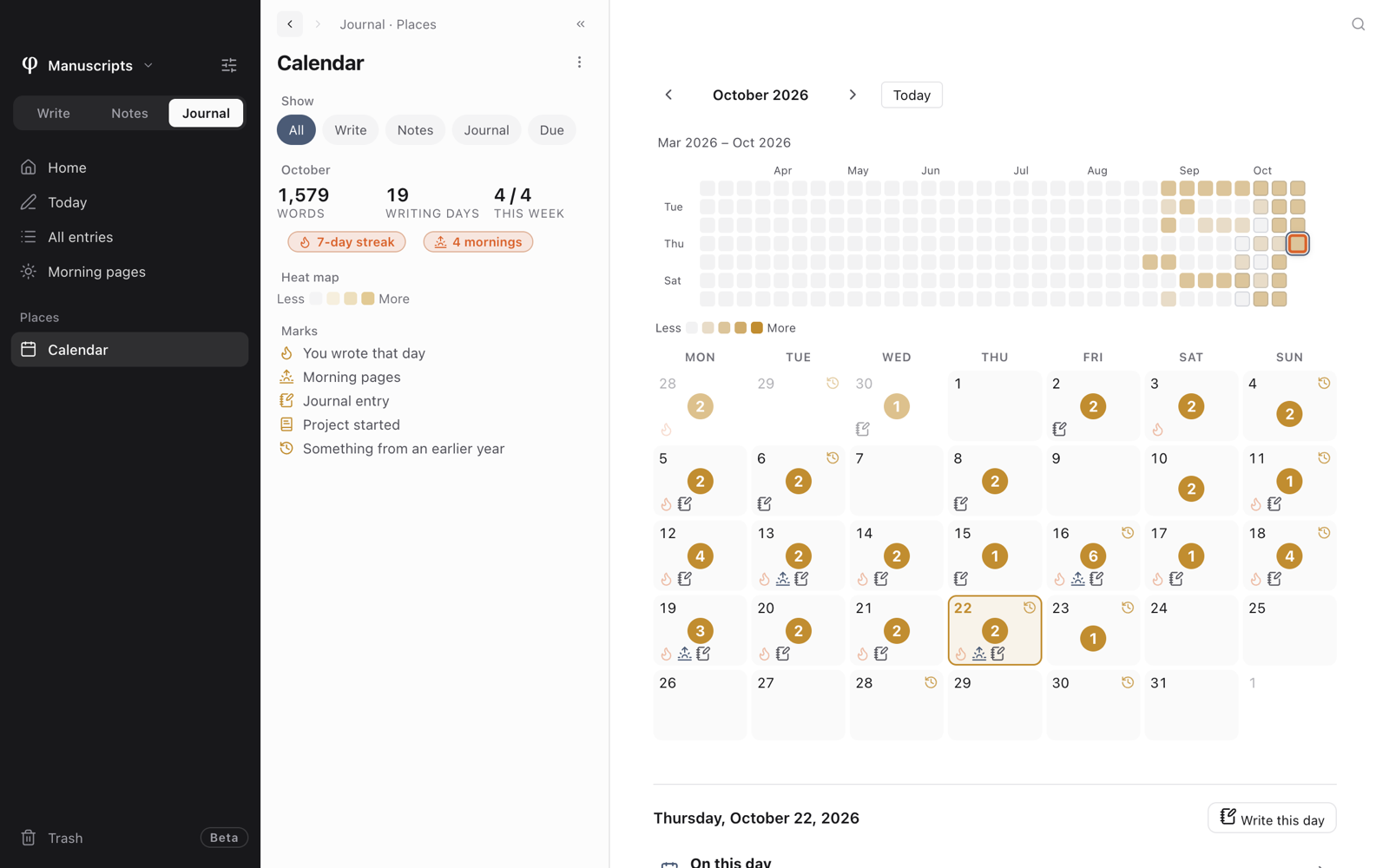
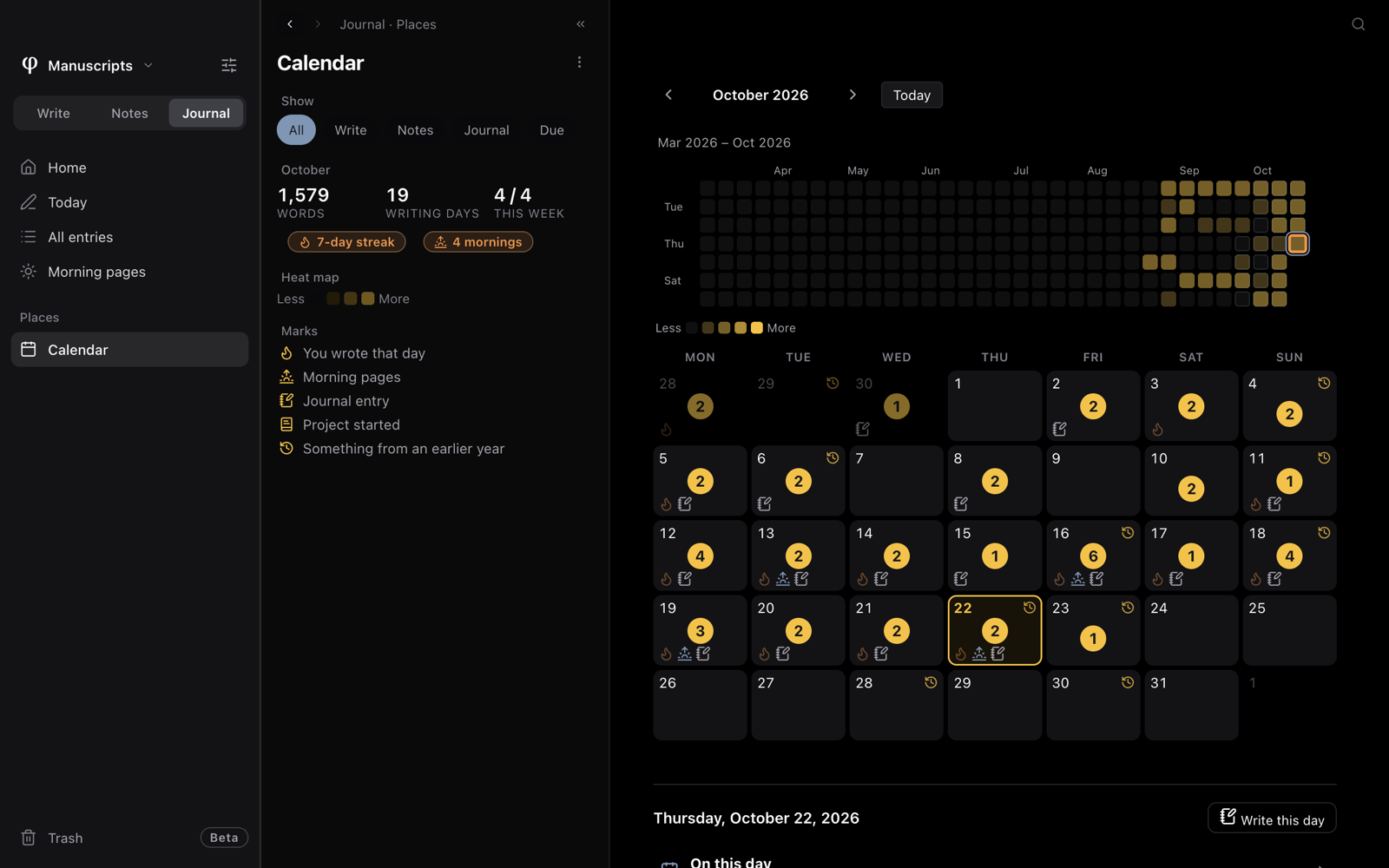
The calendar shows your writing day by day. Use it to see which days you wrote, to open what you wrote on a past day, or to write a journal entry for that day. It also shows what you made on the same date in earlier years.
Look back at a day
- Press
⌘G, thenC, in any mode. In Journal, you can also click Calendar in the sidebar. - Use the arrows beside the month's name to change the month. Today returns you to the current month.
- Click a day. Everything that belongs to that day is listed below the month grid.
- Click an item to open it. Or press Write this day to write that day's journal entry.
You can also open the calendar in these ways:
- Press
⌘Kor⌘Pand type "Calendar". - Open the ⋮ menu of the Journal list.
- Click a day in the month card on the Home of any mode. The calendar opens on that day.
Press ⌘[ to go back to where you were.
What the list beside it shows
This is the list next to the calendar (see Finding your way).
| Section | What it holds |
|---|---|
| Show | All, Write, Notes, Journal or Due. Choose one to show only the documents of that mode, or only the board cards that are due. |
| The month's name | The words you wrote this month, the number of days you wrote, and the number of days you wrote this week. Below them are your streak and, when there are any, the number of mornings with morning pages. |
| Heat map | What the shades of the heat map mean, from Less to More. |
| Marks | What each mark on the month grid means. |
Read the month
Each day on the month grid shows how many items it holds. It can also show these marks:
| Mark | Means |
|---|---|
| Flame | You wrote that day: you reached your daily word minimum. Days in your current streak are brighter and joined together. |
| Sunrise | Morning pages |
| Notebook and pen | Journal entry |
| Book | Project started |
| Clock | Something from an earlier year on this date. |
The heat map is above the month grid. It shows the past year as small squares, one square for each day. The more you wrote on a day, the darker its square.
- Today has an outline.
- The selected day is drawn larger.
- The month shown on the grid is marked on the heat map.
- In a narrow window, the heat map shows fewer months, so the squares stay the same size.
- Click a square to open that day.
- When you are in an earlier year, Back to today returns you to today.
What a selected day lists
- Projects started that day.
- Board cards due that day. Each is marked Due and shows the name of its board. Click a card to open its board.
- Journal entries, morning pages and documents. Each document has a label that says why it is listed: created that day, edited that day, or linked, when a date in its text points to that day.
Documents and journal entries open ready to edit. Morning pages open read-only, because they are not meant to be read again.
A day with nothing in it says Nothing yet — start your pages for this day.
Write on a day
- Click today or any earlier day.
- Press Write this day.
φ Poiesis opens that day's journal entry. If there is no entry yet, Poiesis makes one.
A future day cannot have a journal entry yet. You can still mention a future date in your writing.
Meet your past writing
When the selected day has something from earlier years, On this day appears above the day's list. It shows how many items there are from previous years.
- Click On this day. Each item shows the opening line of what you wrote and how long ago you made it, such as 3y ago. Milestones you reached on this date, such as a long streak, are listed too.
- Click an item to open it.
- Click All memories at the end of the list to see everything from this day and this week in earlier years.
Go to Settings (⌘,) → Setup → Streak and choose Flame and
count, Plain days or Off. With Off, the flames are hidden but
the heat map stays. Week starts on is in the same place. It sets the
first column of the month grid and of the heat map.
See also
- Journal & morning pages: entries, morning pages and how the streak is counted.
- Boards: cards with due dates.
- Memories & celebrations: your past writing on each Home, and your year in writing.
- Finding your way