Your first vault
A vault is a folder on your computer that holds your writing: every document, the pictures in your documents, and the history of your changes. φ Poiesis asks you for a vault the first time it opens. After that, you can start writing.
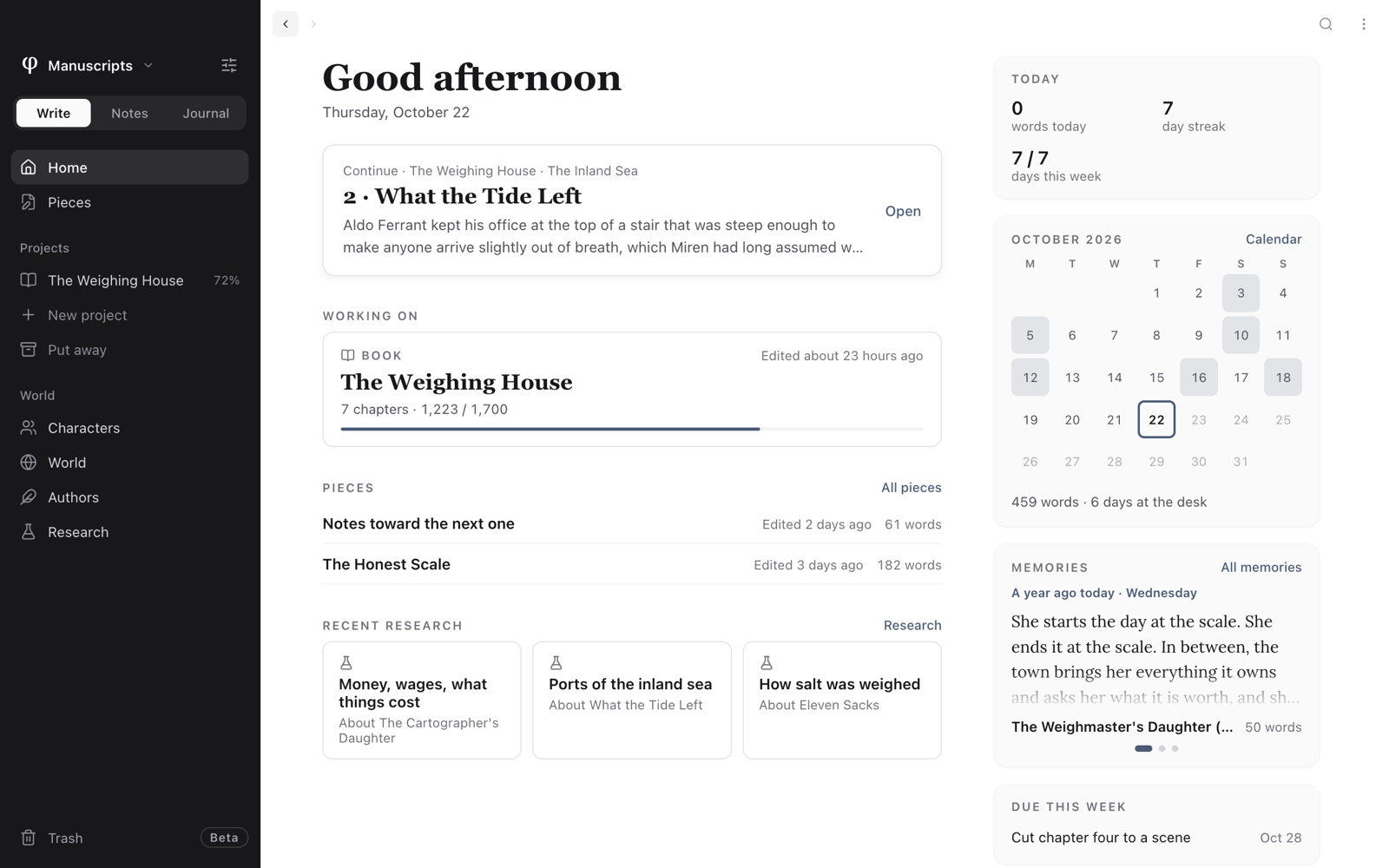
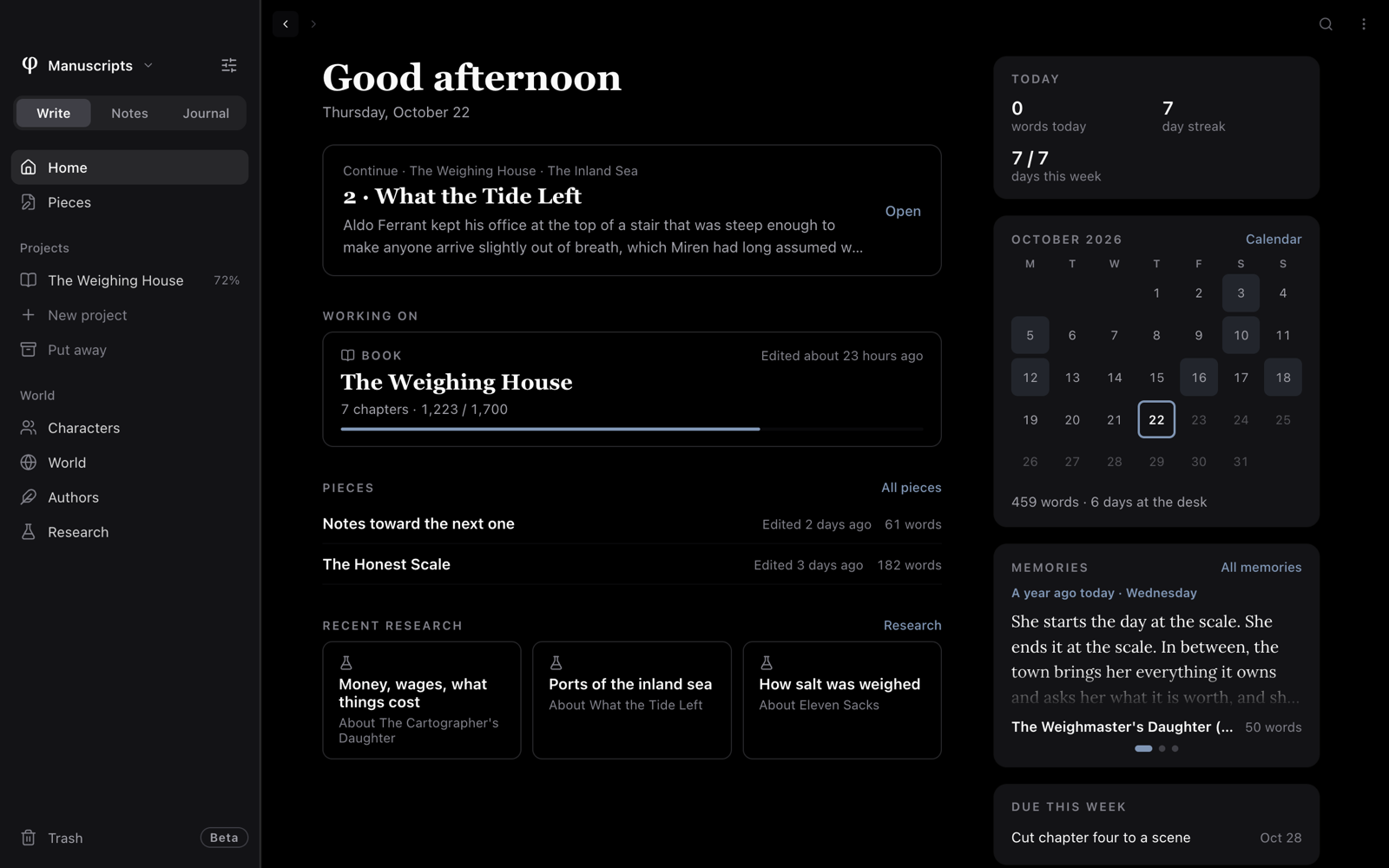
Create your first vault
- Open Poiesis. The Welcome screen offers Create a vault and Open a folder.
- Choose Create a vault. Your system's folder picker opens.
- Pick a folder, or make a new one, such as
Documents/Writing. - If macOS asks whether Poiesis may use files in that folder, click Allow.
Poiesis opens the vault on the Home screen of Write, the mode for your manuscripts.
To use a folder you already have, choose Open a folder instead. The steps are the same.
- If the folder is already a vault, Poiesis opens it as it is.
- If it is any other folder, Poiesis makes it a vault. Poiesis adds the files it needs and does not change the files that are already there.
What's in a new vault
A new vault has two documents to start from:
- Welcome to φ is a short guide. It is under Pieces in Write.
- The Grey Morning is a sample project. It has two chapters, a cover, an epigraph, footnotes and a scene break. Open it from Projects in the sidebar. Then click Export under it to see how Poiesis lays out a book.
You can read them, keep them, or move them to the Trash at any time.
If Poiesis can't see your folder
φ can't read this folder. macOS asks once whether Poiesis may use a vault that is in Documents, Desktop, Downloads or iCloud Drive. If the answer was no, Poiesis shows this message. It does not show an empty vault. To fix it:
- Click Allow access….
- Choose the vault's folder.
Your documents appear again. You can also give access in System Settings → Privacy & Security → Files and Folders.
This folder isn't there any more. Poiesis shows this message when the folder was moved or renamed, or when it is on a drive that isn't connected.
Write your first page
- In Write, choose Pieces in the sidebar. A piece is writing that is not in a project.
- Click the + at the top of the list (New piece), or press
⌘N. - Type a title.
- Click the page below the title and write.
There is no save button. Poiesis saves as you type. To save at once, press ⌘S.
⌘N (File → New Document) makes a different kind of document in each
part of Poiesis:
| Where you are | What ⌘N makes |
|---|---|
| In a project | A new chapter (or poem, or essay, depending on the kind of project) at the end |
| Anywhere else in Write | A new piece |
| In Notes | A new note, in the folder you're looking at |
| In Journal | A new note, in Notes |
Try a few things
- Select some text. The formatting toolbar appears: bold, italic, underline, heading, link, Highlight & comment and Comment (no highlight). More tools, at the end of the toolbar, opens the other tools, including Look up word. See The editor.
- Type
/at the start of a line. The block menu opens: headings, lists, quotes, scene breaks, epigraphs and more. See Formatting & blocks. - Type
[[to link to another document by its name. See Links & the graph. - Start a project. Click New project under Projects in the sidebar. See Projects.
Open another vault
You can have several vaults, for example one for each book.
- Click the vault's name at the top of the sidebar. A menu lists your vaults.
- Choose a vault, Open another vault… or New vault….
From the keyboard, press ⌥⌘O (File → Switch Vault…). See
Vaults.
A vault is an ordinary folder. Any backup you already use protects it: Time Machine, a synced folder, or a copy on an external drive.