Focus & Sanctuary
Sanctuary hides everything in φ Poiesis except the page, so nothing distracts you while you write. This page also explains three smaller tools: typewriter scrolling, focus typing and read mode, and the two ways Poiesis times your writing: sessions and sprints.
Go into Sanctuary
- Open the document you want to write in.
- Press
⌘., or click Sanctuary at the top right of the page. - Write.
- Press
Escor⌘.to leave Sanctuary.
You can also find Sanctuary in the View menu, in the document's ⋮
menu and in the command palette (⌘P).
Sanctuary works for a document and for the graph.
While you're in Sanctuary
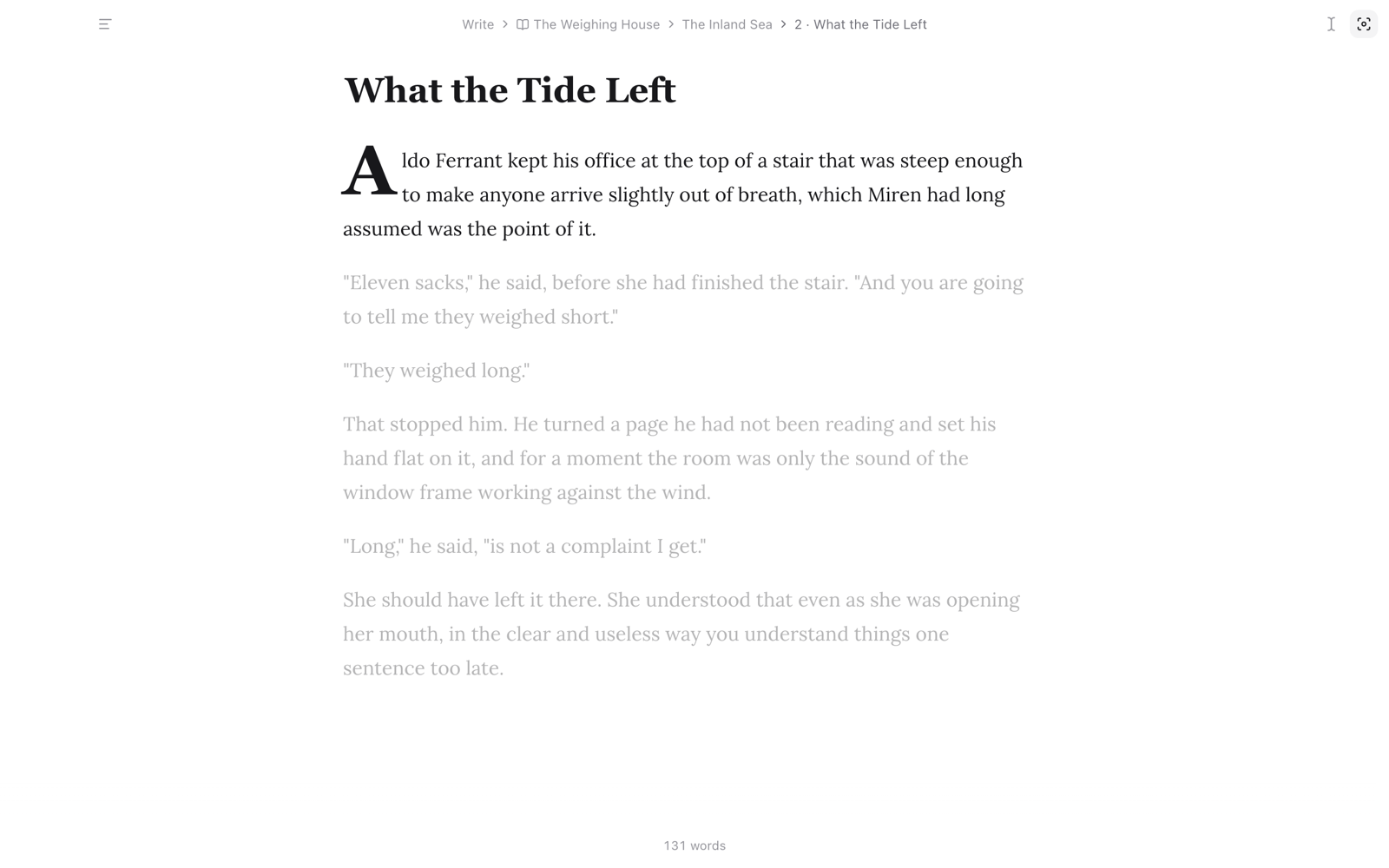
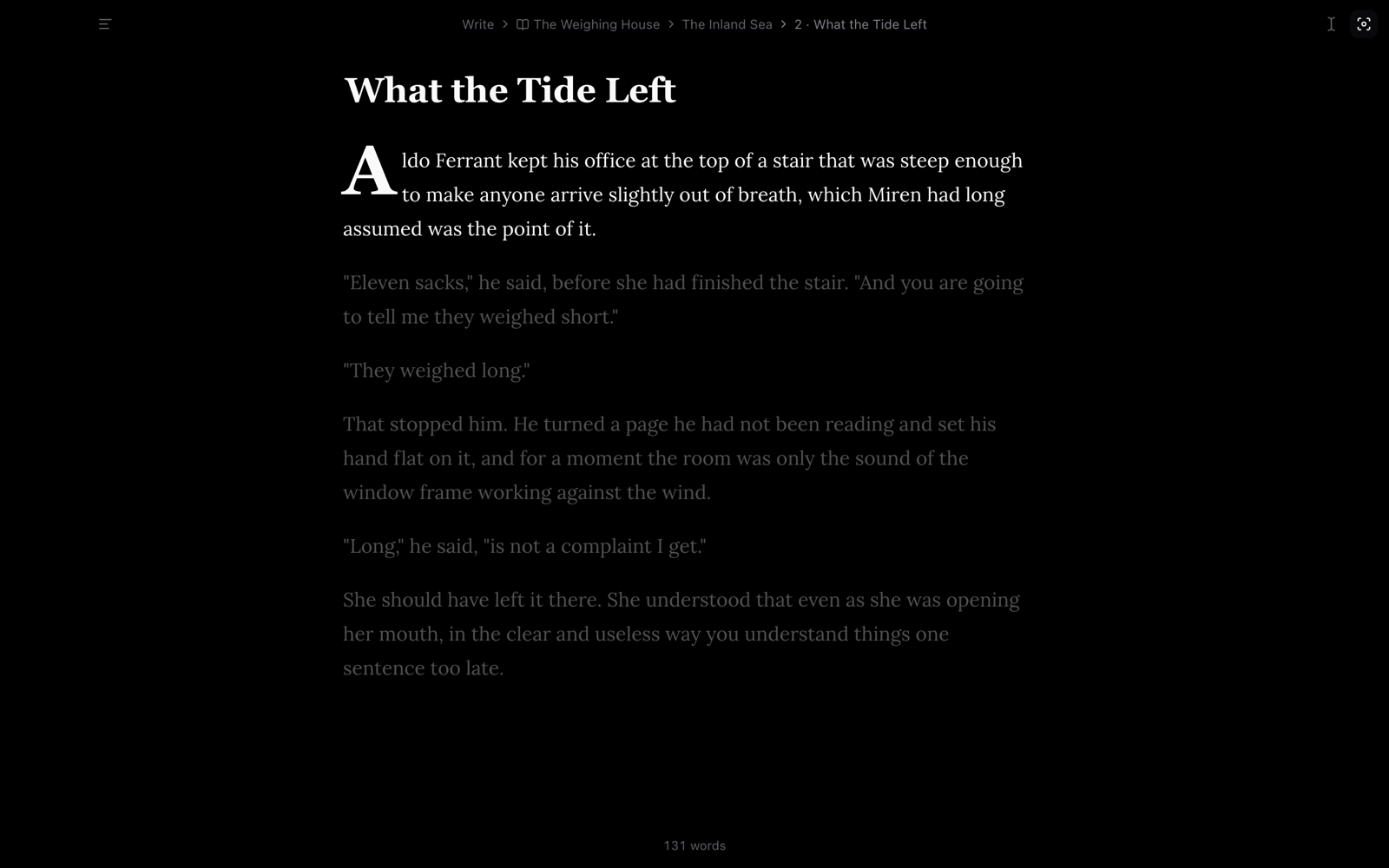
Sanctuary hides the sidebar, the list, the Info panel and the buttons. This is what you see:
- The sentence you are writing is at full strength. The rest of the text is dimmed. If Focus typing is set to Paragraph, the whole paragraph is at full strength. To stop the dimming, turn off Settings → Appearance → Sanctuary dims the rest.
- A line at the top shows where the document is kept. It shows the mode, then the project, part and chapter, or the folder. Click one of these to go there. This leaves Sanctuary, and the document stays open.
- The word count is at the bottom centre. If the document has a word goal, the count is shown next to the goal.
- Typewriter scrolling has a button at the top right.
To show everything again, click ☰ at the top left (Show writing tools).
Sanctuary does not make the window full screen. If you also want full screen, choose the full-screen item in the View menu.
Sanctuary ends by itself when you open a page that is not a document, such as the calendar or a board.
When you have documents side by side, Sanctuary keeps the panes. The dimming and typewriter scrolling apply only to the pane you are writing in.
Keep your line in the middle
Typewriter scrolling keeps the line you are writing in the middle of the window. The text moves up as you write, so you do not need to move your eyes down the page.
You can turn it on or off in five places:
- Press
⇧⌘T. - Choose View → Typewriter Scrolling.
- Choose Typewriter scrolling in the document's ⋮ menu.
- Click its button in Sanctuary.
- Open Settings → Editor → Typewriter scrolling.
Dim what you're not writing
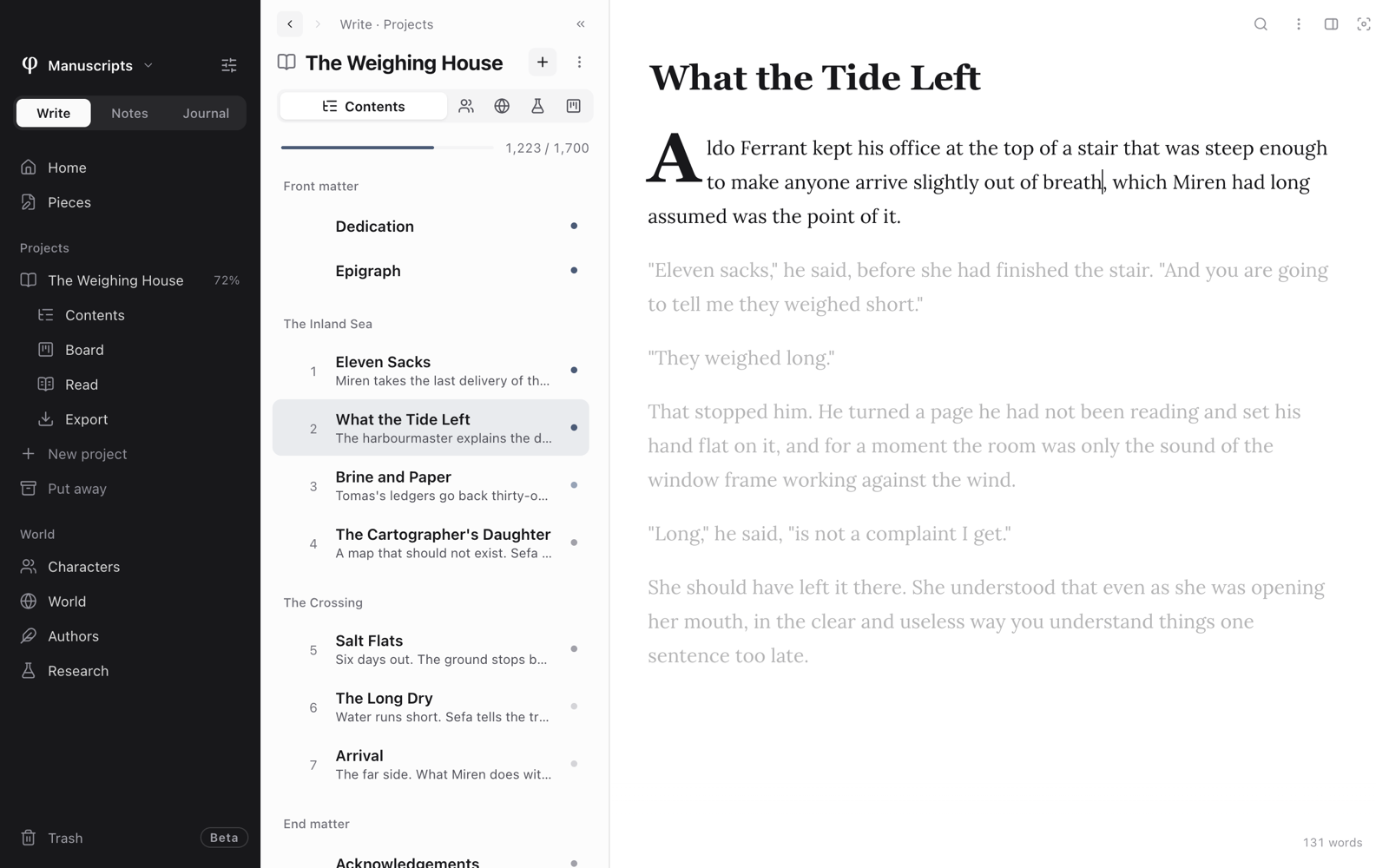
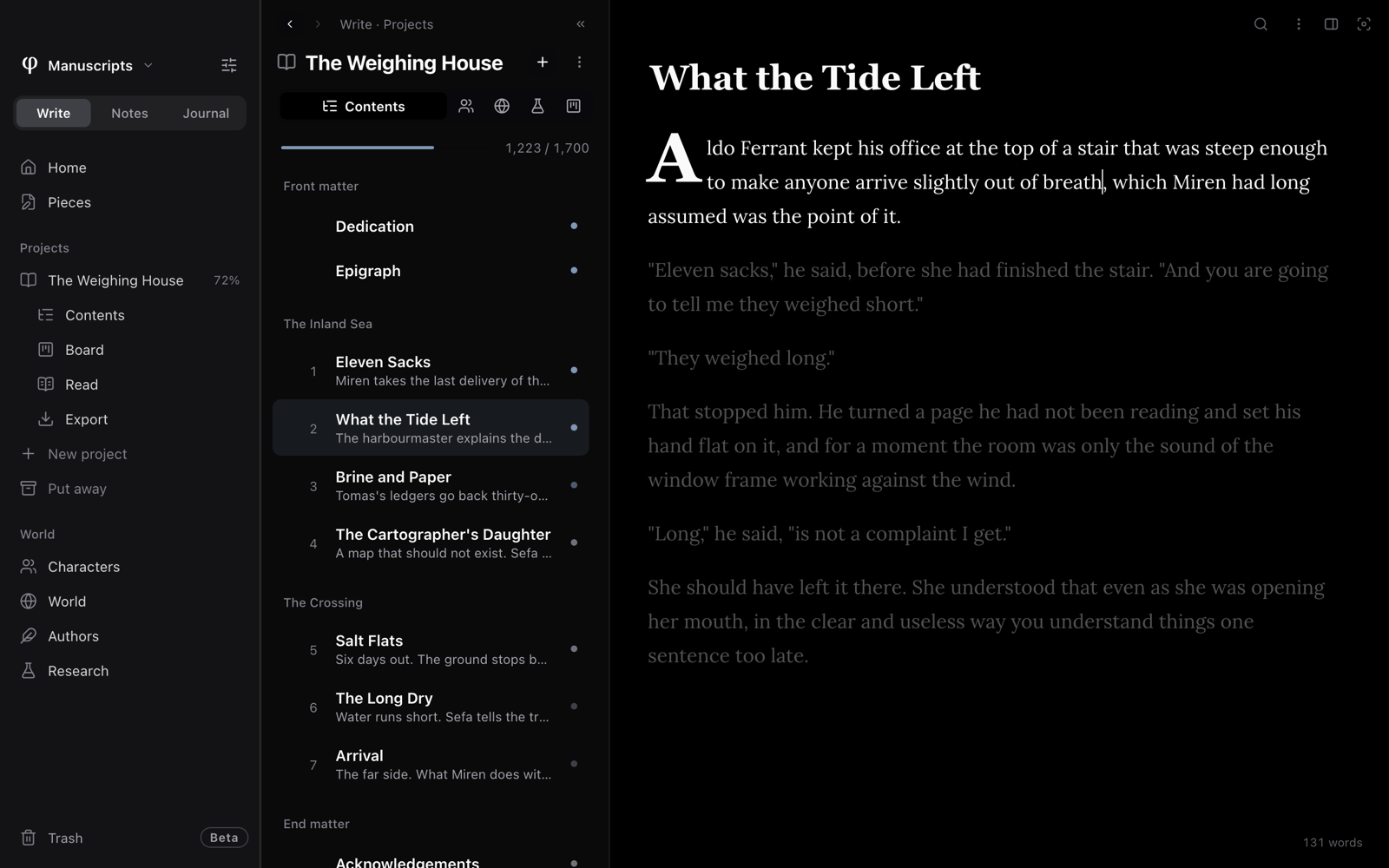
Focus typing dims all the text except the part you are writing. It works in Sanctuary and outside it.
| Setting | What stays at full strength |
|---|---|
| Sentence | The sentence you are in. |
| Paragraph | The paragraph you are in. |
| Off | Everything. (Sanctuary still dims everything except the sentence, unless you turned that off.) |
A line of dialogue belongs to the sentence around it: in "Are you sure?" he said. or She said, "I went home. It was late." the whole sentence
stays lit, not just the words up to the question mark. In Spanish, a
paragraph that opens with a dash is one turn of speech, the narrator's
aside included.
You can set it in three places:
- Choose View → Focus Typing.
- Open Settings → Editor → Focus typing.
- Choose Cycle focus typing in the command palette. Each time, it changes to the next of the three settings.
Read without editing
In Read mode you can read the document but not change it. Use it to read a draft without typing in it by accident.
You can turn it on or off in four places:
- Press
⌘E. - Choose View → Reading Mode.
- Choose Read mode in the document's ⋮ menu.
- Choose Toggle reading mode in the command palette.
Your writing sessions
A writing session is one period of writing. Poiesis measures your sessions for you.
- A session starts when you press the first key.
- It counts the words you add. Deleting words does not lower the count, so a session of revising still shows your work.
- It counts only the time you are writing. It pauses after one minute without typing, when you switch to another app, when you leave the page, and in read mode. It continues when you type again.
- It ends after twenty minutes without a new word.
You can see your sessions in two places:
- Write's Home shows the minutes of the current session on its Today card.
- The document's statistics show your Longest session and Best session words. To open the statistics, click the word count and choose Statistics….
To start and end sessions yourself:
- Open Settings → Setup and turn off Start sessions automatically.
- Open the command palette and choose Start writing session.
- When you finish, choose End writing session in the command palette.
Only the words you type count. Opening a document during a session does not count the words already in it.
Write against the clock
A writing sprint is a set time to write as much as you can, with a word target if you want one.
- Press
⌘Pand choose Start a writing sprint…. You don't need a document open. You can also click the word count in the page's corner and choose Start a writing sprint…. - Choose a Length: 10, 15, 25, 45 or 60 minutes, or type any length up to three hours.
- If you want one, type a Word target.
- If you want, turn on No deleting.
- Click Start sprint.
The clock runs in the bottom-left corner of the page. It shows the time left, your words and how close you are to the target.
- Every word you add counts, in whichever documents you move between. Deleting words takes none back.
- With No deleting on,
Backspace,Delete, Cut and Undo do nothing until the sprint ends. Typing or pasting over a selection adds the new words after it instead of replacing it. - To stop early, click the clock. Poiesis asks first. The words you wrote so far are kept and counted.
When the time is up, Poiesis shows what the sprint came to: your words, whether you reached your target, and your pace in words a minute. Click Another sprint… to start again. Poiesis remembers the length and the target for next time.