The editor
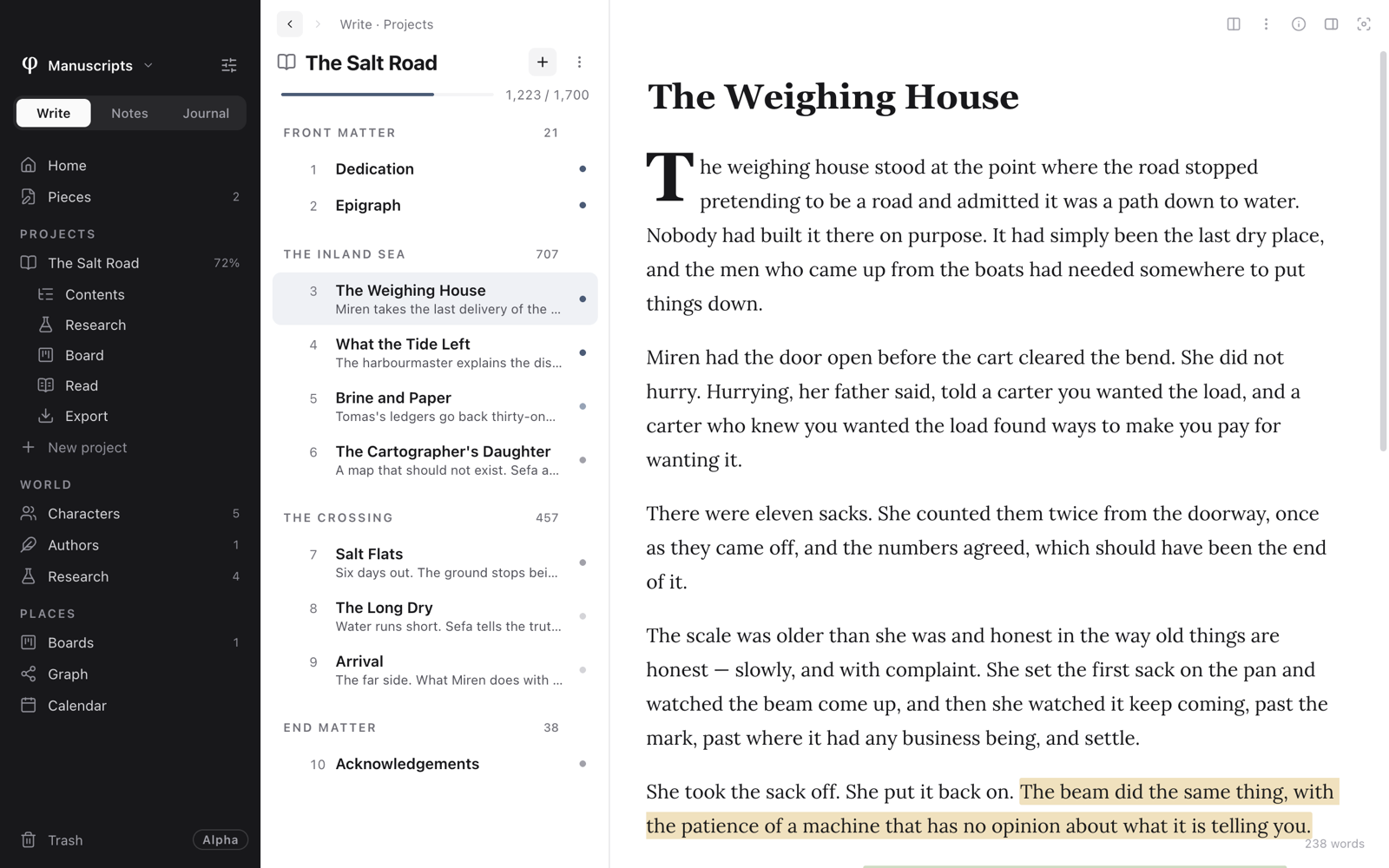
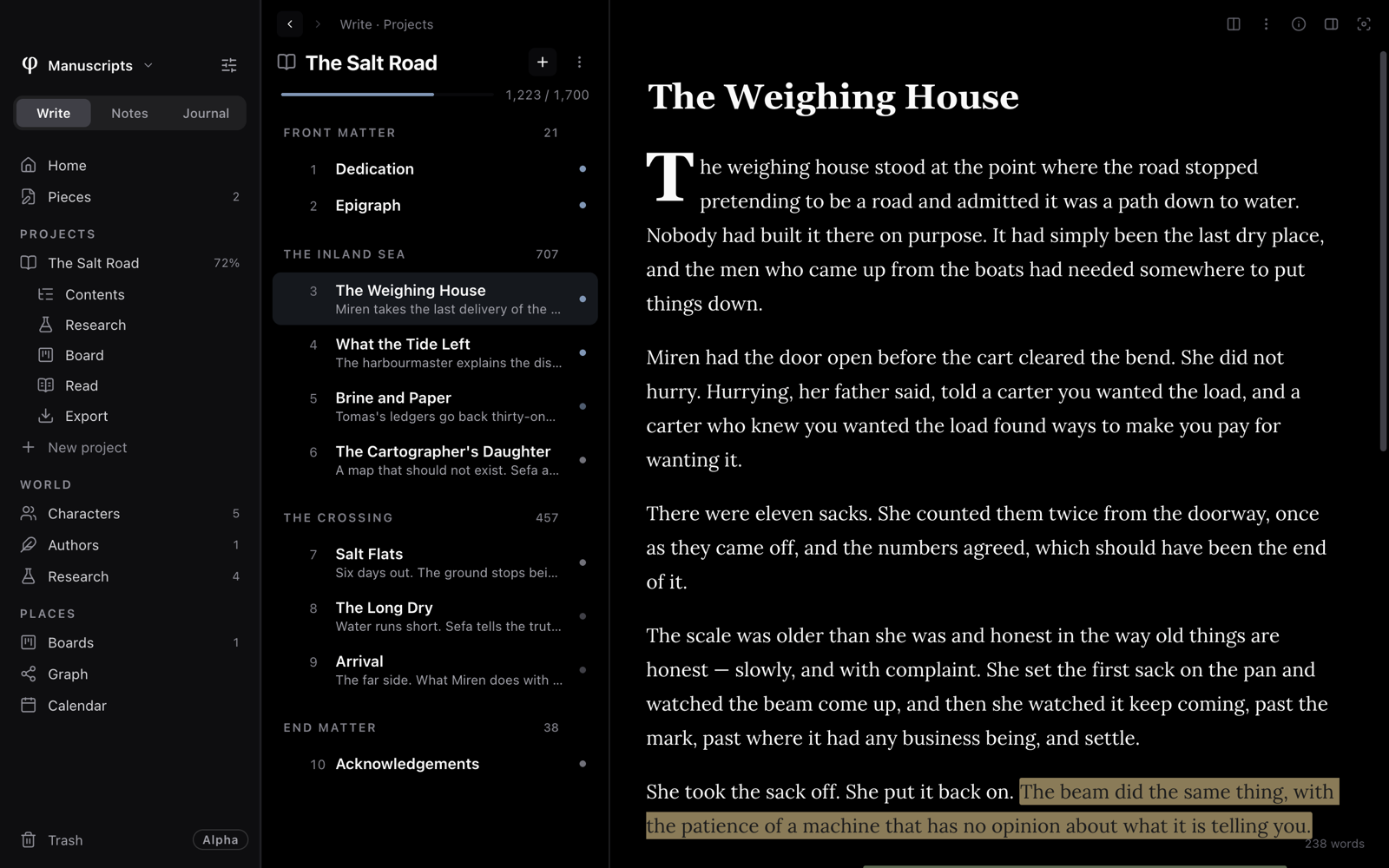
The editor is the page where you write. It shows a title, your text, and a few buttons. Everything else about a document is in its menus and in its Info panel.
Write something
- Press
⌘Nto make a new document, or click a document in the list. - Type a title at the top. The title is the document's name in the list, in search and in links.
- Write your text below the title. φ Poiesis saves it for you.
- Type
/on an empty line to add a heading, a list, a quote or another block. - Select some words to show the toolbar. It has bold, italic, link, highlight and comment.
As you type, Poiesis corrects your punctuation. Straight quotes become curly quotes, two hyphens become a dash, and three dots become an ellipsis.
The buttons above the page
These buttons are at the top right of the page:
| Button | What it does |
|---|---|
| Search… | Finds a document anywhere in the vault (⌘K). It rests as a magnifier and opens into the field when you point at it. |
| ⋮ | Opens the document's menu, described below. |
Info (⌘⇧I) | Opens the Info panel. Its tabs are icons, with the one you are on named: Outline, Links, Notes, Tasks and History. A Write document also has World. Point at an icon to see its name. |
Sanctuary (⌘.) | Hides everything except the page. See Focus & Sanctuary. |
Split view (⌘\) and Details… are in the ⋮ menu. While you are in
one of them, its button also shows in the bar, as the way back.
While you type, these buttons dim. They don't disappear, and the list's header and the word count stay as they are.
The word count is in the bottom-right corner of the page. If the document has a word goal, the count is shown next to the goal. Click the word count to open a small menu:
- Info opens the Info panel on its Outline tab.
- Statistics… shows all the document's statistics.
- Start a writing sprint… starts a writing sprint. It is there while no sprint is running.
Notes do not show a word count.
Saving
You do not need to save. Poiesis saves a moment after you stop typing.
Poiesis saves carefully. It writes each save to a temporary file, reads the file back to check it, and only then replaces the document. If the app crashes or the disk is full, your document is not left half-written.
- Press
⌘Sto save immediately. This also records a version that you can return to later. - Choose Save version… (
⌘⇧S) to give the version a name.
See Versions & backup.
Format a selection
Select some text. A small toolbar appears above it, with these buttons:
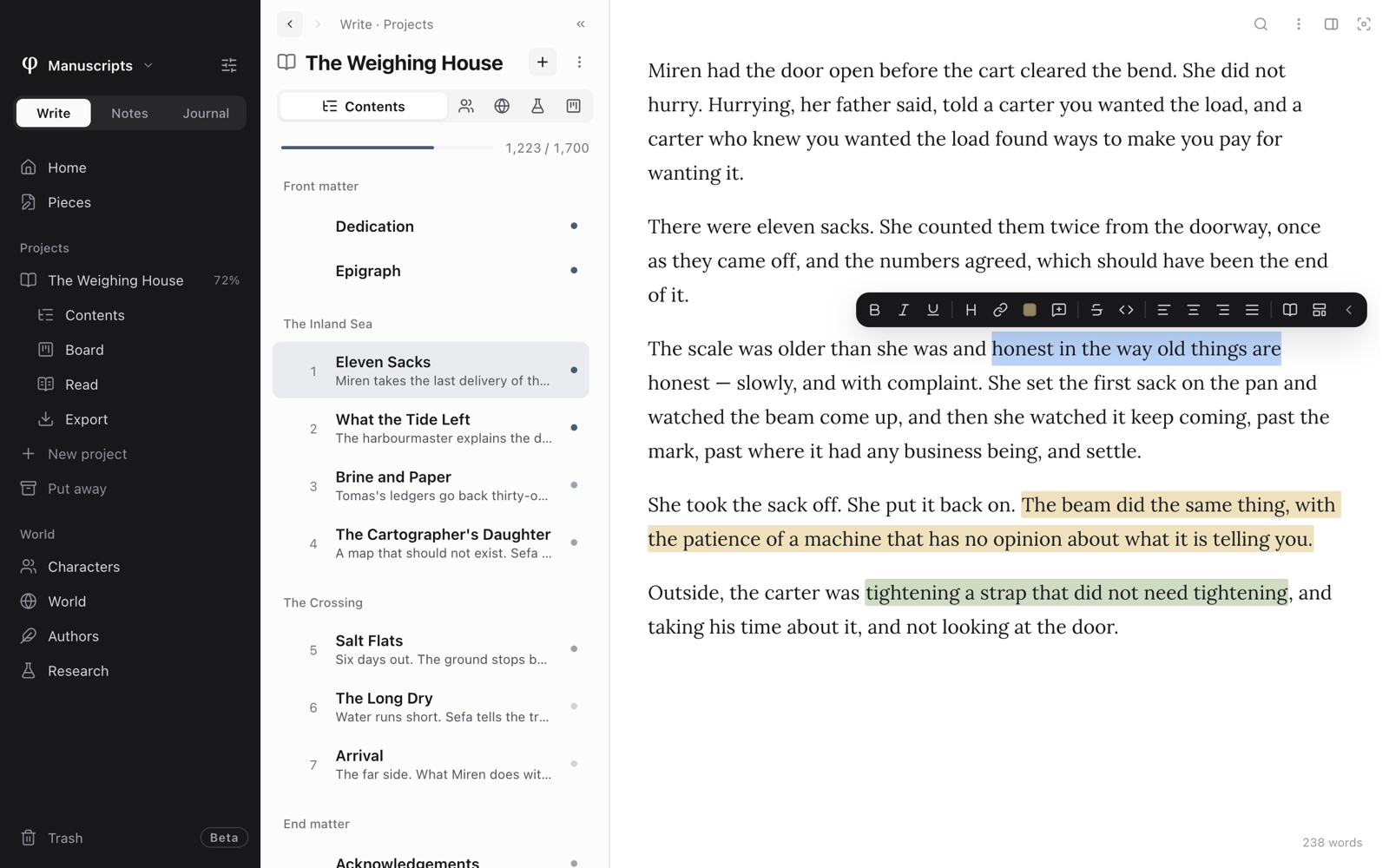
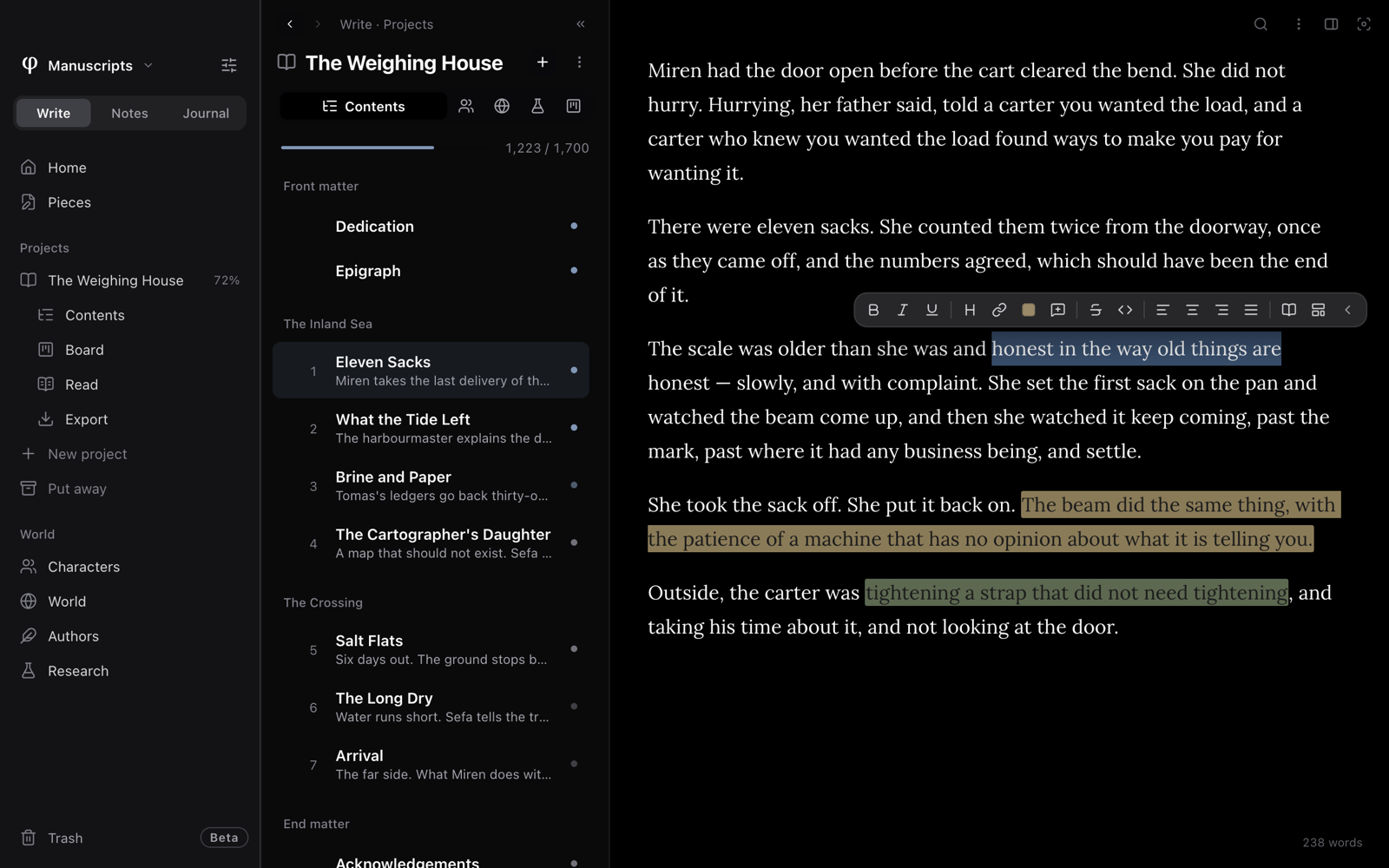
- Bold (
⌘B), Italic (⌘I) and Underline (⌘U). - Heading: changes the line to a heading, or back to normal text.
- Link: asks for a web address.
- Highlight & comment (the colour swatch): choose a colour, a Custom colour, or Remove highlight.
- Comment (no highlight): adds a comment to the words without colouring them.
Click More tools (› at the end of the toolbar) for the other tools: Strikethrough, Inline code, Align left, Align center, Align right, Justify, Look up word (opens the dictionary) and Save selection as template….
Poiesis keeps highlights and comments as annotations.
Press Esc to hide the toolbar. The toolbar does not appear in read mode or
on morning pages.
Insert a block
A block is a piece of the page that is not plain text, such as a heading, a quote, a table or a picture.
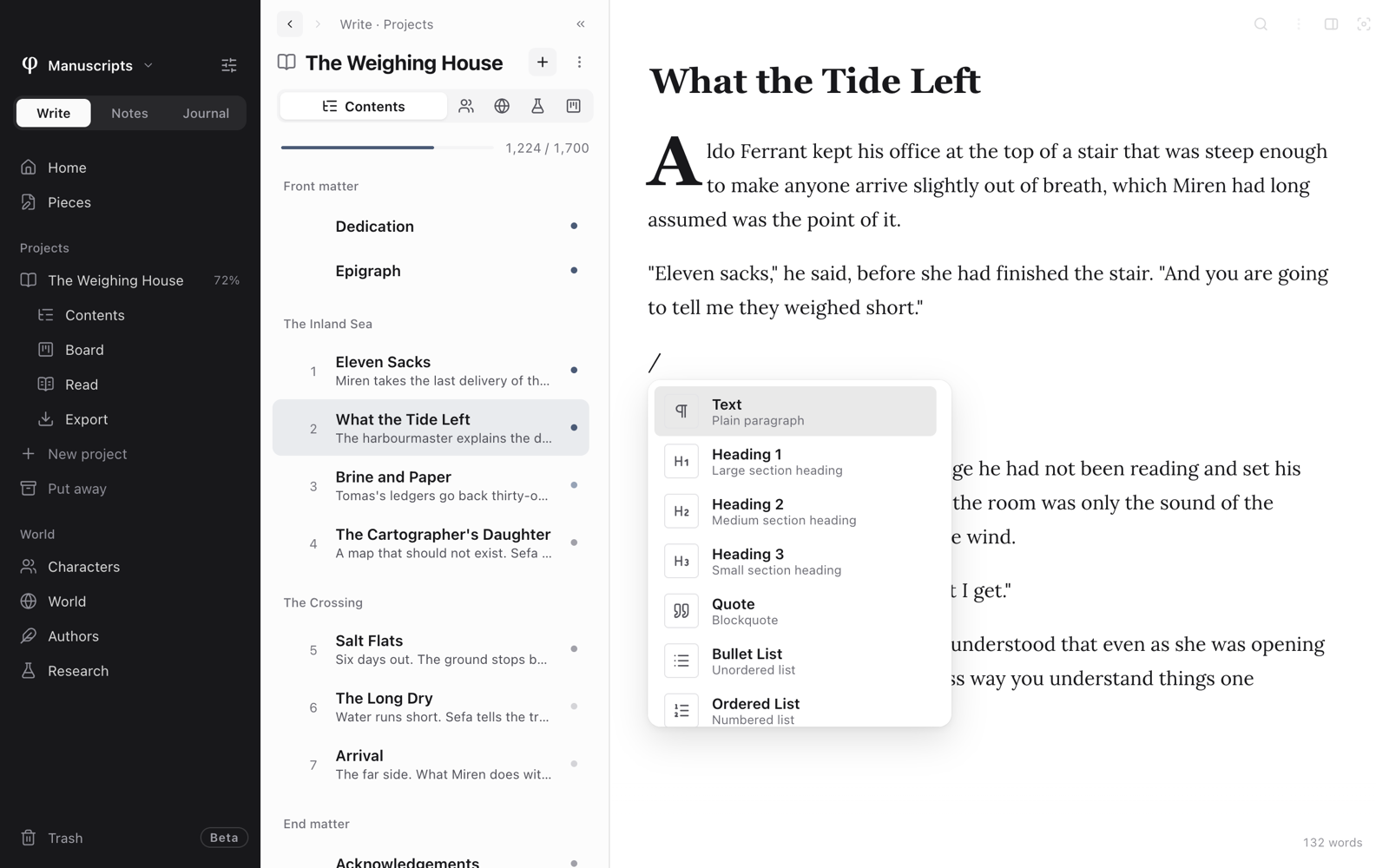
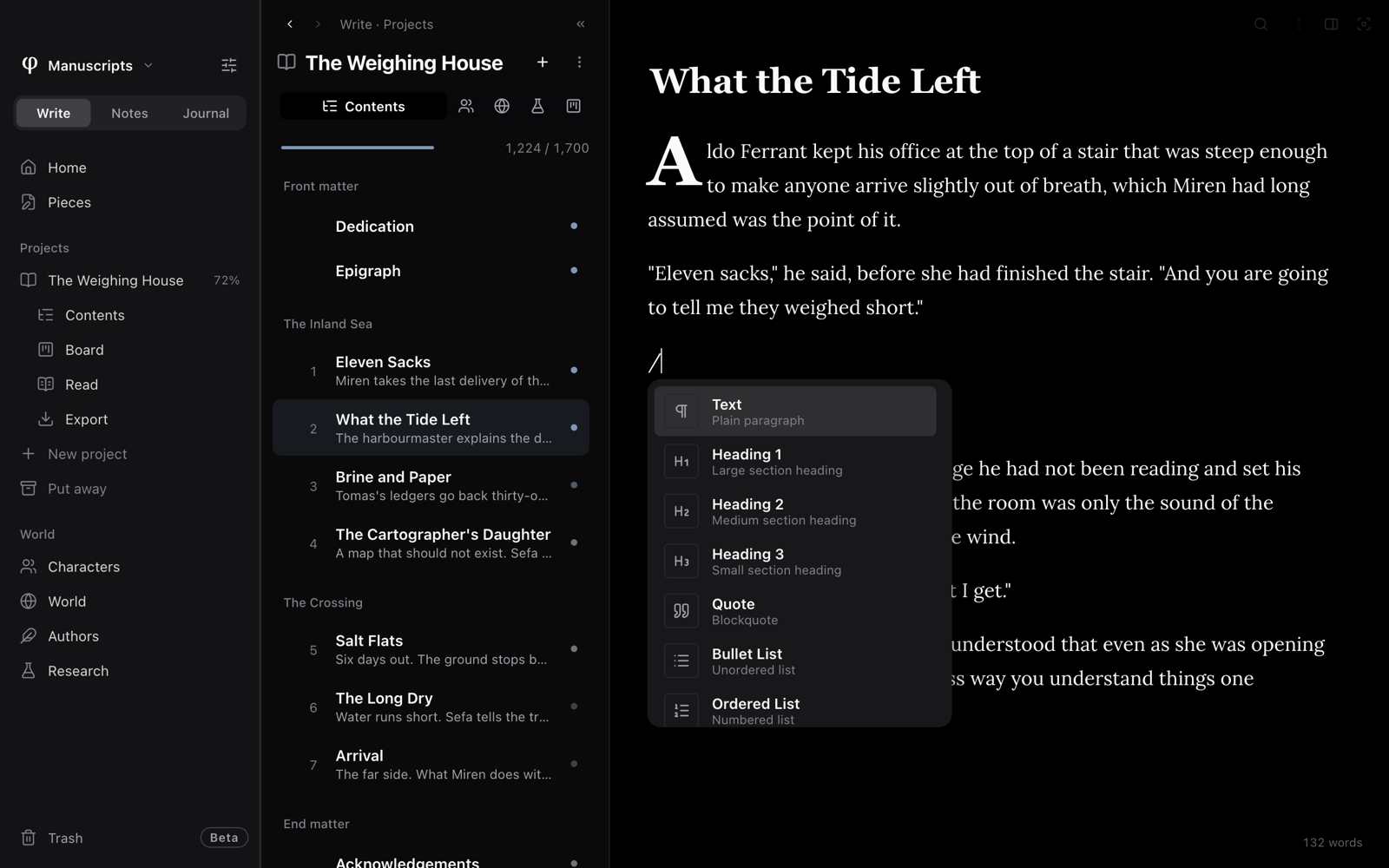
- Type
/. A menu of blocks opens. - Type one word to shorten the menu, for example
/heading,/quote,/table,/image,/date,/scene,/verseor/footnote. Do not type a space, because a space closes the menu. - Press
Enter.
Your own templates are also in the menu, under their names.
You can also use the mouse. Point at the left edge of a line and click the + that appears (Insert block below (/)).
The menu changes with the kind of document you are in:
| Where | What the menu offers |
|---|---|
| A chapter, poem or essay in a project, or a piece in Write | Everything, including Scene break, Epigraph, Pull-quote, Drop cap, Footnote, Citation, Bibliography and Table of contents. |
| A note | Everything except those manuscript blocks. Verse, toggles and math are still there. |
| A journal entry | Headings, lists, quotes, verse, pictures, dates, toggles and math. No callouts, tables, code or manuscript blocks. |
| Morning pages | No menu. Morning pages are text only. |
A project is a book or other long work made of several documents.
The menu offers checklists (Task List) in Notes and on research pages. To have checklists in another mode, open Settings → Setup → Modes and turn on Checklists for that mode.
A block that is already in a document always shows, even if the menu in that document does not offer it.
Formatting & blocks lists every block and how to insert it.
The document's ⋮ menu
Click ⋮ above the page. This menu has the commands for the whole document:
- Star, Add to board… and Set word goal.
- Move to Write's pieces or Move to Notes. These appear for a document that is not in a project.
- Details…, Split view and Open beside….
- Save version… and Open dictionary (
⌘⇧D). - Read mode, Typewriter scrolling, Sanctuary and Check spelling….
- Every format you can export the document to.
- Save a Copy (
.poiesiswith images)… and Move to vault…. A vault is the folder where Poiesis keeps your documents. - Move to trash.
On a morning page, the menu has Seal day in place of Star and Add to board….
The document's outline, links, notes and versions are not in this menu.
Open them from the tabs of the Info panel (⌘⇧I).
There is a second menu. Right-click in the text to see spelling suggestions, synonyms, and cut, copy and paste.
Move between documents
Poiesis has no tabs. You can open a document in three ways:
- Click it in the list.
- Click a link to it.
- Press
⌘K. The documents you have open are listed under Open now.
| To | Do this |
|---|---|
| Make a new document | ⌘N |
| Close the document | ⌘W |
| Go back or forward | ‹ › at the top of the list, ⌘[ and ⌘], or the mouse's side buttons |
| Open the one above or below in the list | ⌥⌘← and ⌥⌘→ |
Read without editing
In Read mode you can read the document but not change it. Use it to read a draft without typing in it by accident.
- Press
⌘E, or choose View → Reading Mode, to turn read mode on. - Press
⌘Eagain to go back to writing.
In read mode, click a link to follow it. While you are editing, hold ⌘
and click the link.