Projects
A project is one work made of several documents in a fixed order: a novel, a book of poems, a set of essays. The project keeps the order, the parts, the numbering, the cover and the word goal. A project is also what φ Poiesis exports as a book.
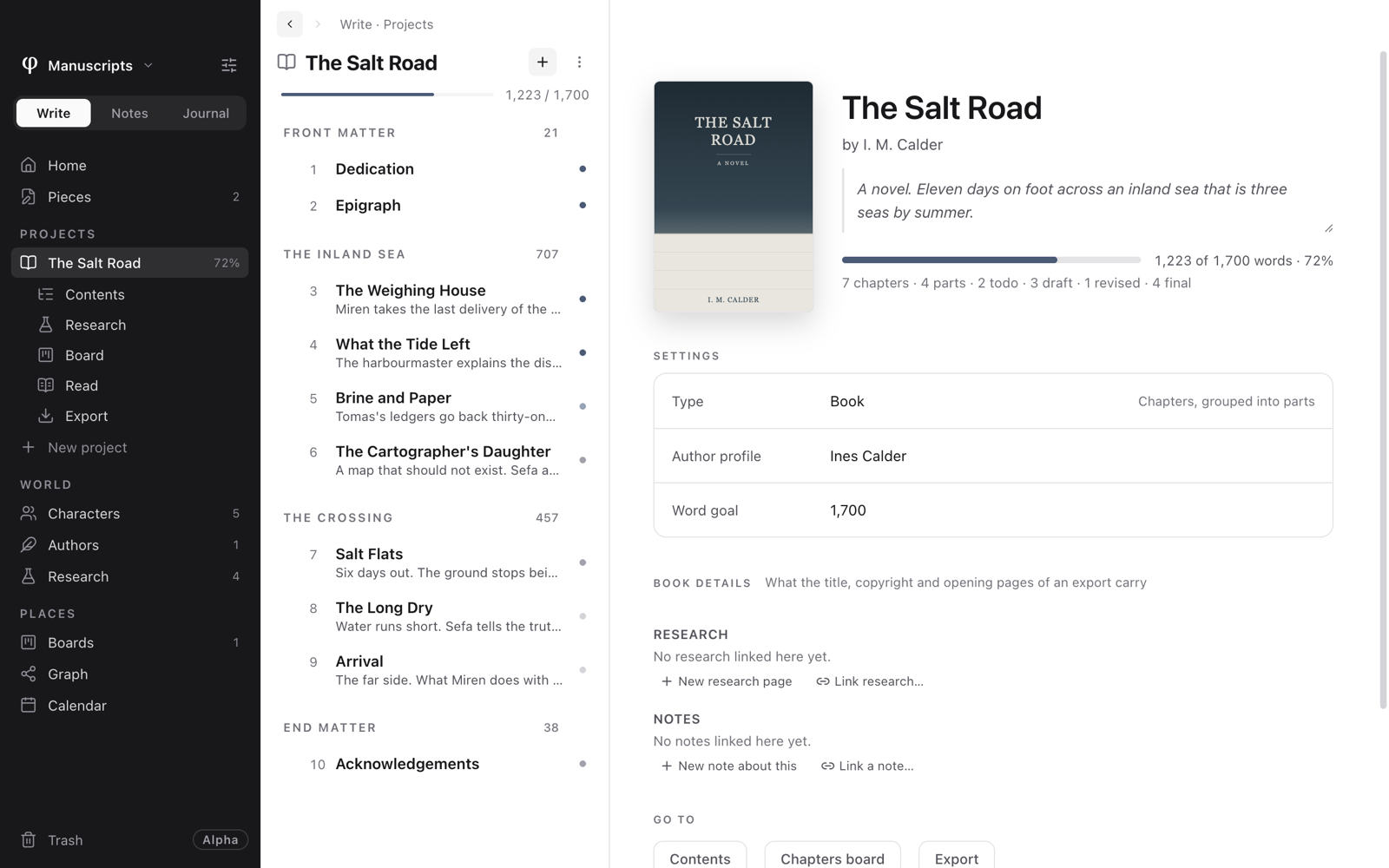
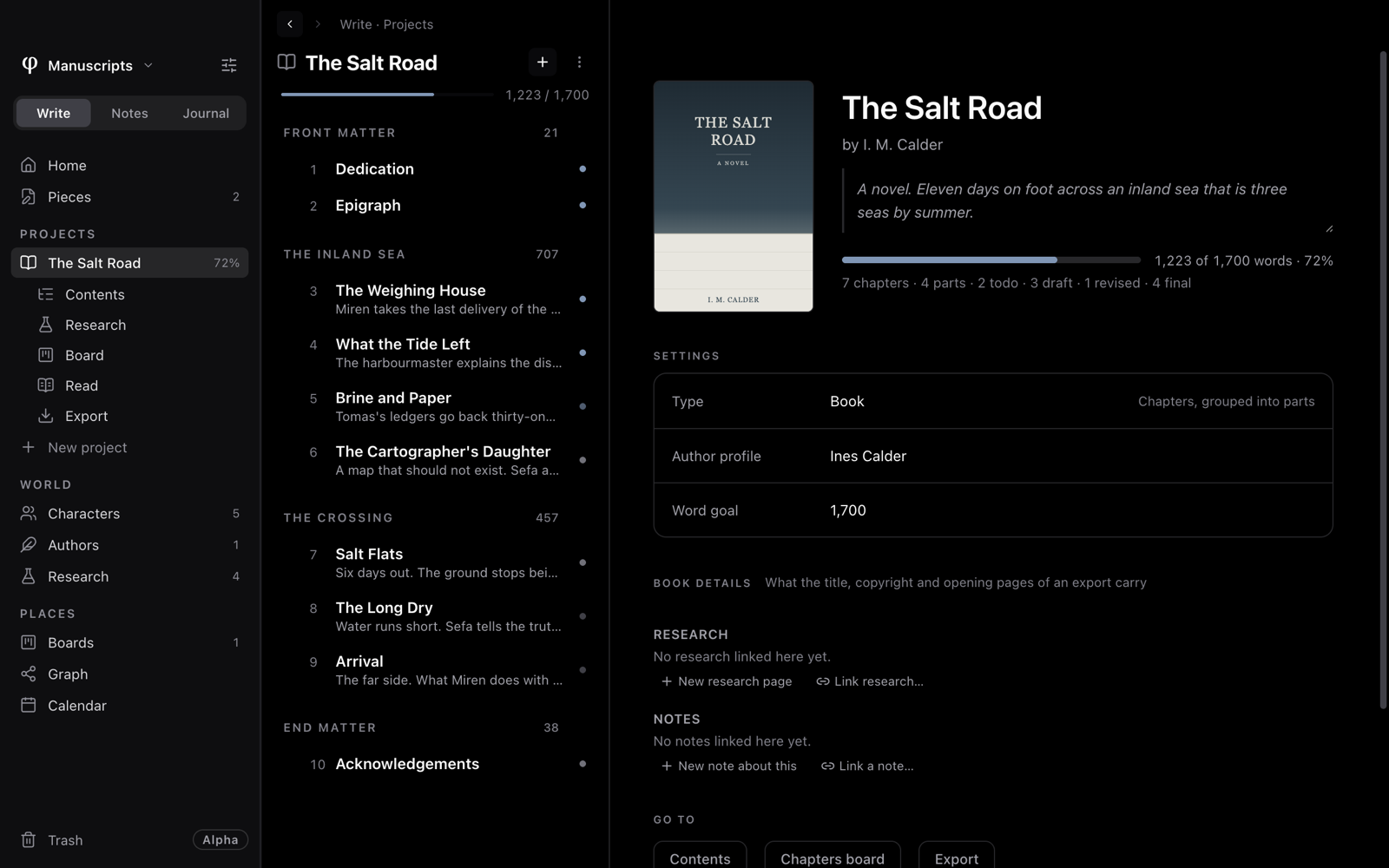
Start a project
- In Write, click New project at the bottom of Projects in the sidebar.
- Type a title. The project's page opens, and the list beside it shows the project's outline.
- Click + at the top of the list and choose New chapter (
⌘N). - On the project's page, under Settings, set the Type, the Author profile and the Word goal.
If your vault (the folder that holds your writing) is still empty, Write's Home shows Start a project instead. Pick Novel, Poetry, Essays or Other, then press Create.
Choose what kind of work it is
A project's Type sets the names Poiesis uses for the documents and groups in the project. It also sets how the project exports. You can change the type at any time on the project's page. Only the names change. Your writing stays the same.
| Type | Made of | Grouped into |
|---|---|---|
| Book | Chapters | Parts |
| Series | Books | Parts |
| Poetry | Poems | Parts |
| Essay collection | Essays | Parts |
| Research | Sections | Sections |
| Journal | Entries | Groups |
| Custom | Sections | Groups |
This page says chapter and part for all types. Read them as the names your project's type uses. For a project of poems, see also Poetry & verse.
Find your way around a project
Click a project in the sidebar to open it. These pages appear under it in the sidebar:
| Page | What's there |
|---|---|
| The project's name | The project's page: cover, title, author, description, progress, settings and Book details. |
| Contents | The whole work on one page, to arrange it. |
| Board | The chapters as cards by status, and the project's own boards, listed beside it (Boards). |
| Read | The manuscript in order, read-only: as Prose, or as a Book with its contents. |
| Export | The printed book, the ebook, the manuscript for an agent (How exporting works). |
While a project is open, the list beside the page shows its outline. The outline has every chapter under its part, with the chapter's number and synopsis. At the top, it shows the words you have written and the word goal.
The project's tabs
Under the project's name, the list has five tabs. Each one shows that part of the project, its own entries and the shared ones, in one click:
| Tab | Key | What it shows |
|---|---|---|
| Contents | ⌃1 | The outline. |
| Characters | ⌃2 | The project's characters, and the shared ones (Characters & authors). |
| World | ⌃3 | Its places, lore and timeline (The world). |
| Research | ⌃4 | The research pages linked to the project (Research). |
| Board | ⌃5 | Its boards (Boards). |
On Windows and Linux, the keys are Alt+1 to Alt+5. The tab you are on shows its name. The others show their icon; point at one to see its name. A project's World page has the same tabs.
Right-click the project in the sidebar to get its pages in a menu: Contents, Overview, World, Read, Open project board and Export manuscript…. The menu also has Open, Icon…, Colour, Gather notes and highlights, Put away, Delete project… and, when you have more than one vault, Move to vault….
Add chapters and parts
- Click + at the top of the list and choose New chapter (
⌘N) or New part (⇧⌘N). Poiesis adds it at the end. - Click a chapter's ⋮ in the list for more commands: Add chapter below, Add part below, Rename, Duplicate, Details…, Front / back matter, Move to top, Move to bottom and Remove from project.
- A part's ⋮ also has New chapter inside.
From the keyboard:
| To | Press |
|---|---|
| Rename the open chapter | ↵, then ↵ again to save the new name or Esc to cancel |
| Move a chapter up or down | ⌥↑ / ⌥↓ |
| Open the chapter before or after | ⌥⌘← / ⌥⌘→ |
| Rename a part | Double-click its name |
To change the order, drag a row in the list. You can also drag a chapter into a part or out of it.
Arrange the contents
Contents shows the work in three regions: Front matter, The work and End matter. Each row shows the chapter's number, title, synopsis, status and words. A ring shows the chapter's progress toward its word goal. If the chapter has no goal, the ring shows its status.
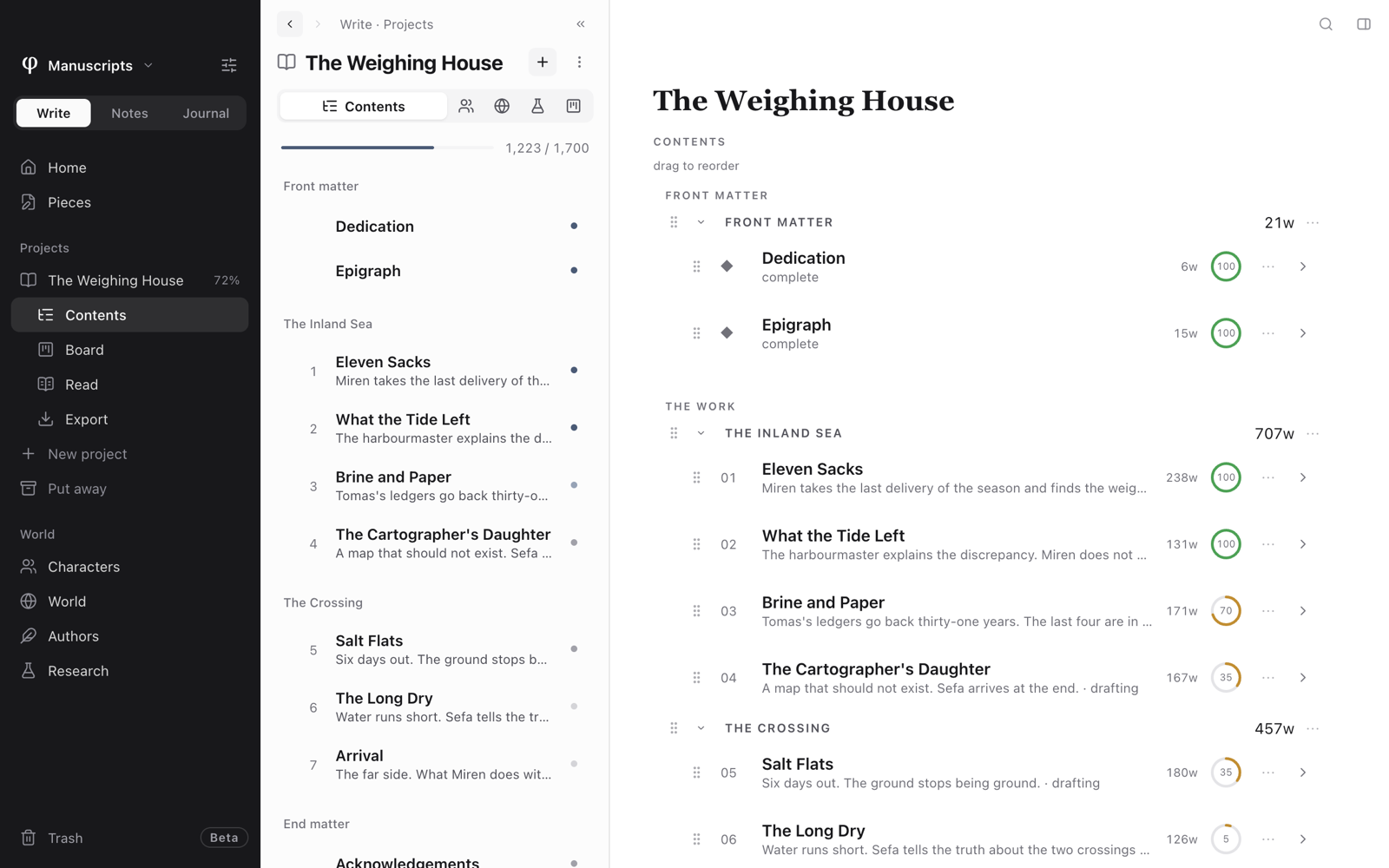
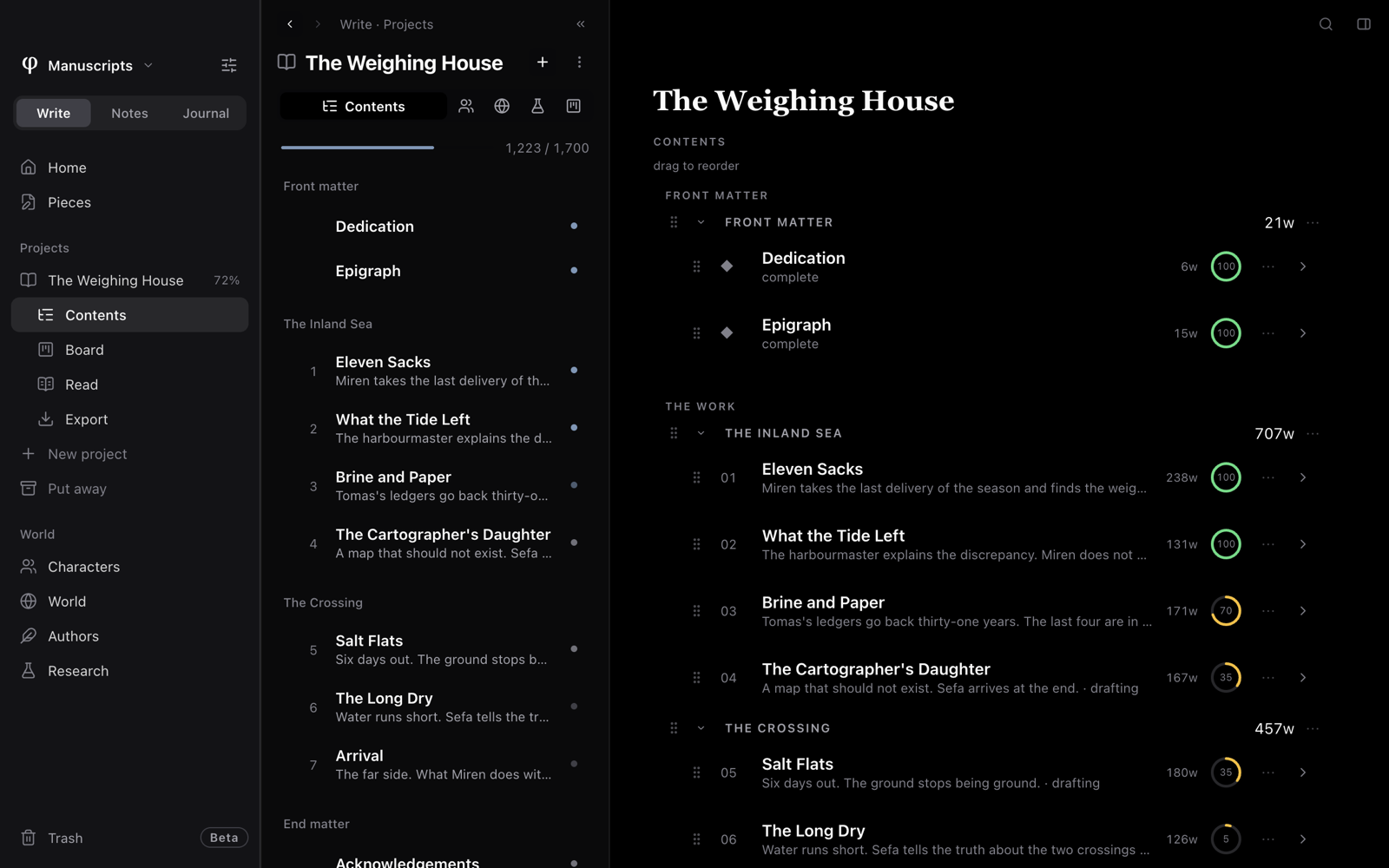
- Drag a row to move it, into a part or to another region.
- Click a part's caret to collapse the part.
- Type in a part's name to rename it.
- Open a row's ⋯ to move the row into a part, count it as a chapter or not, duplicate it, or remove it from the project.
- Use Add chapter and Add a part at the bottom to add new ones.
You never type a chapter number. Poiesis gives each one its number, such as "Part II" or "Chapter 7", from its place in the order. When you move a chapter or a part, Poiesis renumbers all of them.
Front and end matter
Some pages of a book are not chapters: a dedication, a prologue, an appendix. There are three ways to mark a document as one of these:
- On Contents, drag it into Front matter or End matter.
- In the list, open its ⋮ and choose Front / back matter.
- In its Details, tick Leave out of the numbering.
The document then has no number. Your first real chapter is still Chapter 1 in the outline, in the reading view and in every export.
The book's title page, copyright page and "Also by" page are not documents. Poiesis makes them from the project's Book details.
Set word goals
- For the whole project: on the project's page, set Word goal under Settings. The sidebar, the top of the list and Write's Home show your progress.
- For one chapter: set Word goal in its Details, or choose Set word goal in the document's ⋮ menu. The chapter's ring on Contents and the word count in the corner of the page show its progress.
A chapter can have its own goal while the project has one too.
The project's page
Click the project's name in the sidebar to open its page. It has:
- The cover. Click it to add or change it (Add a cover, Change cover). The small bin beside it is Remove cover.
- The title. Click it to rename the project.
- The byline. Click it to open the author profile. If the project has no author profile, it offers New author profile.
- The description. A few lines about the work.
- Progress. The words written and the goal, the number of chapters and parts, and how many chapters have each status.
- Settings. Type, Author profile and Word goal. Click one to change it.
- Book details. The information for the title page, the copyright page and similar pages (Book details).
- Research and Notes. The research pages and notes linked to the project, with New research page, Link research…, New note about this and Link a note….
- Go to. Links to Contents, the chapters board, and Export.
- Delete this project…
Add a piece you've already written
A piece is a document in Write that is not in any project (see Organizing your work). There are two ways to add one:
- Right-click the piece in the list, choose Add to project (or Move to project), then choose the project.
- Open the piece's Details and choose the project from Add it to a project….
A note must become a piece before you can add it to a project. Choose Move to Write's pieces from the note's ⋮ menu first.
Put a project away
You can hide a project from the sidebar without deleting it, for example when the book is finished or you have stopped working on it.
- Right-click the project in the sidebar (or open its ⋮).
- Choose Put away.
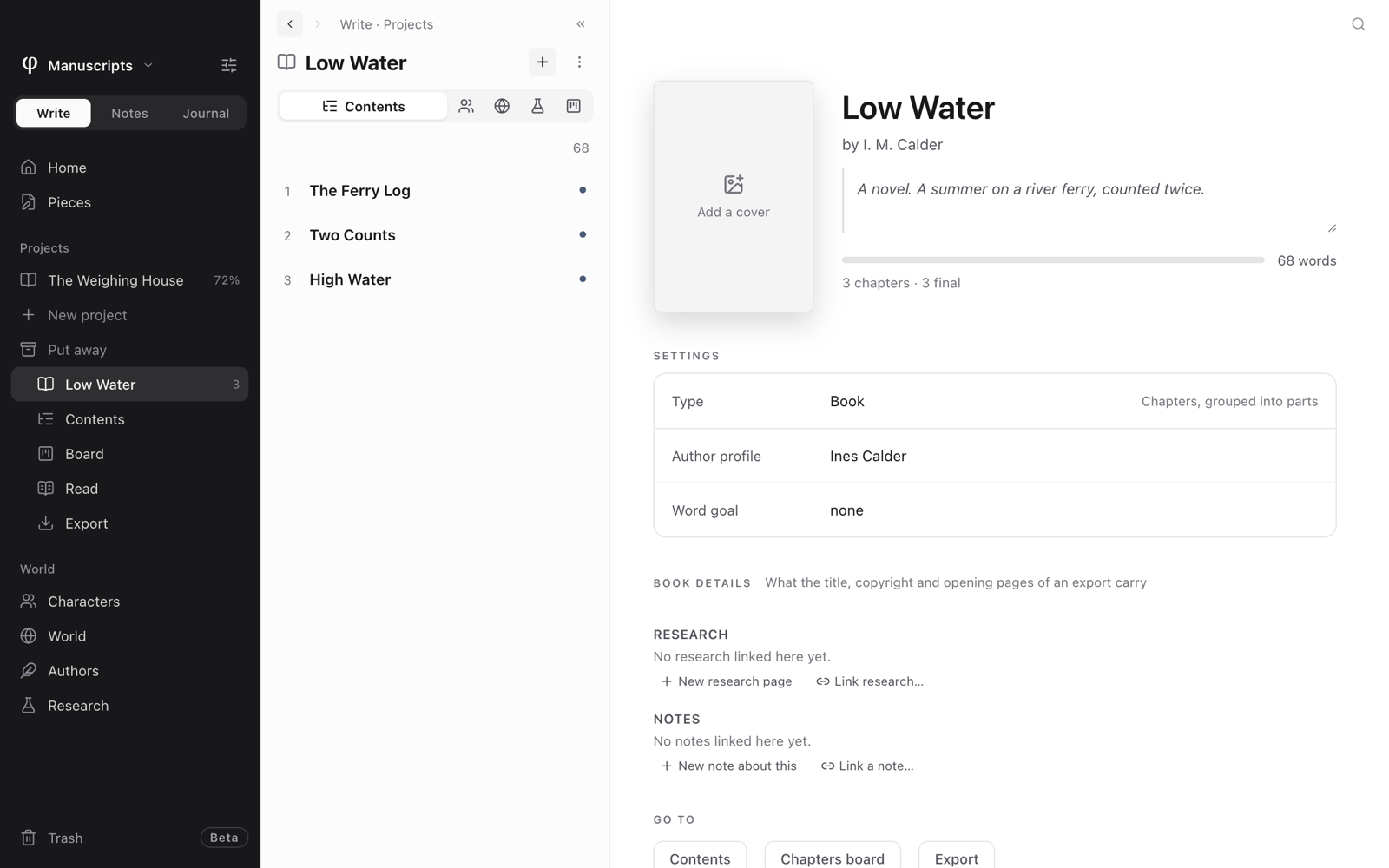
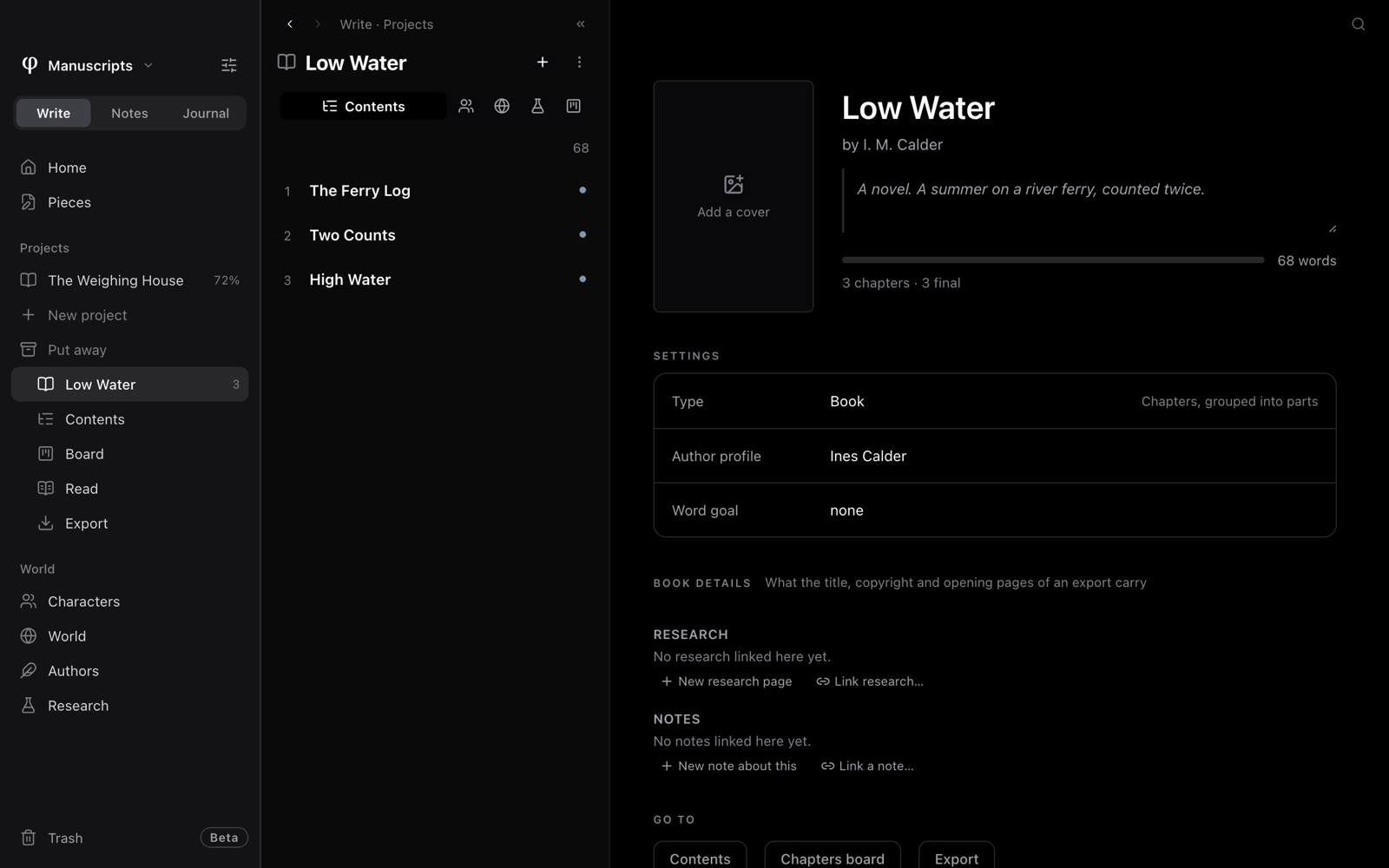
The project moves to the Put away line at the bottom of Projects. Click that line to see the projects you have put away. To return one to the sidebar, open the same menu and choose Bring back.
Putting a project away changes nothing inside it, and ⌘K still finds it.
When every chapter of a project has the status Final, the project's page offers to put it away. Poiesis never puts a project away without you.
Remove or delete
Remove from project takes a chapter out of the project. Poiesis asks you first. If you remove a part, Poiesis also removes everything in the part. In both cases the documents stay in your vault, as pieces.
Delete project… (in the right-click menu) and Delete this project… (on the project's page) ask you first. Then Poiesis deletes only the project. Every chapter stays in your vault. The project goes to the trash, and you can restore it from there.
See also
- Book details: the title page, copyright page and the book's other pages.
- How exporting works
- Boards
- Organizing your work