Links & the graph
A link connects one document to another. Type [[ and the name of a
document to make one. φ Poiesis records each link in both directions, so every
document can show the documents it links to and the documents that link to
it. The graph is a picture of all the links in your
vault, the folder that holds your writing.
Link to another document
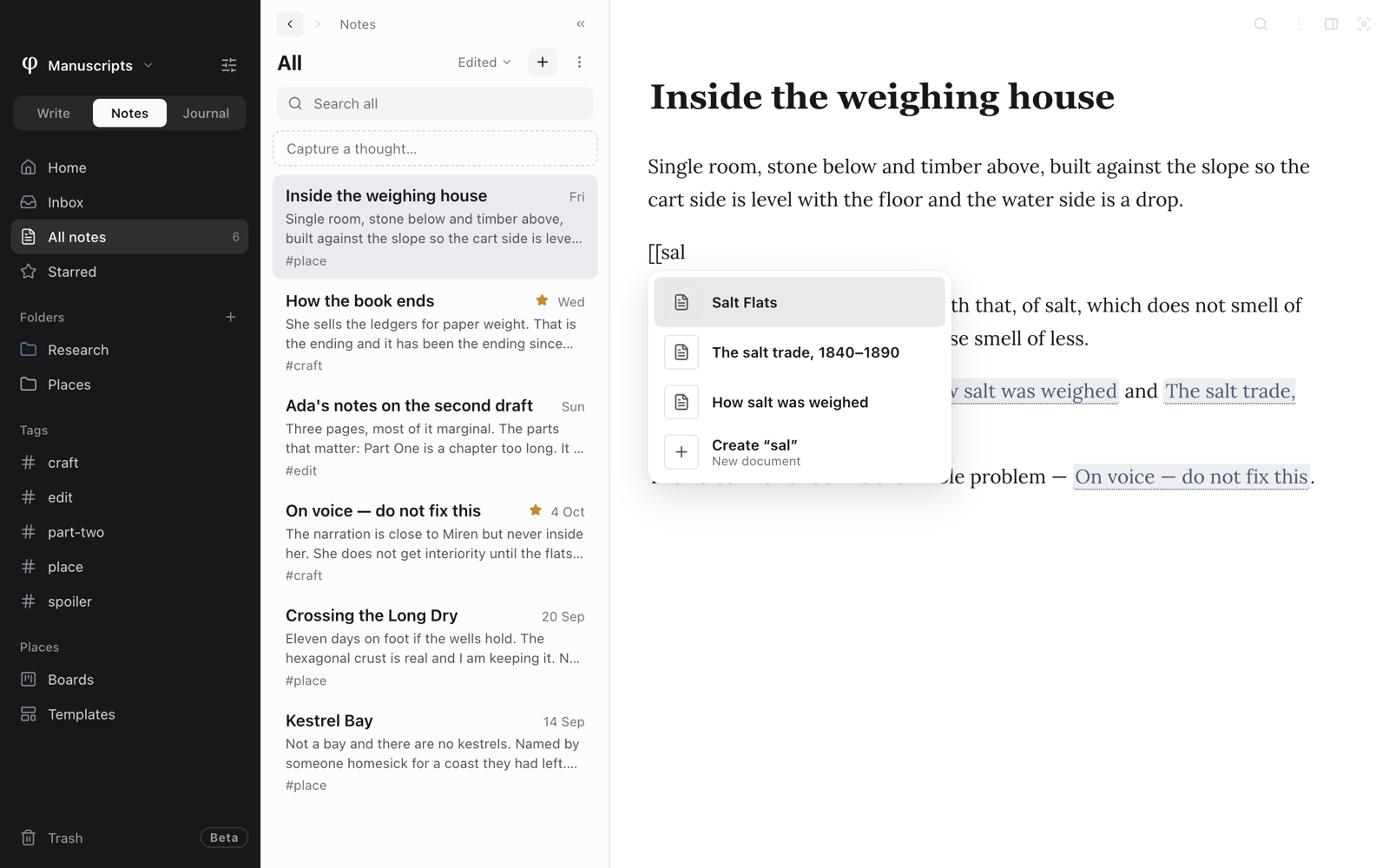
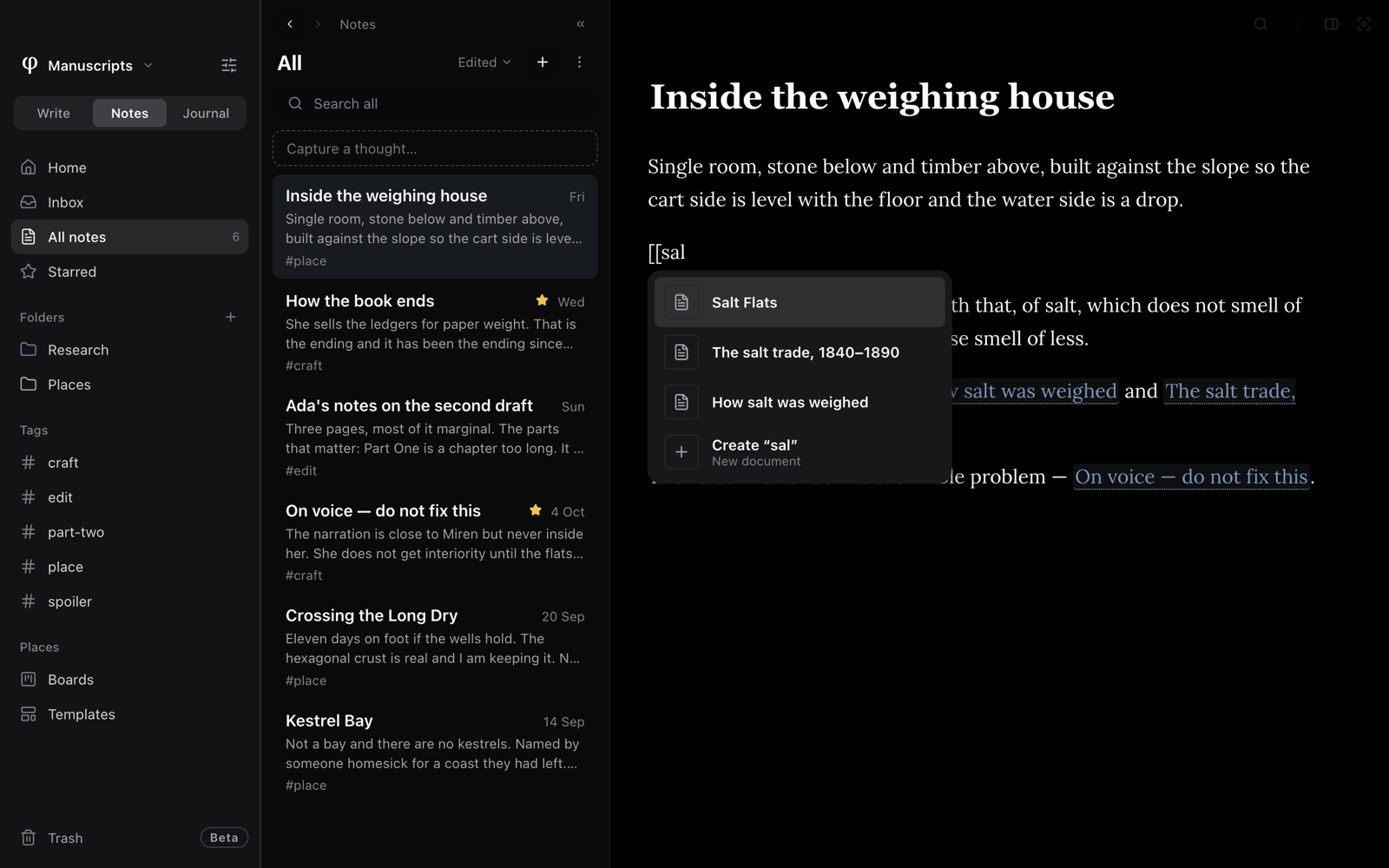
- Type
[[anywhere in the text. A menu of documents opens. - Keep typing to shorten the menu.
- Choose the document with the arrow keys and Return, or click it.
To follow a link, hold ⌘ and click it. In
reading mode, a plain click is enough.
To open the linked document beside the one you are in, ⌥⌘-click the link
(see Side by side).
A link chosen from the menu points to the document itself. If you rename the
document later, the link still works. So does a [[Title]] that you type in
full: when you type the closing ]], it links to the document with that
title. A [[Title]] that you paste finds its document by title instead.
Link to a page you haven't written yet
- Type
[[and the title you want. - If no document has that title, the last entry in the menu is Create "…". Choose it.
Poiesis makes the document straight away, in the same folder as the one you are
writing, and the link points to it. ⌘-click the link to open it. Typing the
closing ]] yourself does the same when no document has that title.
A title can have spaces: the menu stays open while you type [[Hello World.
To type [[ as plain text, press Esc. The menu closes and stays closed
until you start another [[.
A pasted link to a document that does not exist yet is shown as a broken
link. Poiesis makes that document when you follow the link: ⌘-click it, or
click it under Outgoing links (see the next section).
See what links where
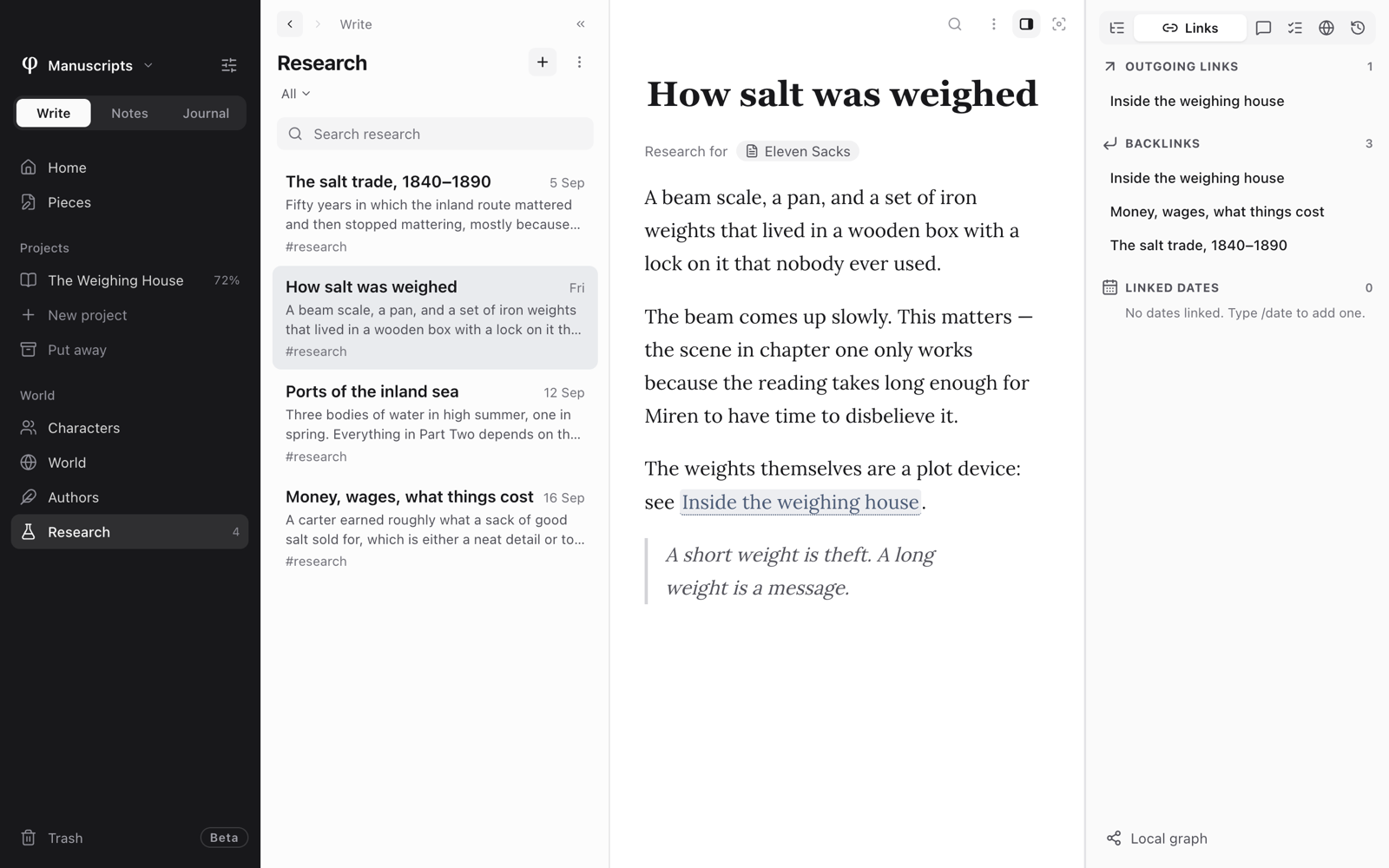
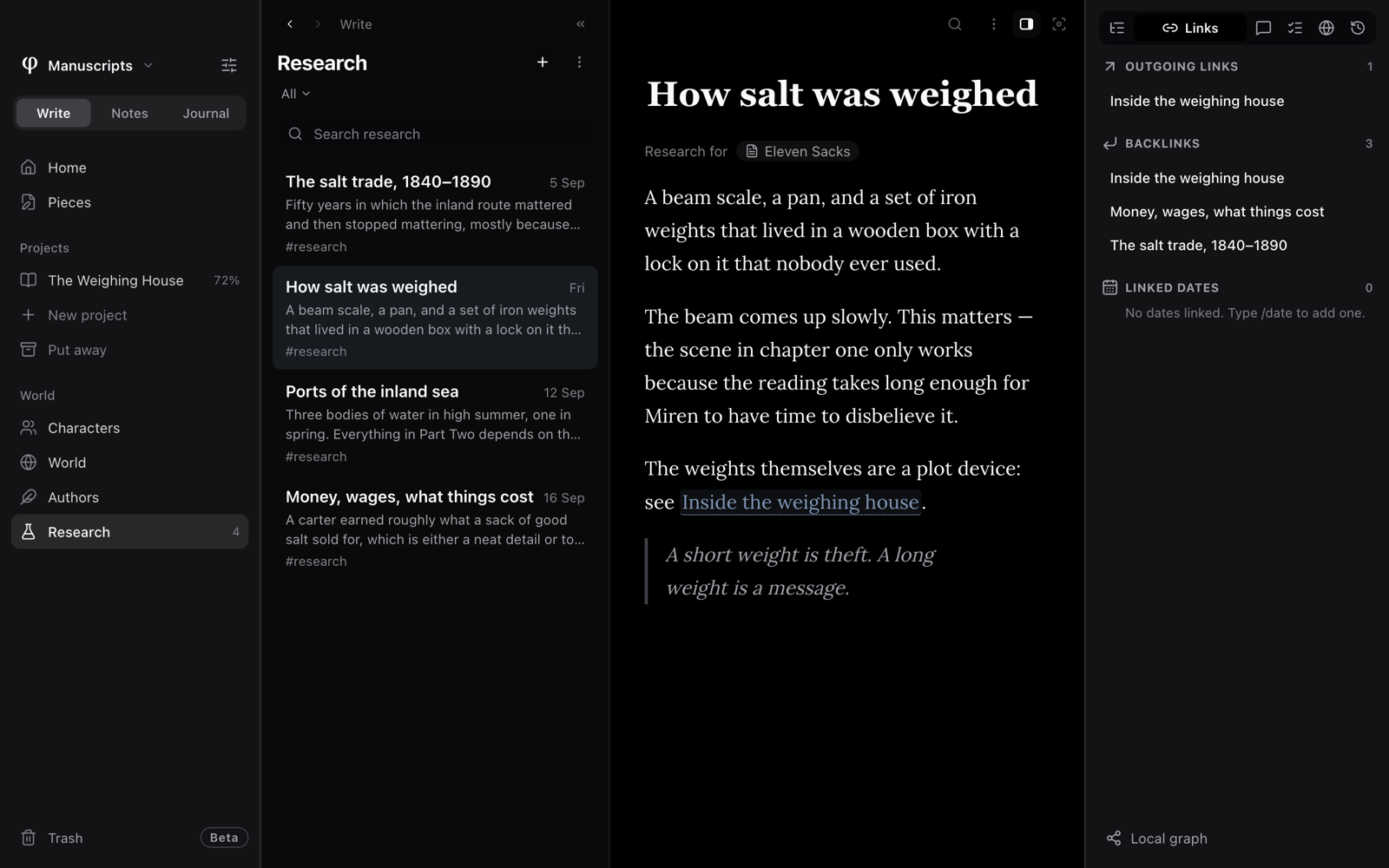
The Links tab of the Info panel
lists a document's links. To open it, open the Info panel (⇧⌘I) and
choose Links.
The tab shows the document you are reading, including changes you have not saved yet.
| Section | What it lists |
|---|---|
| In this document | The characters you have @-mentioned here. Shown only when there are some. |
| Outgoing links | Every document this one links to. Links to documents that do not exist yet are listed too, with a create icon. Click one to make that document. |
| Backlinks | Every document that links to this one. |
| Linked dates | The dates you added with /date. Click one to show that day in the calendar. |
| Research and Notes | Research pages (in Write) and notes linked to this document. You can add more here. See Research. |
Click any entry to open it. Local graph, at the bottom of the tab, opens the graph around this document.
Explore the graph
There are three ways to open the graph:
- Press
⌘G, thenG. - Press
⌘Kor⌘Pand type "Graph". - Click Graph in the sidebar, if you have put it there in Setting up. A new vault leaves it out of the sidebar.
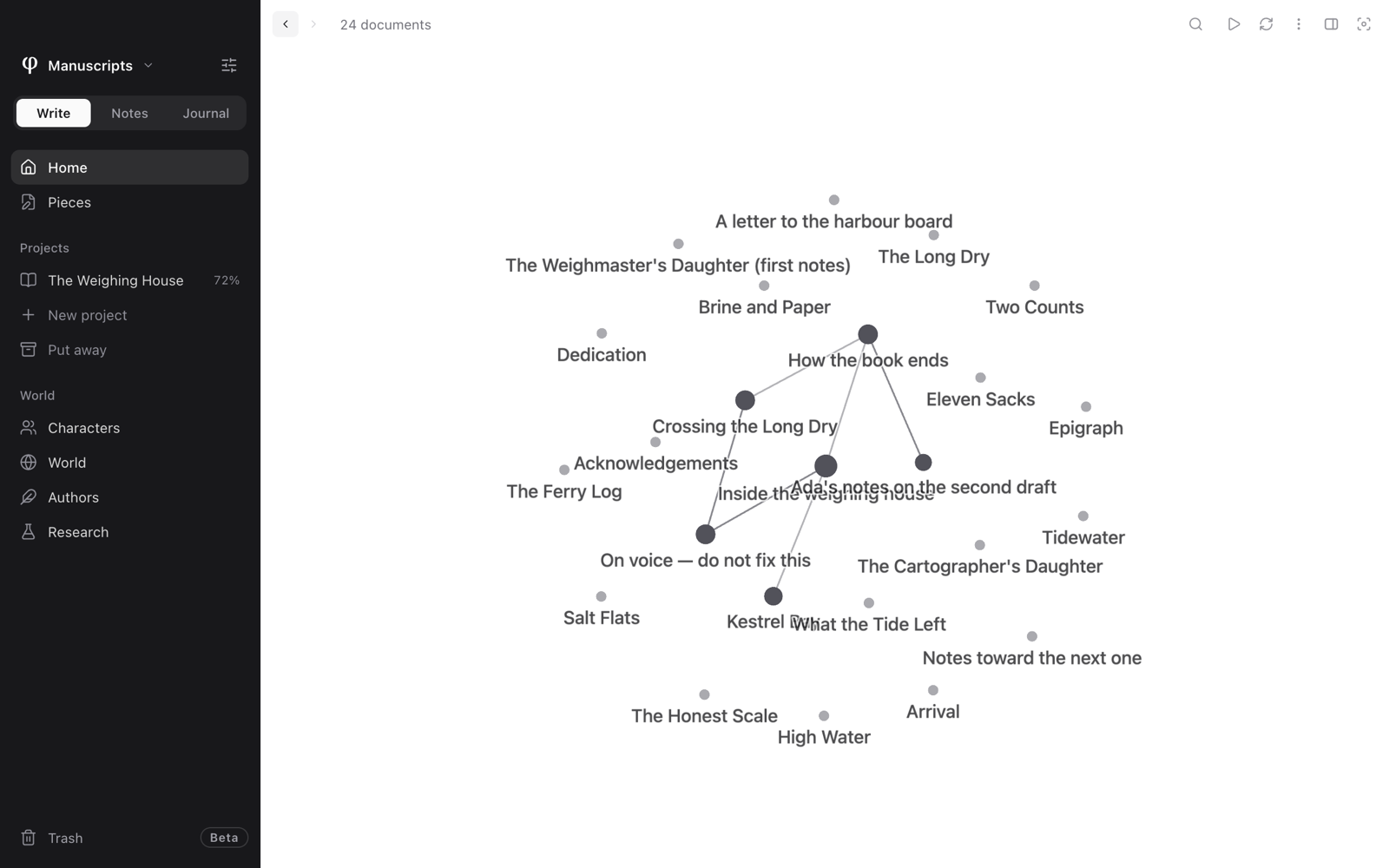
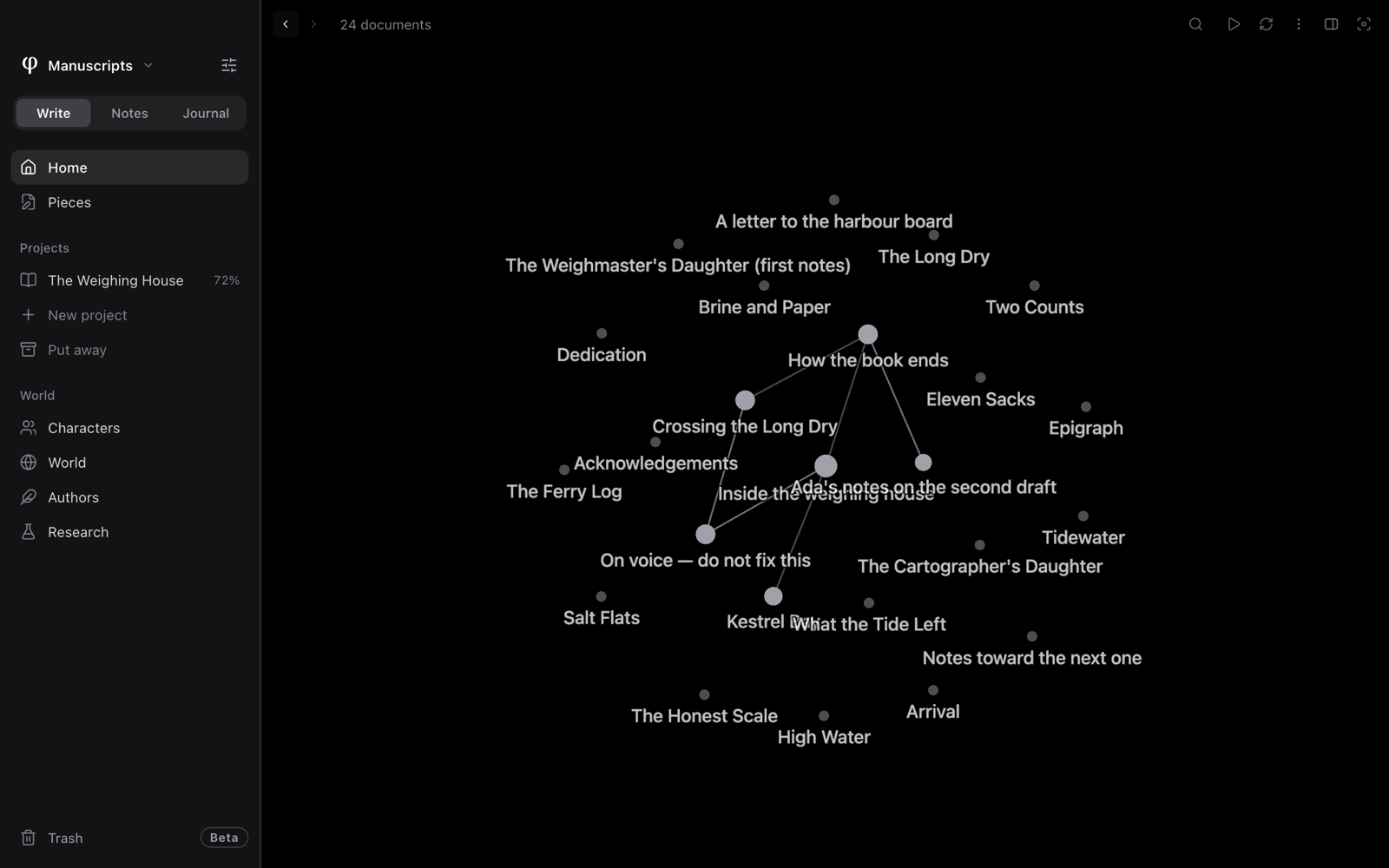
Each dot is a document. Each line is a link. A dot with more links is larger, so your most linked documents are easy to see. Documents with no links are fainter. Morning pages, journal days and research pages never appear in the graph.
- Click a dot to open that document. When you close it, you return to the graph.
- Hover over a dot to see it clearly. Its links and the dots it is linked to stay clear, and everything else fades.
- Scroll to zoom. Drag the background to move around. When you zoom out, the titles fade so that you can see the overall shape.
- The document you have open is shown in the accent colour.
The bar at the top shows the number of documents in the graph. It has two buttons:
- Animate arranges the dots again while you watch.
- Refresh links rebuilds the graph from your latest text.
Change what the graph shows
Press the panel button at the top right of the graph (⇧⌘I). Graph
settings opens:
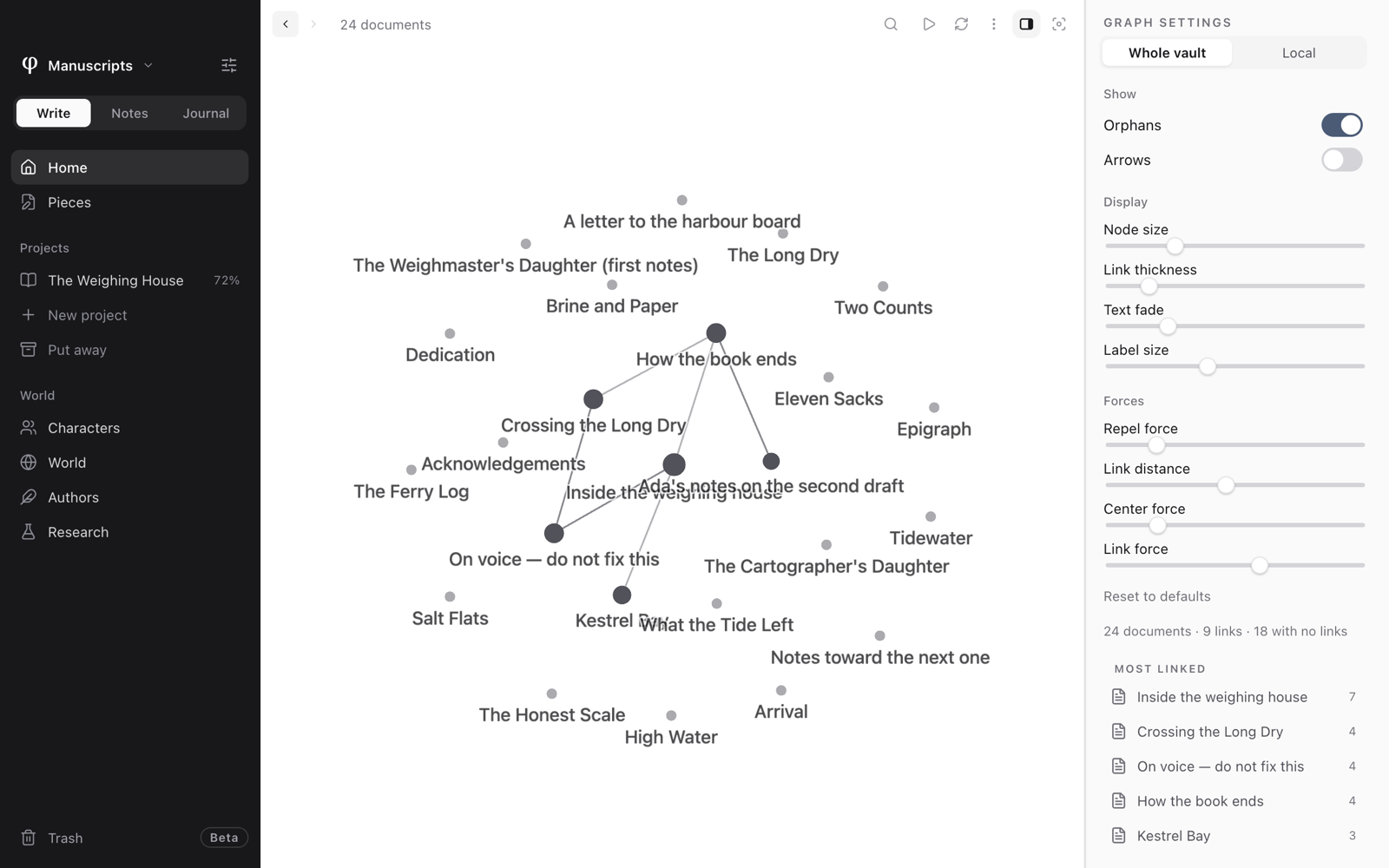
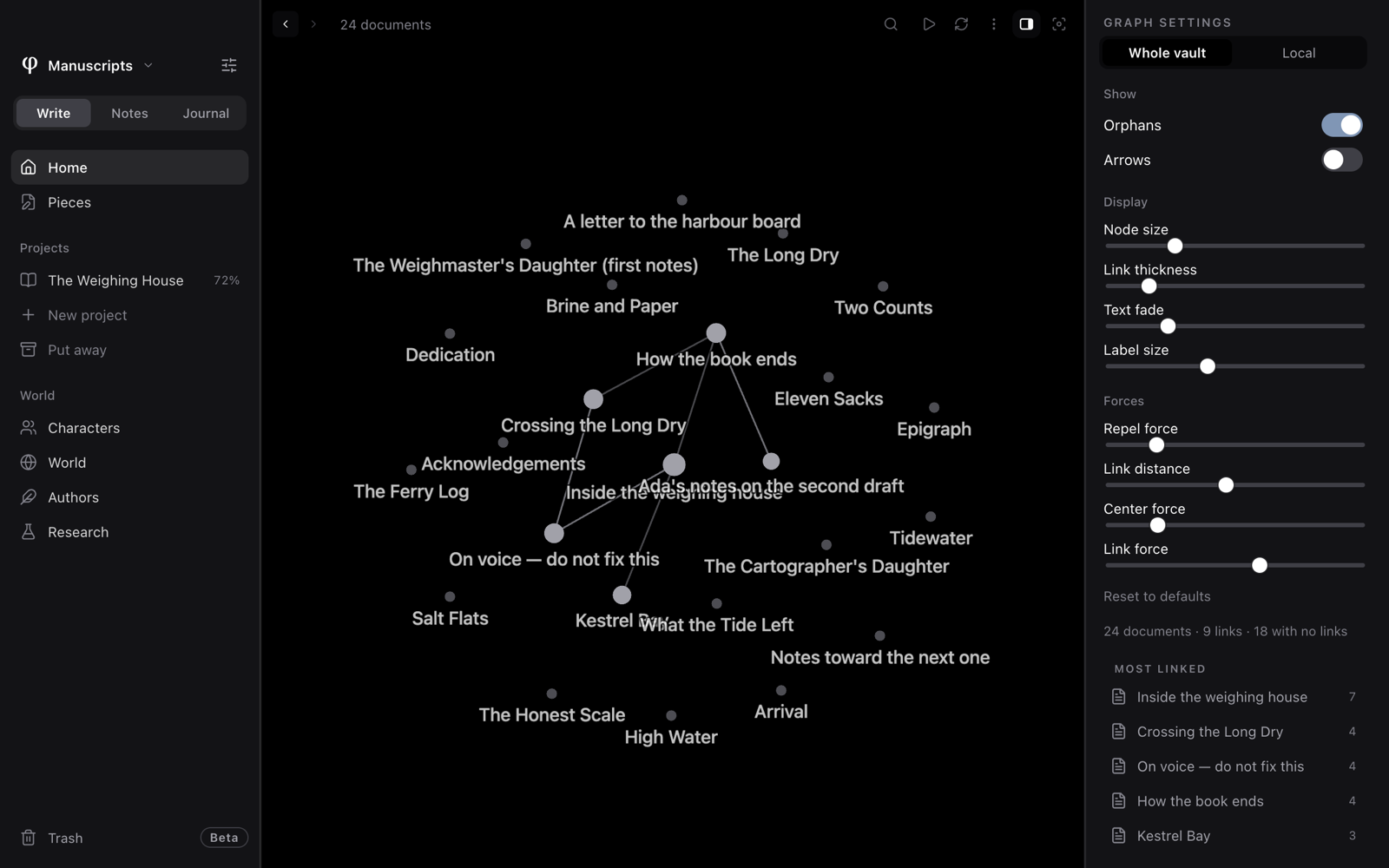
| Group | Settings |
|---|---|
| Which graph | Whole vault, or Local: the last document you opened and everything within two links of it. |
| Show | Orphans (documents with no links) and Arrows (the direction of each link). |
| Display | Node size, Link thickness, Text fade and Label size. |
| Forces | Repel force, Link distance, Center force and Link force. These push the dots apart or pull them together. |
Reset to defaults restores the original settings.
Below the settings, one line shows the number of documents, links, and documents with no links. Most linked lists the documents with the most links. Click one to open it.
Open All notes in Notes and choose Only unlinked notes in the list's sort menu. The list then shows only the notes that have no links to them and no links from them. See Notes & capture.
See also
- Research: notes and research linked to a chapter, project or character.
- Characters & authors: @-mentions.
- Calendar
- Side by side