Keyboard shortcuts
This page lists every shortcut in φ Poiesis, with the Mac keys. On Windows and Linux, most shortcuts work with Ctrl in place of ⌘. The few that are different are listed at the end.
The keys are ⌘ Command, ⇧ Shift, ⌥ Option, ⌃ Control, ↵ Return and ⌫ Delete.
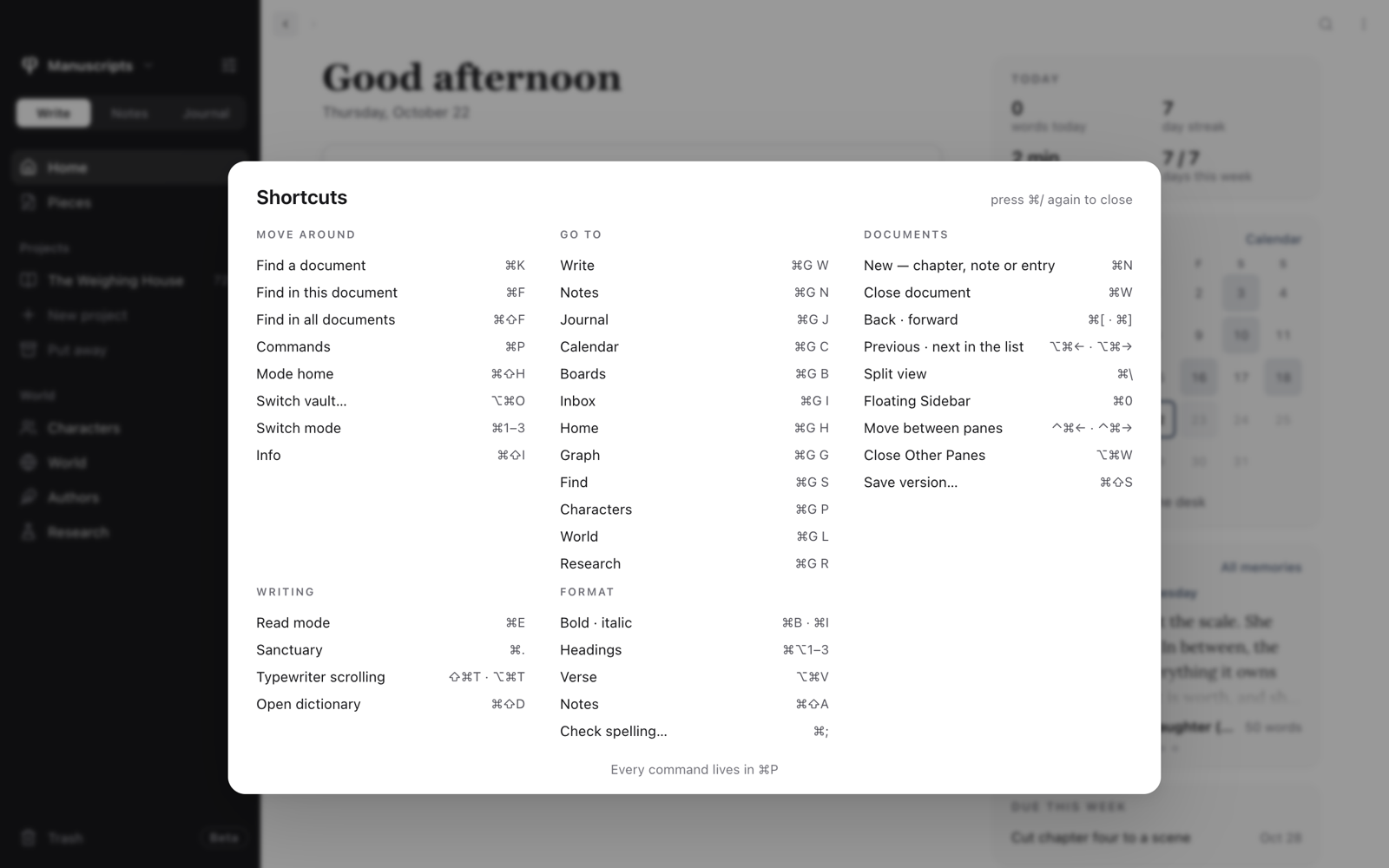
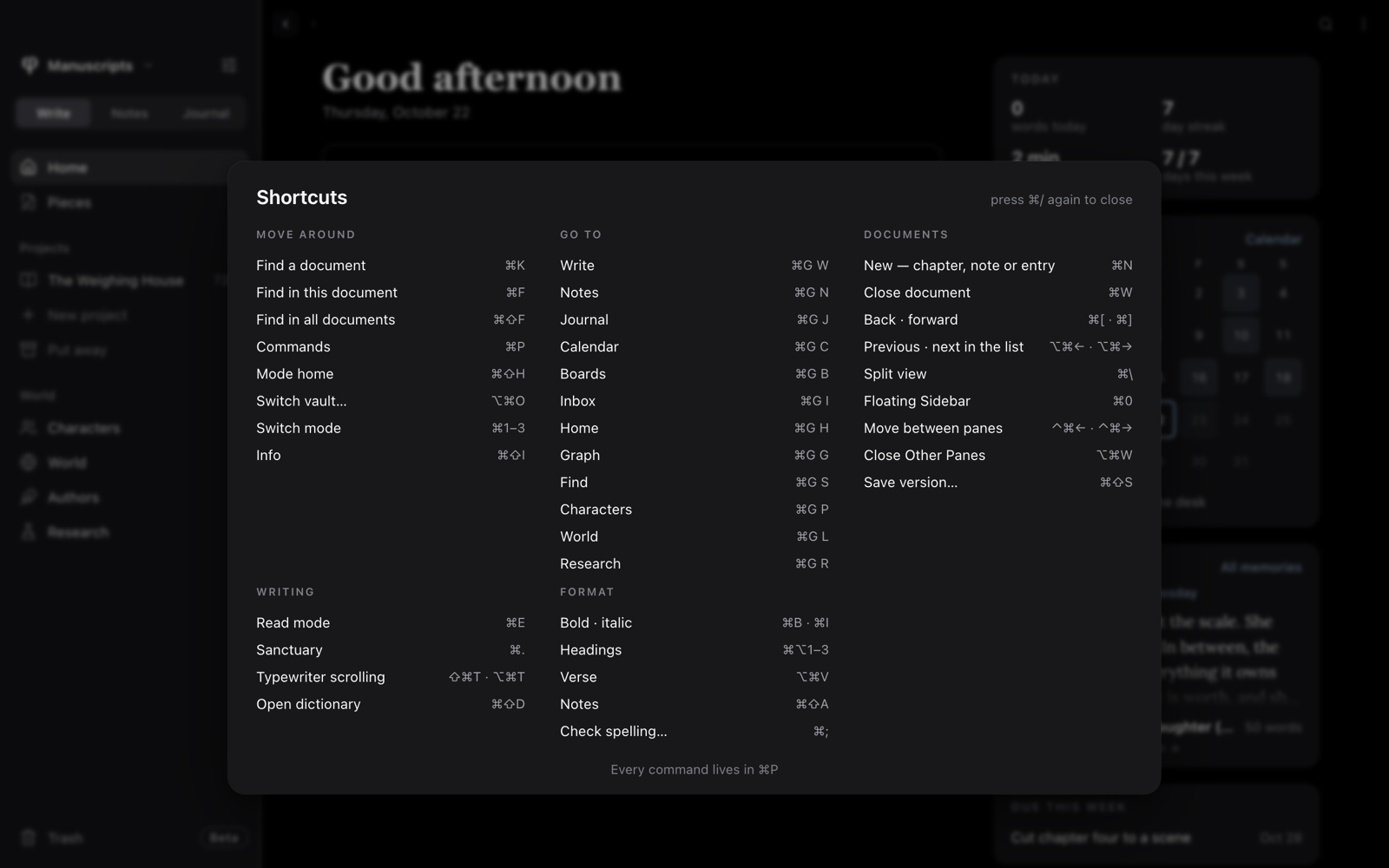
You can also see shortcuts inside Poiesis:
- Press
⌘/to see a list of the main shortcuts. Press⌘/orEscto close it. - Settings → Shortcuts has the same list, with a search field.
- The command palette (
⌘P) shows each command's shortcut beside the command.
You can put many app commands on keys of your own in Settings → Shortcuts →
Your keys (see Settings). This page lists φ's
own keys. The menus, ⌘/ and Settings show yours.
Writing
| To | Press |
|---|---|
| Make a new document in the place you are in (in a project's outline, a new chapter) | ⌘N |
| Make a new part, in a project's outline | ⇧⌘N |
| Save now and make a checkpoint (an automatic version) | ⌘S |
| Save a version with a name | ⇧⌘S |
| Undo · redo | ⌘Z · ⇧⌘Z |
| Cut · copy · paste | ⌘X · ⌘C · ⌘V |
| Paste as plain text | ⇧⌘V or ⌥⇧⌘V |
| Select all | ⌘A |
| Find in this document | ⌘F |
| Find & replace in this document | ⌥⌘F |
| Find in all documents | ⇧⌘F |
| Check spelling, one word at a time | ⌘; |
| Start a new line without a new paragraph | ⇧↵ |
| Indent · outdent a list item | Tab · ⇧Tab |
| Stop writing in bold or italic | Two spaces |
| Move the document to the trash (Poiesis asks first) | ⌘⌫ |
A normal paste turns Markdown marks in the pasted text into formatting. Paste as plain text keeps the text exactly as it is.
Outside lists and tables, Tab types a tab.
As you type
| Type | To |
|---|---|
/ | Insert a block: a heading, a quote, a verse, a table, a template… |
/toggle | A section that folds away under a line you name |
/math | A formula on its own line |
$$E = mc^2$$ | A formula inside a line |
[[ | Link to another document |
@ | Mention a character |
In a verse
| To | Press |
|---|---|
| Turn a paragraph into a verse, or back | ⌥⌘V |
| Start a new line of the verse | ↵ |
| Leave the verse and start a new paragraph | ⌘↵ |
In a toggle or a formula
| To | Press |
|---|---|
| Fold or unfold a toggle | ⌥⌘↵ (or click its arrow) |
| Leave a toggle | ⌘↵, or ↵ on an empty last line |
| Leave a formula you are editing | ⌘↵ or Esc |
See Formatting & blocks.
Links
| To | Do |
|---|---|
| Follow a link while writing | ⌘-click it |
| Open a linked document beside this one | ⌥⌘-click it |
| Follow a link in reading mode | Click it (⌥-click opens it beside) |
Formatting
| To | Press |
|---|---|
| Bold | ⌘B |
| Italic | ⌘I |
| Underline | ⌘U |
| Add or change a link | ⇧⌘K |
| Heading 1 · 2 · 3 | ⌥⌘1 · ⌥⌘2 · ⌥⌘3 |
| Back to body text | ⌥⌘0 |
| Bullet list | ⇧⌘8 |
| Numbered list | ⇧⌘7 |
| Quote | ⇧⌘B |
| Code block | ⌥⌘C |
| Align left · centre · right | ⇧⌘L · ⇧⌘E · ⇧⌘R |
| Justify | ⇧⌘J |
Strikethrough and Inline Code have no shortcut. They are in the Format menu, and in the toolbar that appears when you select text.
Navigating
| To | Press |
|---|---|
| Find a document | ⌘K |
| Open the command palette | ⌘P |
| Show the shortcuts card | ⌘/ |
| Go back · forward | ⌘[ · ⌘] |
| Open the previous · next document in the list | ⌥⌘← · ⌥⌘→ |
| Go to the first, second or third mode's Home, in the sidebar's order | ⌘1 · ⌘2 · ⌘3 |
| Go to this mode's Home | ⇧⌘H |
| Capture a thought from anywhere, even with Poiesis in the background | ⌥⇧⌘N |
| Switch vault | ⌥⌘O |
| Open a vault | ⇧⌘O |
The side buttons of your mouse also go back and forward.
Go to
Press ⌘G, release the keys, then press the second key within about two seconds.
| Go to | Press |
|---|---|
| Write | ⌘G then W |
| Notes | ⌘G then N |
| Journal | ⌘G then J |
| The calendar, from any mode | ⌘G then C |
| Notes' boards, or the board of the project you're in | ⌘G then B |
| The Inbox | ⌘G then I |
| The Home of the mode you're in | ⌘G then H |
| The graph | ⌘G then G |
Find a document (⌘K) | ⌘G then S |
| Characters | ⌘G then P |
| World: places, lore and the timeline | ⌘G then L |
| Research | ⌘G then R |
Inside a project, P, L and R open that project's tab. Anywhere else,
they open the vault's list. After ⌘G, a strip appears that shows the keys,
and View → Go to lists them too. Keys for a mode the vault doesn't have are left out.
In the ⌘K palette
| To | Press |
|---|---|
| Move through the results | ↑ · ↓ |
| Open the highlighted result | ↵ |
| Open it and keep the palette open, so you can open more | ⌘↵ |
| Open it beside the document you're in | ⌥↵ |
| Close the highlighted open document | ⌘W |
| Close the palette | Esc |
In a project
| To | Press |
|---|---|
| Show the project's Contents, Characters, World, Research or Board tab | ⌃1 · ⌃2 · ⌃3 · ⌃4 · ⌃5 |
In the list of a project's chapters:
| To | Press |
|---|---|
| Rename the open chapter | ↵ |
| Move a chapter up · down within its part | ⌥↑ · ⌥↓ |
Windows & panels
| To | Press |
|---|---|
| Show or hide the Info panel | ⇧⌘I |
| Open the Info panel's Notes | ⇧⌘A |
| Open the dictionary | ⇧⌘D |
| Switch between reading and editing | ⌘E |
| Enter or leave Sanctuary | ⌘. (Esc also leaves) |
| Typewriter scrolling | ⇧⌘T or ⌥⌘T |
| Close the document (in split view, the pane you're in) | ⌘W |
| Split view: open a pane beside this document | ⌘\ |
| Move to the previous · next pane | ⌃⌘← · ⌃⌘→ |
| Close the other panes | ⌥⌘W |
| Show the sidebar over the panes, in split view | ⌘0 |
| Compact the list to titles only, or back | ⌃⌘L |
| Zoom in · out | ⌘+ · ⌘- |
| Full screen | ⌃⌘F |
| Open Settings | ⌘, |
| Minimise the window | ⌘M |
| Hide Poiesis · hide the other apps | ⌘H · ⌥⌘H |
| Quit | ⌘Q |
On the graph, ⇧⌘I shows the graph's settings, not the Info panel.
In a place with no document open, such as the calendar or a board, ⌘W takes
you back to the mode's Home.
On Windows and Linux
Read ⌘ as Ctrl, ⌥ as Alt and ⇧ as Shift. For example, ⇧⌘F is
Ctrl + Shift + F, and ⌥⌘F is Ctrl + Alt + F.
These shortcuts are different:
| To | Press |
|---|---|
| Move the document to the trash | Delete |
| Move to the previous · next pane | Ctrl + Alt + Shift + ← · → |
| A project's tabs | Alt + 1 to Alt + 5 |
| Compact the list | Ctrl + Alt + Shift + L |
| Quick capture | Ctrl + Alt + Shift + N |
| Redo | Ctrl + Shift + Z or Ctrl + Y |
| Full screen | F11 |
| Open Settings | Ctrl + , (it is in the File menu) |
Hiding Poiesis and hiding the other apps work only on a Mac.