Themes & languages
You can change how φ Poiesis looks and which language it uses:
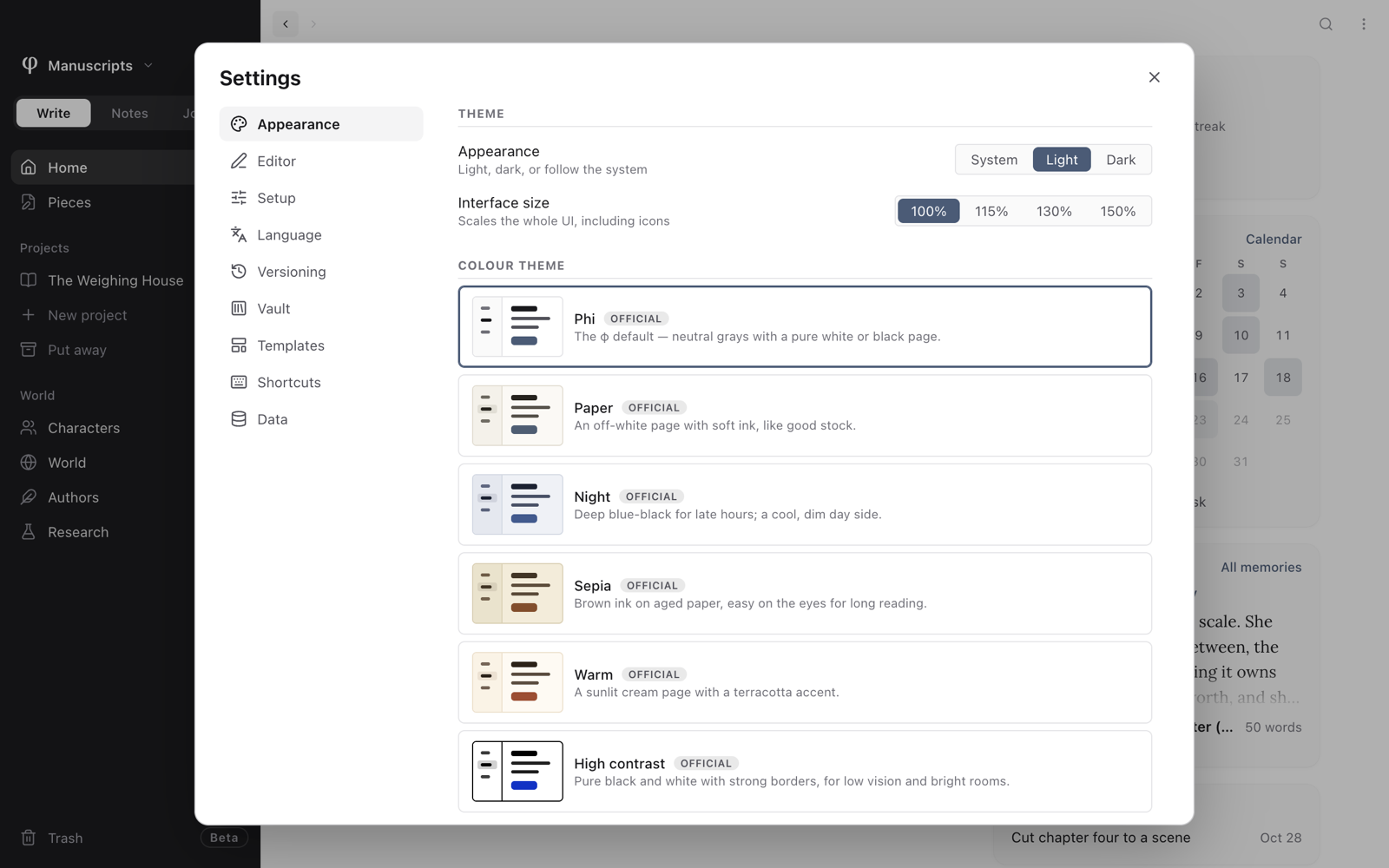
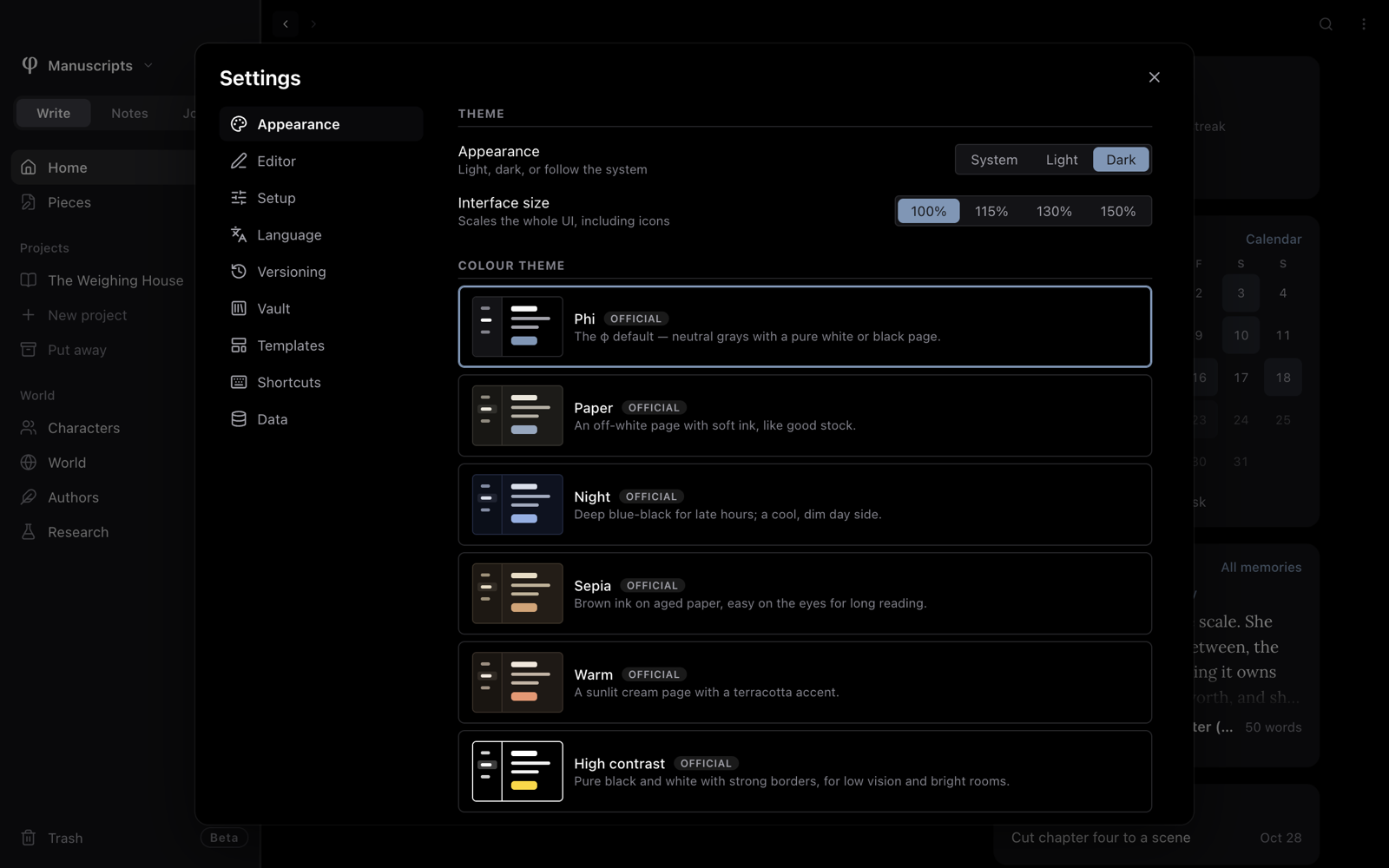
- light or dark, the size, and the colours are in Settings → Appearance;
- languages are in Settings → Language.
To open Settings, press ⌘, on a Mac, or click the sliders button at the top
of the sidebar.
Choose light or dark
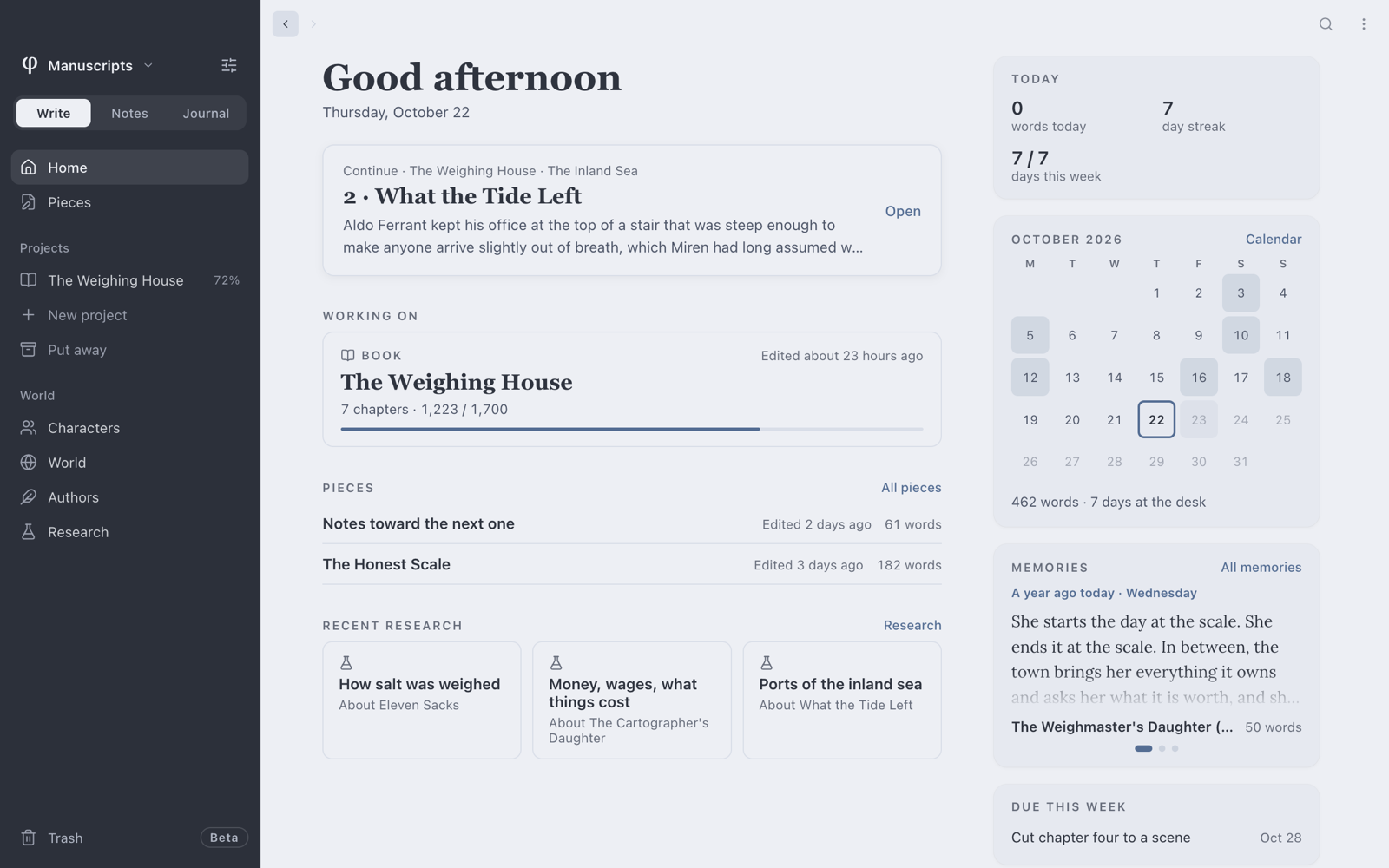
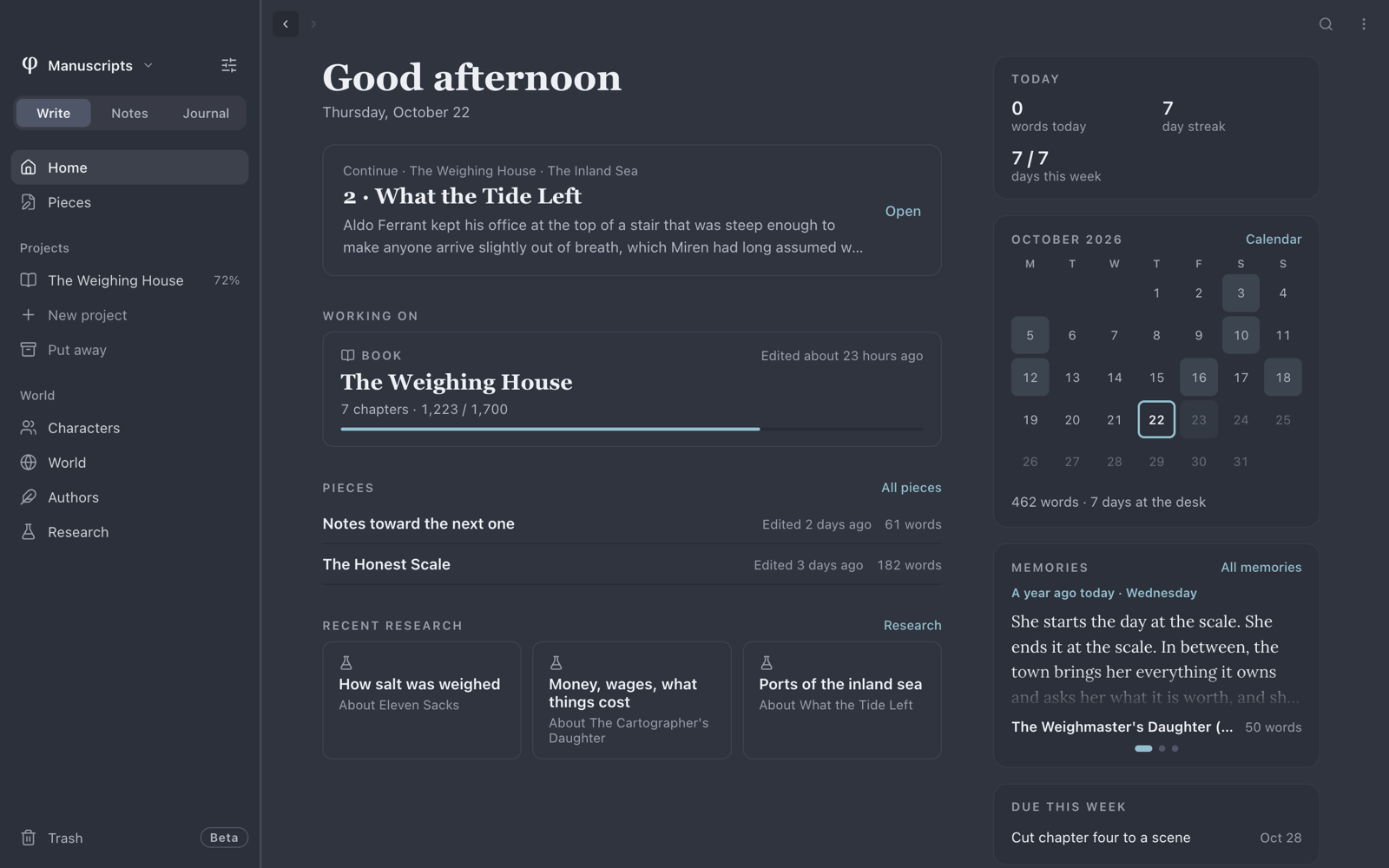
Set Appearance to System, Light or Dark. System follows your computer: Poiesis turns dark when your computer does.
You can also switch without opening Settings:
- choose View → Toggle Theme; or
- press
⌘Pand choose Cycle theme (system / light / dark).
Each time, Poiesis moves one step in this order: system, light, dark.
Make everything larger
Interface size makes the whole window larger, text and icons together. Choose 100%, 115%, 130% or 150%. View → Actual Size returns it to 100%.
The size of your writing is a separate setting: Font size in Settings → Editor.
Keep the sidebar dark or light
In the light theme, the sidebar is dark by default. This makes the page the brightest part of the screen. For a light sidebar, set Sidebar in light theme to Light.
In the dark theme, the sidebar is always dark.
The sidebar takes its colours from your colour theme, whichever one you use: Phi, a built-in theme or one you installed. A dark sidebar uses the theme's dark colours, and a light sidebar uses its light colours.
Change the colours
A colour theme sets the colours of Poiesis: backgrounds, text, accents, links and code. Every theme has a light side and a dark side. Appearance decides which side you see.
To use a theme, click it in the Colour theme list. Each theme in the list has a small preview of the Poiesis window in its colours.
Poiesis's own theme is Phi, marked Official. It has neutral greys and a pure white or pure black page. It is the default, and you can't remove it.
Five more themes come built in, ready on first launch and without a connection: Paper, Night, Sepia, Warm and High contrast. Each has a light and a dark side, so System, Light and Dark keep working. Every one is checked for readable text, and High contrast to the stricter AAA level. A theme you download can't take one of their names. Like Phi, they are marked Official and can't be removed.
Install an official theme
- Under Colour theme, click Browse official themes…. A gallery opens, with a preview of each theme.
- Press Install on each theme you like.
- Click the theme in the Colour theme list to use it.
A theme you already have shows Installed. Its button becomes Update, which gets the latest version of the theme.
If the gallery can't load, check your internet connection and press Retry. After the gallery has loaded once, it opens at once and works without a connection. Poiesis refreshes the gallery in the background:
- a few seconds after Poiesis starts;
- every six hours after that;
- when you choose Check for Updates….
The official themes are kept at github.com/getpoiesis/themes. You can also offer a theme of your own there.
Install a theme from a file
A theme is a small .json file. To add one that you made or that someone
sent you:
- Under Colour theme, press Install theme….
- Choose the theme's
.jsonfile.
Poiesis keeps the themes you install in your themes folder, not inside the app. Open themes folder shows the folder.
To remove a theme, press the trash button beside it. Poiesis asks first, then deletes the theme's file from the themes folder.
A theme can change colours and nothing else. Poiesis checks every colour when you install a theme. If a theme leaves a colour out, Poiesis uses the colour from Phi.
Change Poiesis's language
Set Interface language. This is the language of Poiesis's menus and labels.
Numbers and times follow this language too, whatever language your computer is set to. A word count reads 12,480 in English, 12.480 in Spanish and 12 480 in French, and a time reads 3:05 PM or 15:05.
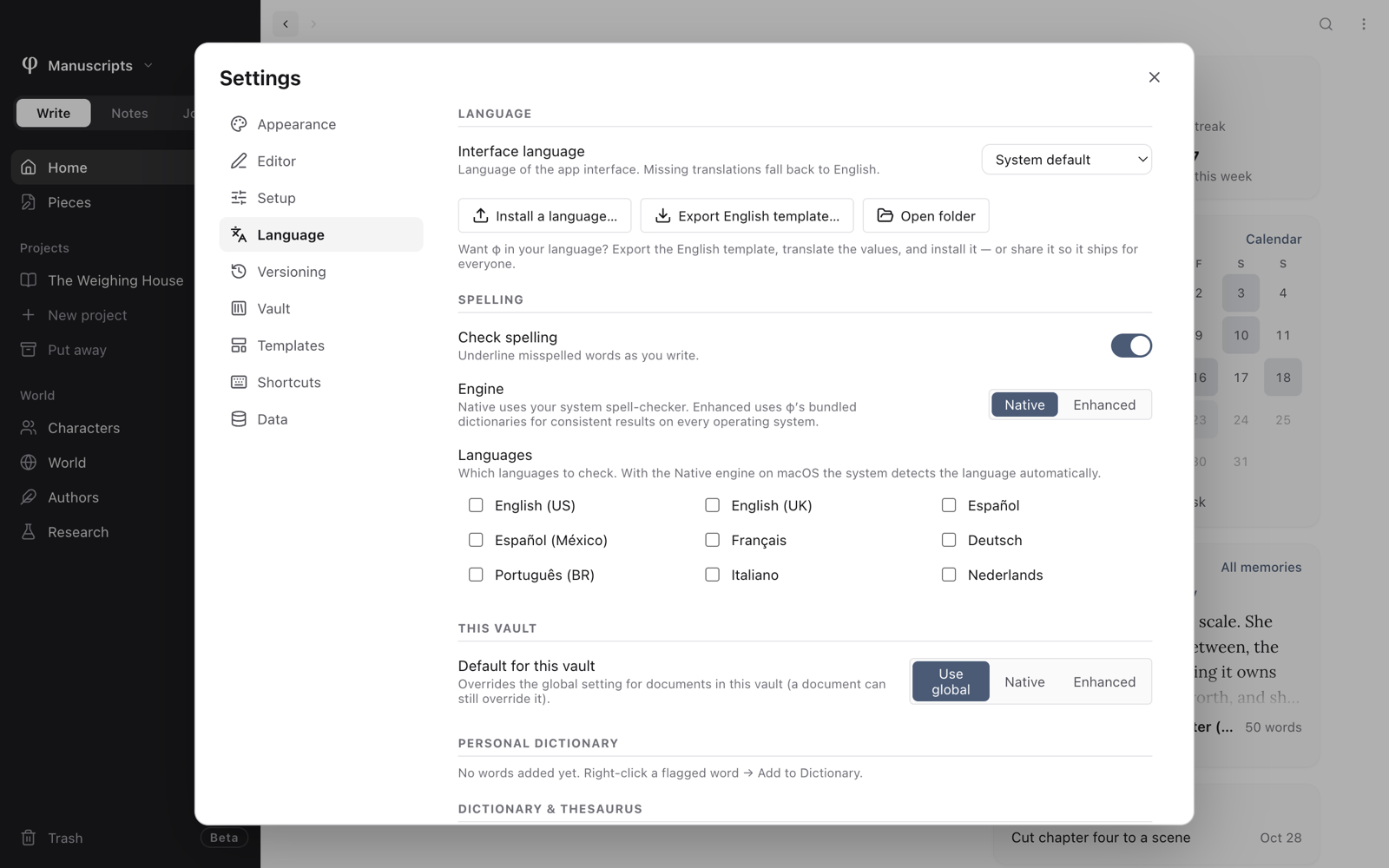
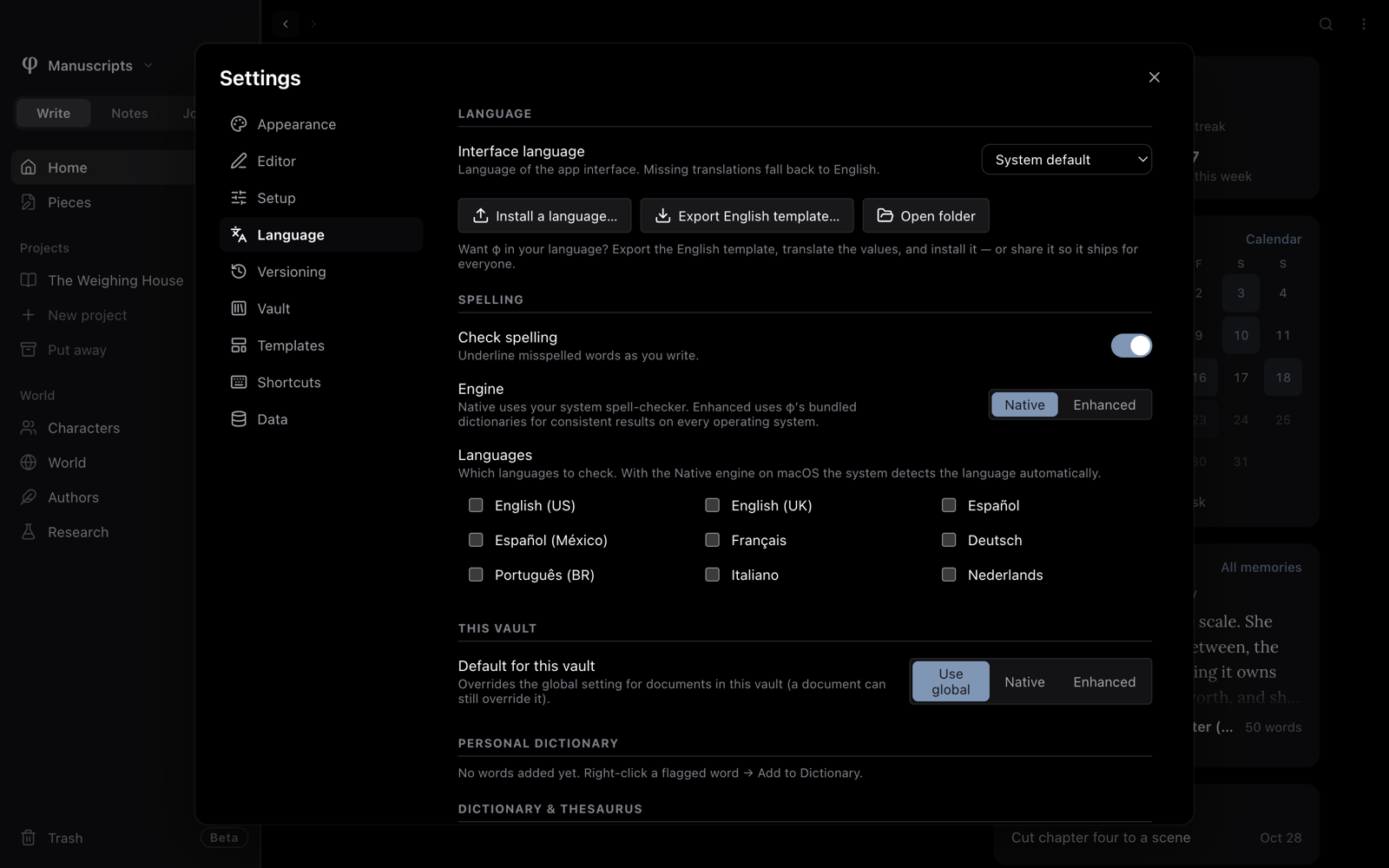
- System default follows your computer.
- The languages that come with Poiesis are listed under φ. Each one is shown by its own name, with the English name beside it.
- Languages you install yourself are listed under Community.
| Language | Shown as |
|---|---|
| English | English (English) |
| Spanish | Español (Spanish) |
| French | Français (French) |
Add a language
Three buttons are below the Interface language setting:
- Install a language… adds a language file. The language appears under Community. It also appears in a list below, with a trash button to remove it.
- Export English template… saves every phrase in Poiesis, in English, to a file. Use it to make your own translation: translate the phrases, then install the file. If you share your translation, it can be included in Poiesis for everyone.
- Open folder shows where installed languages are kept.
A translation doesn't have to be finished. If a phrase is missing, Poiesis shows it in English.
Check spelling in your languages
The languages for spelling are separate from the interface language. They are under Spelling, on the same page of Settings:
- Turn on Check spelling.
- Choose the Engine.
- Tick the Languages.
A vault (the folder that holds your work) can use its own engine. Set it under This vault. Spelling has the details.
See also
- Settings: every setting on one page.
- Spelling
- Dictionary & thesaurus