Vaults
A vault is the place that holds your writing. It is an ordinary folder on your computer. It holds your documents, the images you added, and the history of your changes. There is no database and no account.
Because a vault is an ordinary folder, you can back it up, move it, and sync it to your other devices.
Your documents are .poiesis files. This is φ Poiesis's own format, so other apps
can't open them directly. To use your writing in another app, export it as
Markdown, Word, PDF or EPUB. See Exporting.
Make a vault
- The first time you open Poiesis, choose Create a vault or Open a folder. Later, click the vault's name at the top of the sidebar and choose New vault… or Open another vault….
- In the window that opens, pick a folder or make a new one. It can be anywhere: Documents, a synced folder, an external drive.
- Poiesis opens the folder.
What happens next depends on the folder:
- If the folder is already a vault, Poiesis opens it as it is.
- If it is any other folder, Poiesis makes it a vault. Poiesis adds a Welcome to φ
note and a small sample project, The Grey Morning. It does not change
anything already in the folder. Any
.poiesisfiles in the folder appear in Poiesis.
What's in a vault folder
| In the folder | What it is |
|---|---|
.poiesis files | Your documents, one file each. |
assets | Images you add are copied here, so the vault is complete on its own. |
.trash | Documents you delete, until you restore them from Trash at the foot of the sidebar. Anything left there is deleted for good after 30 days. |
.poiesis-history or .git | The version history (see Versions & backup). |
.poiesis-vault.json | A small file that names the vault and remembers its settings. |
Most file managers hide names that start with a dot. You never need to change any of these files yourself. Poiesis manages them.
Switch between vaults
You can have several vaults, for example one for a novel and one for daily notes. Only one vault is open at a time. Each vault has its own documents, history and setup.
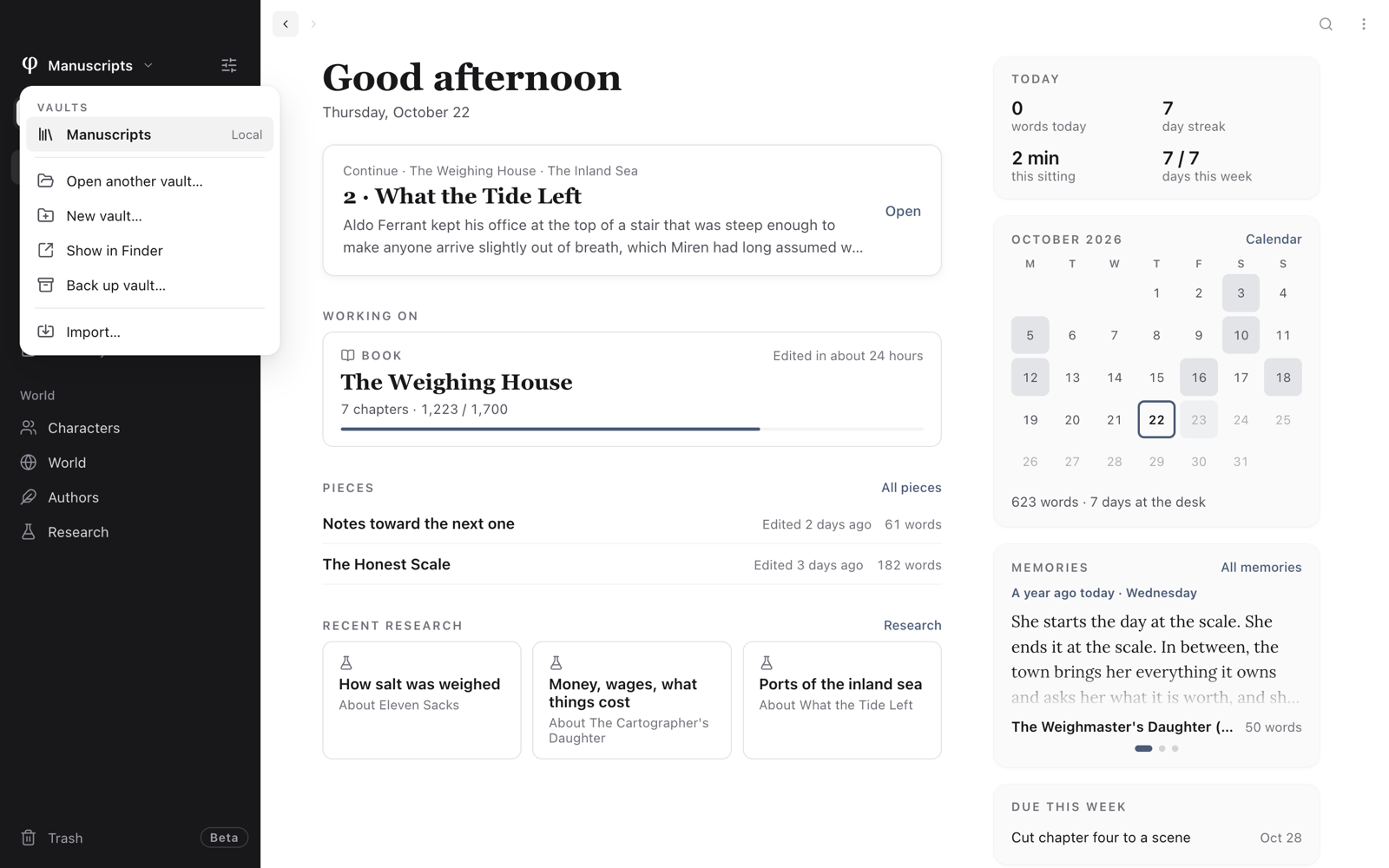
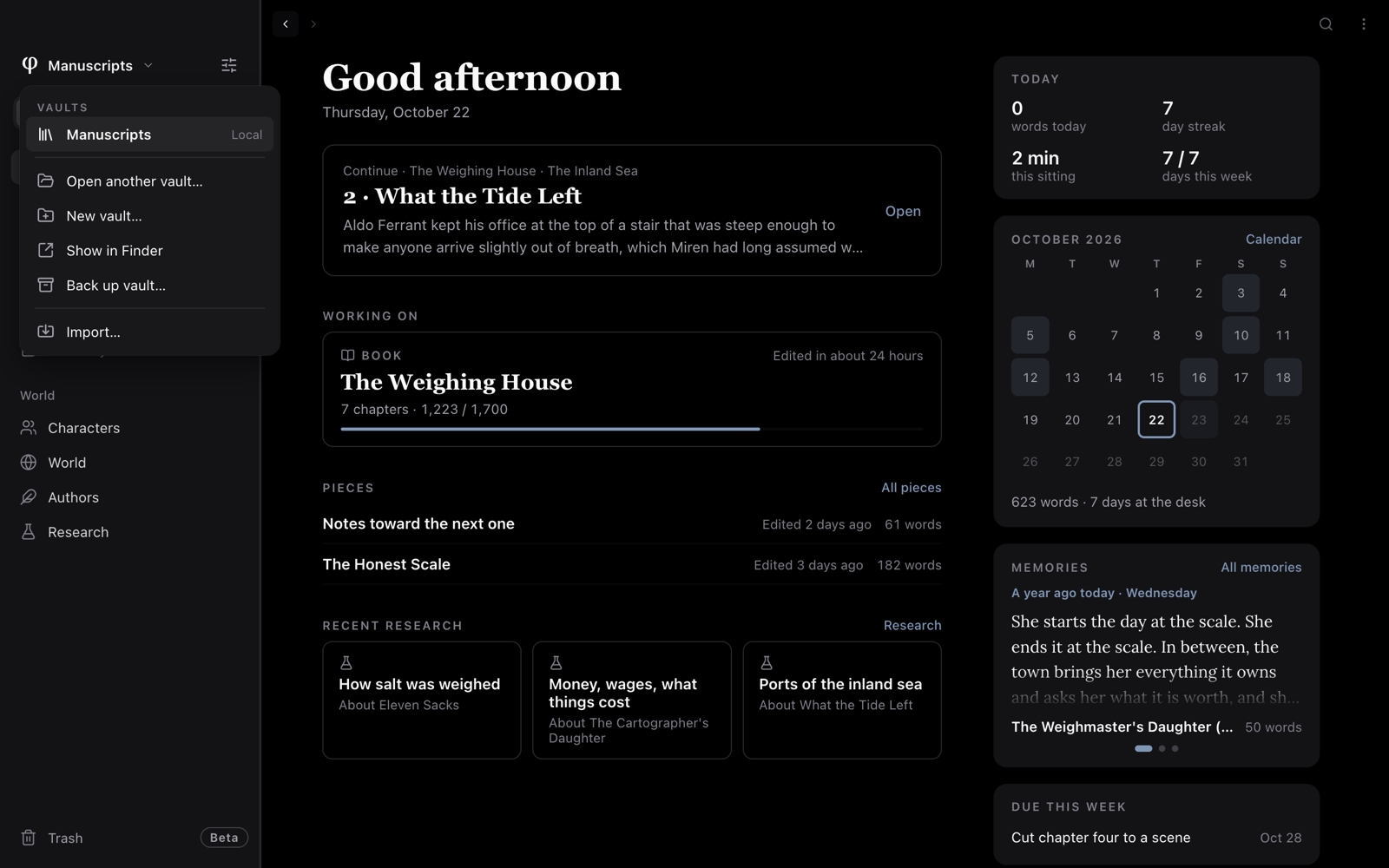
There are three ways to switch:
- The vault menu. Click the vault's name at the top of the sidebar. The menu lists your vaults. Each one shows where it is kept: Local, iCloud, Dropbox, Google Drive or OneDrive. Below the vaults are Open another vault…, New vault…, Show in Finder (Show in File Explorer on Windows), Back up vault… and Import…. See Back up a vault in one click.
- The vault switcher. Choose File → Switch Vault… (
⌥⌘O). A short list opens. Type to make it shorter, then press Return. The vault you are in is marked here now. - Open Vault. Choose File → Open Vault… (
⇧⌘O) to open a folder as a vault.
Choose a vault's modes
Poiesis has three modes: Write, Notes and Journal. To choose which ones a vault has:
- Open Settings (
⌘,). - Go to Vault → Spaces.
- Tick Write, Notes or Journal. At least one must stay on.
A vault with one mode shows no mode switch. On the same screen, Opens on chooses what the vault shows when it opens: its Home, or one of its modes.
Move work to another vault
You can move one document, a whole project, or a whole vault.
A document
- Choose Move to vault… in the document's ⋮ menu. You can also right-click the document in a list.
- Pick the vault. A vault that does not have the document's mode is shown, but you can't choose it.
- Poiesis lists the documents connected to this one: its research, what it links to, and what links to it. They are ticked, which means they move too. Untick any that should stay.
- Read what stays behind, then move the document.
These things stay behind: the project the document was in, its cards on boards, the characters it mentions (their names stay in the text) and its version history.
A project
- Choose Move to vault… in the project's ⋮ menu.
- Tick what else should go: its research pages, its boards, and other characters that its chapters mention. Those characters go as copies.
The whole project moves: its parts and chapters in order, its goal, cover and icon, and the characters that belong only to it.
After a document or project moves
- A summary lists what moved.
- Nothing in the other vault is overwritten. If a file name is already used there, Poiesis renames the file that arrives.
- The originals go to this vault's Trash, so you can still get them back.
A whole vault
To put everything from this vault into another one, choose Merge into another vault… in the vault menu.
- Every document, project, board, character, author and template goes, with their images.
- Folders keep their place. If a folder name is already used in the other vault, Poiesis adds this vault's name after it.
- Nothing is removed from this vault.
- The version history does not move. It stays with this vault's folder.
When the merge is done, you can keep the old vault or choose Remove "…".
Use a vault on several devices
- Put the vault in a folder that your devices share: iCloud Drive, Dropbox, Google Drive, Mega, OneDrive or a network drive. To move a vault you already have, quit Poiesis, move its folder there, then open it again with Open another vault….
- On each computer, open that folder with Open another vault…. Poiesis for iPhone and iPad is not out yet. When it is, it will open the same folder.
- Write on any device. Poiesis sees changes from your other devices after a short time. It updates the list and the open document by itself.
If Poiesis can't find the folder. This happens when a drive is unplugged or a cloud folder is offline. Poiesis says Can't reach the vault. It keeps what you type and saves it when the folder is back.
If documents are slow to appear on a Mac. iCloud keeps some documents only in the cloud. Poiesis downloads them when it sees them, so they can take a short time to appear.
When two devices change the same document
Poiesis never replaces one device's changes with another's. Sometimes a document changes on two devices before they sync. Then the document keeps one version, and Poiesis keeps the other version for you to check. A line above the page says A version from that device is waiting. The document's row in the list has a small mark.
- Click Compare. The waiting version opens beside the current document, with the differences marked. You can switch between Side by side and In content.
- Choose one:
- Keep this one makes the waiting version the document.
- Keep the current keeps the document as it is and discards the waiting version.
- Keep both keeps the waiting version as a separate document named "title (conflicted copy)".
If several versions are waiting, Poiesis shows them one at a time, oldest first. You can do this on any of your devices.
If the vault uses git for its history, Poiesis keeps the git history on each computer, outside the synced folder. A sync service copies the history one file at a time, and that can break it. See Versions & backup.
Remove a vault
- Open the vault.
- Go to Settings → Vault → Manage → Remove vault….
- Choose one:
- Unlink (keep folder): Poiesis removes the vault from its list and leaves the folder where it is. You can open it again at any time.
- Move to Trash: Poiesis removes the vault from its list and moves the whole folder to your computer's trash. You can recover it from there until you empty the trash.
If it was your last vault, Poiesis goes back to the welcome screen.
See also
- Versions & backup
- Importing: bring in writing from other apps.
- Setup: what each vault shows.