Ariadne
Ariadne is an assistant that sits beside whatever you have open. It reads your work with you, answers questions about it, checks continuity and gives feedback in margin notes. It also keeps your story bible and your vault in order. It never writes your pieces, and it asks before it changes anything. Read AI and your privacy before you turn it on.
Turn it on
- Open Settings → AI and choose Set up Ariadne.
- Choose a provider. You can read its privacy policy from the list.
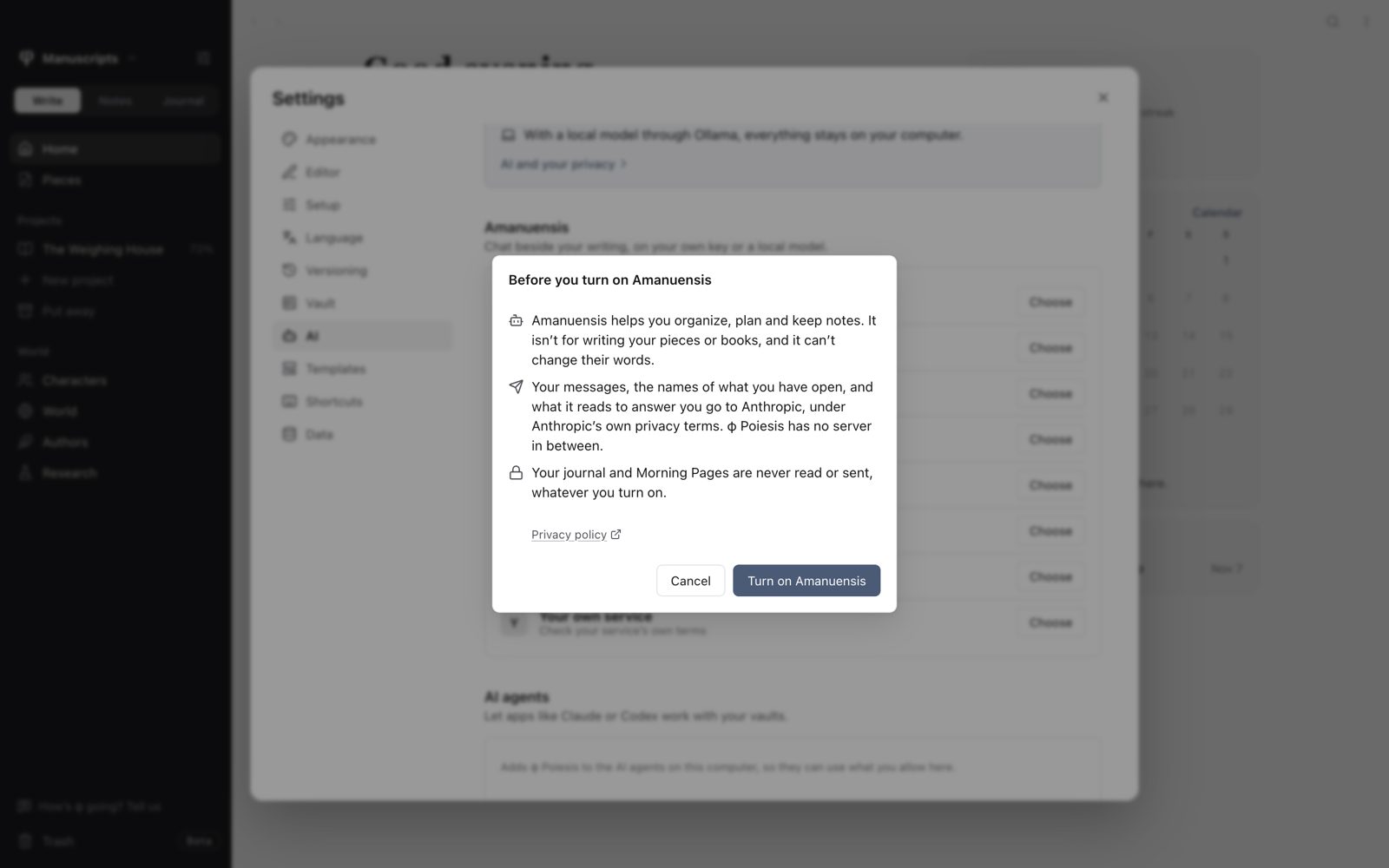
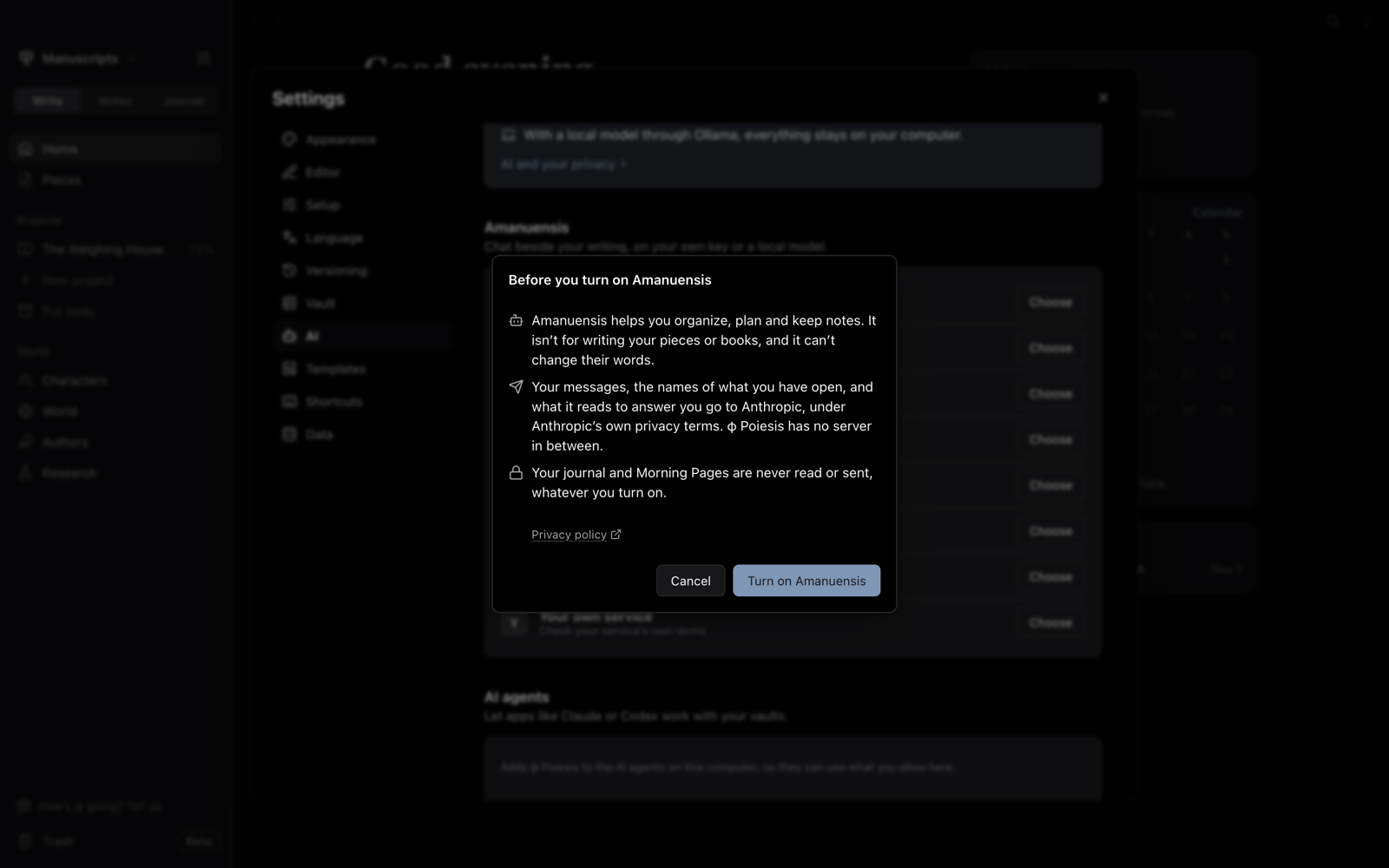
- Read the sheet that appears and choose Turn on Ariadne.
- Add your API key if the provider needs one, then choose a model.
With Ollama, you need it running on this computer with a model that can use tools.
Each vault can use these settings or its own. Under This vault in Settings → AI, pick the vault and choose Its own.
Open it
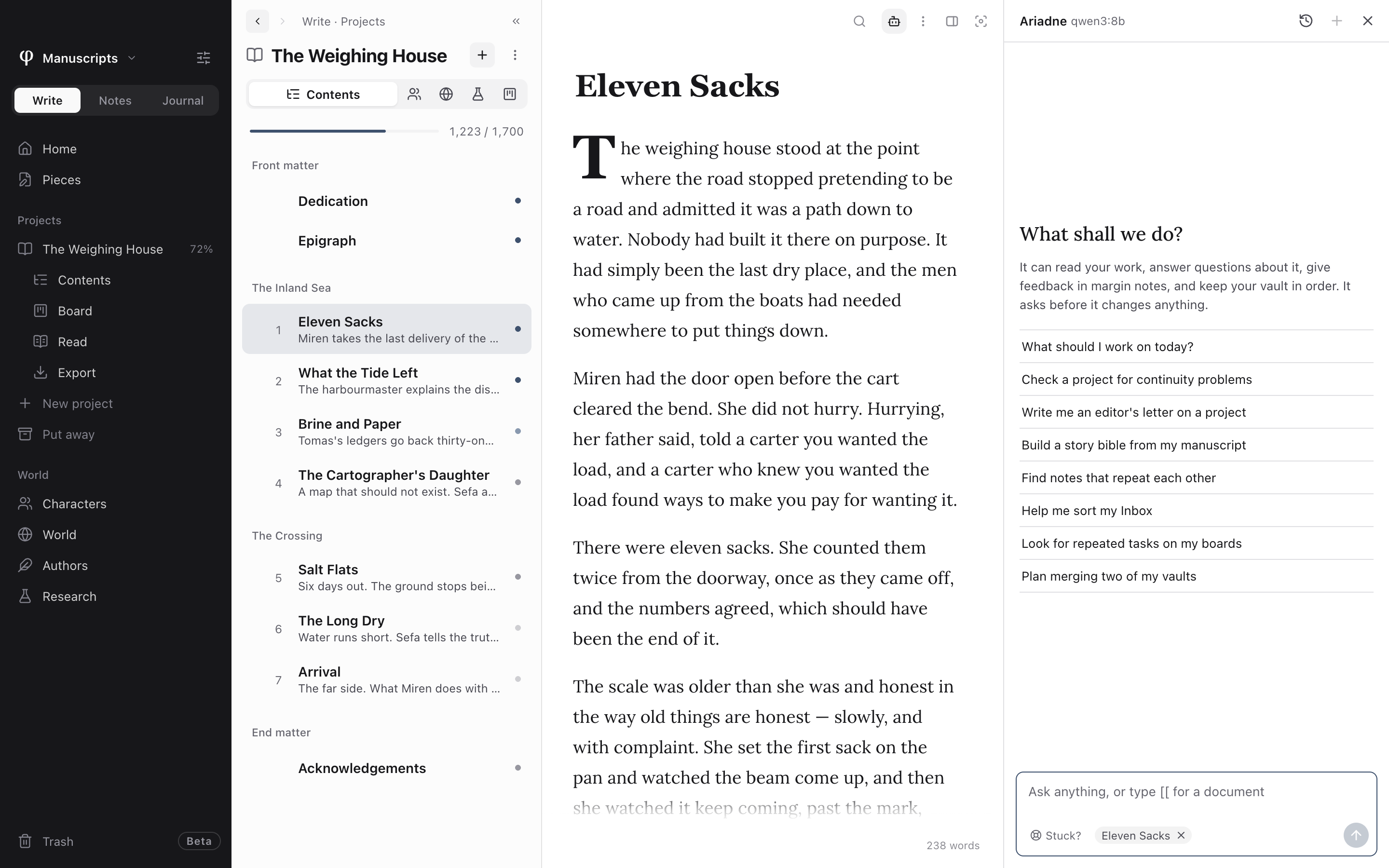
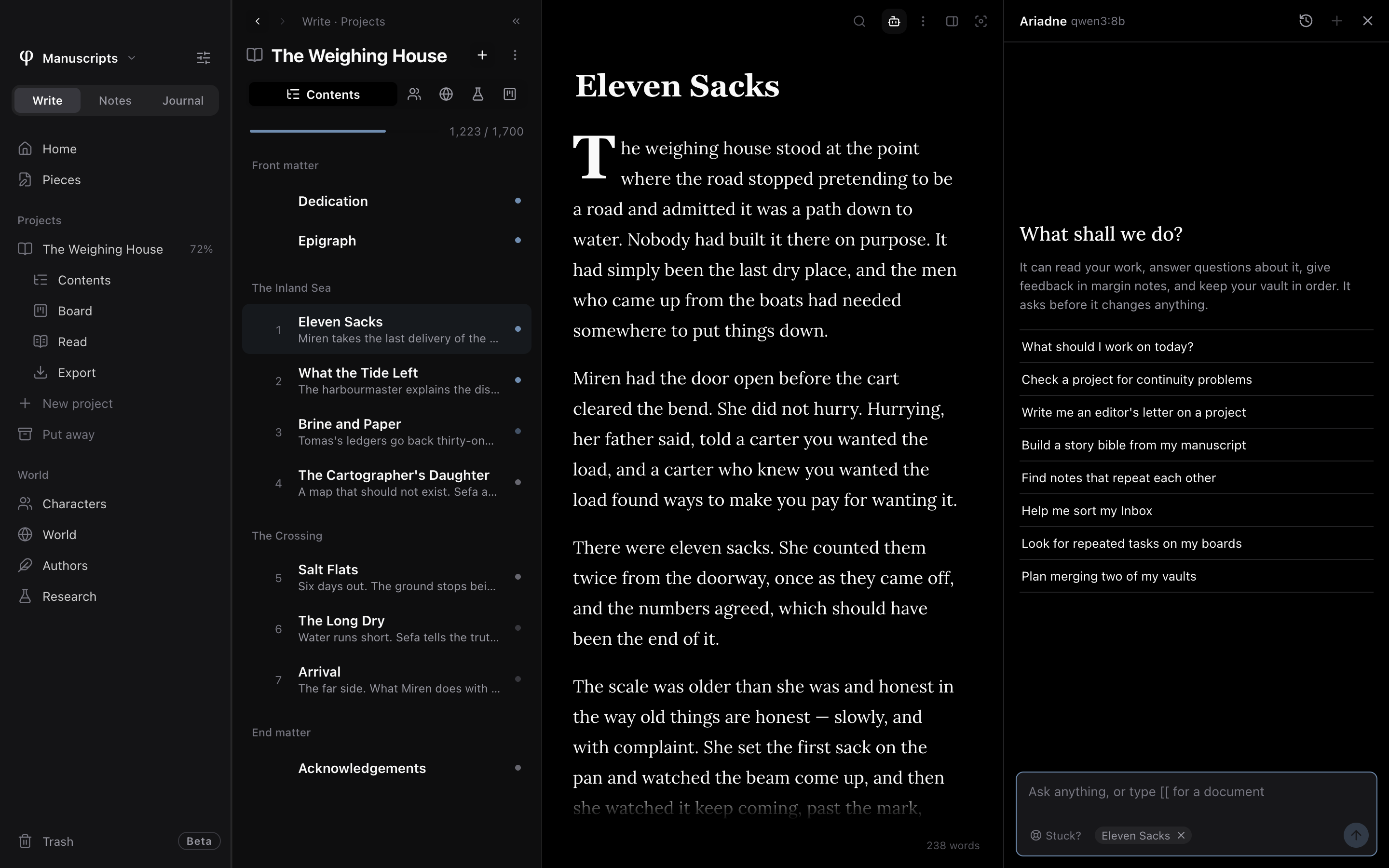
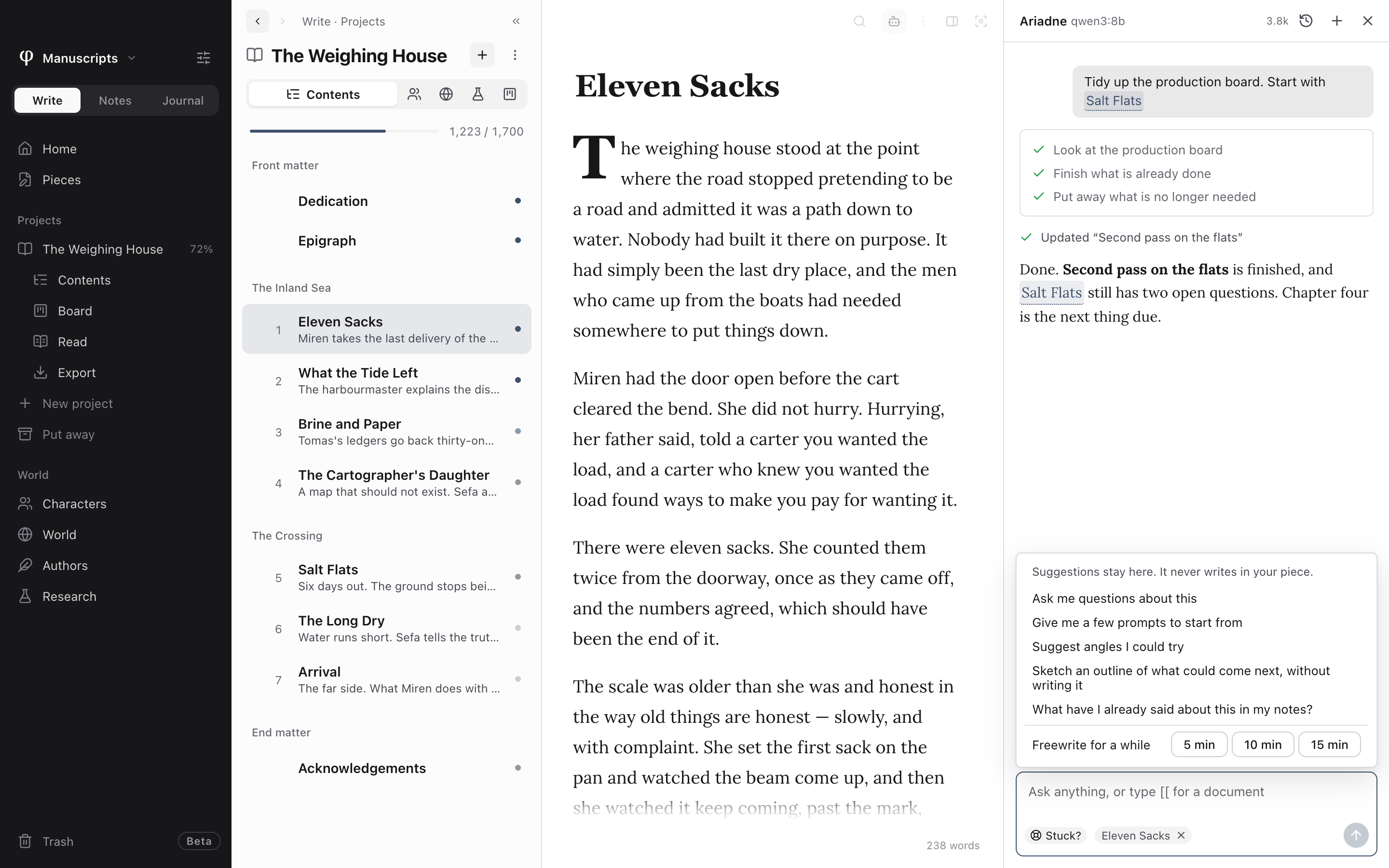
Use the bot button on the page's toolbar, or press ⌘G then A. It stays open as you move around.
Ask it about your work
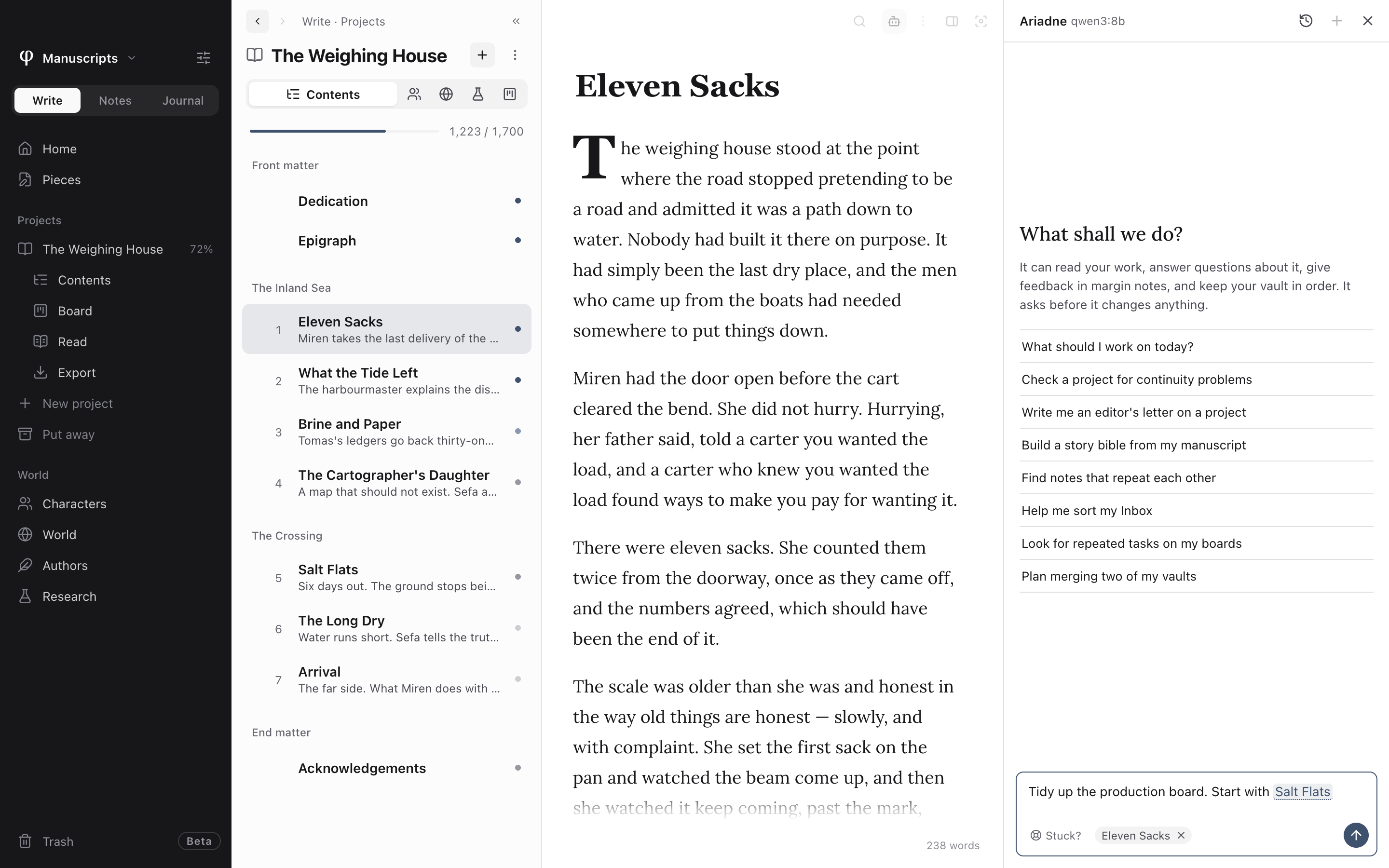
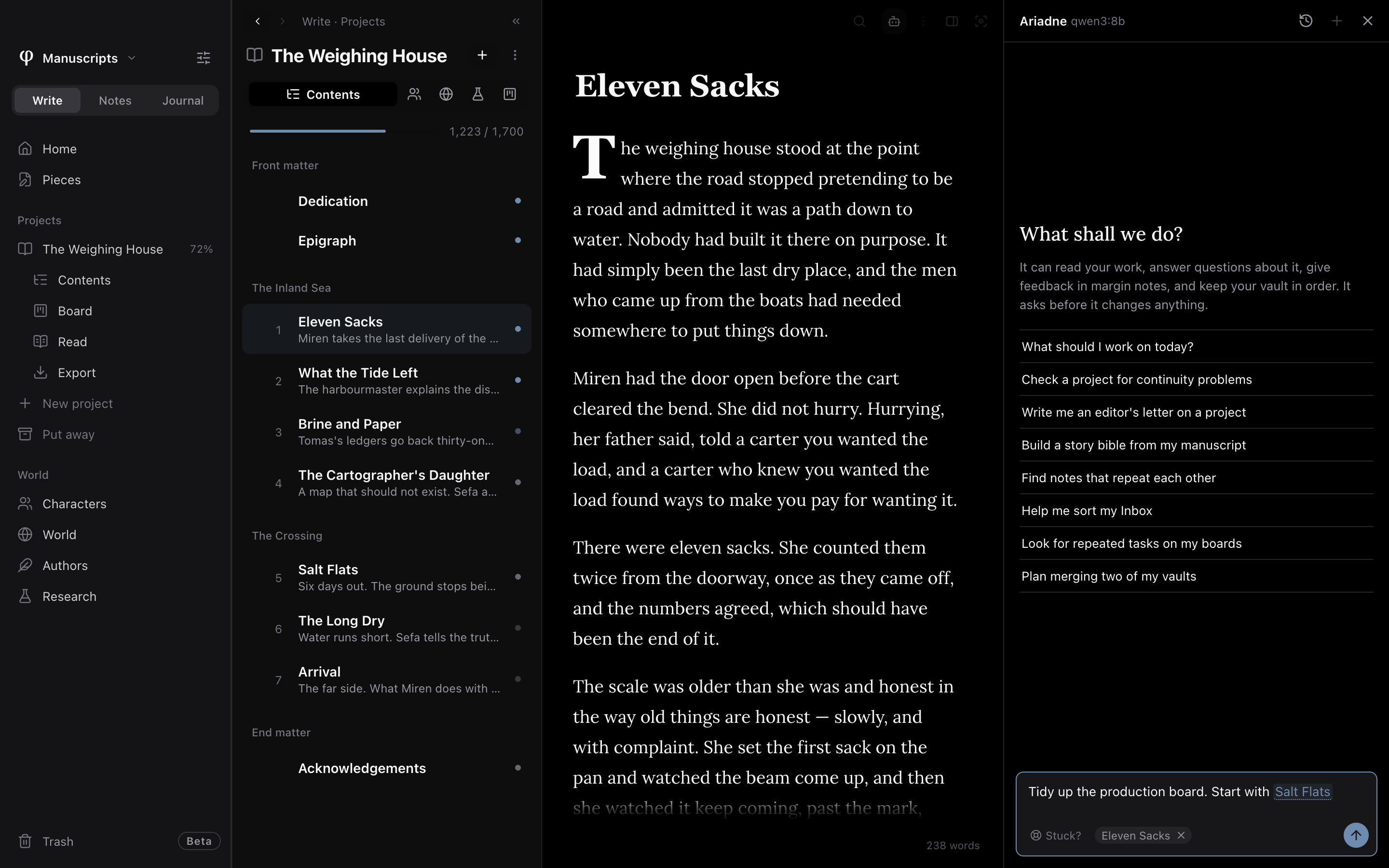
Start from a suggestion in the panel, or ask in your own words:
- What should I work on today? It looks at your recent writing, your tasks and your open notes.
- Check a project for continuity problems. It compares the text with your characters and world, and quotes both passages so you can check.
- Write me an editor's letter on a project. What works, where it drags, and what it would ask you first.
- Build a story bible from my manuscript. It fills in characters, places, events and chapter synopses from what the text says.
With Leave margin notes on, it can comment on a passage, in a piece too. These notes are marked From an agent in your annotations, and they never change a word.
Give it permission
Ariadne can only do what the vault's switches allow. They're all off until you turn them on, in the vault list in Settings → AI. Pick Read, Assist or Full for a vault in one click, or Fine-tune its switches. See AI agents. Each change also waits for you to choose Allow or Not now.
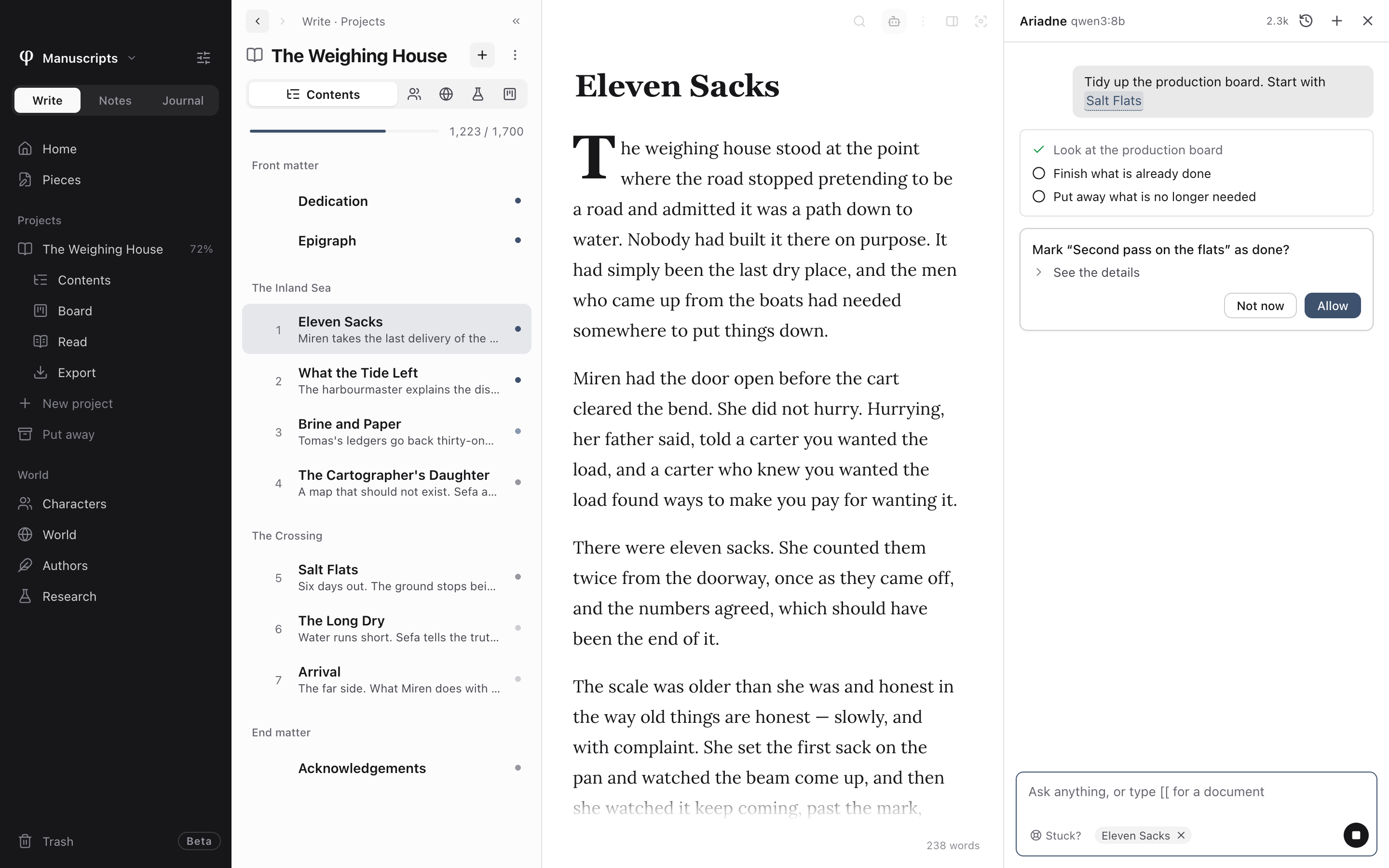
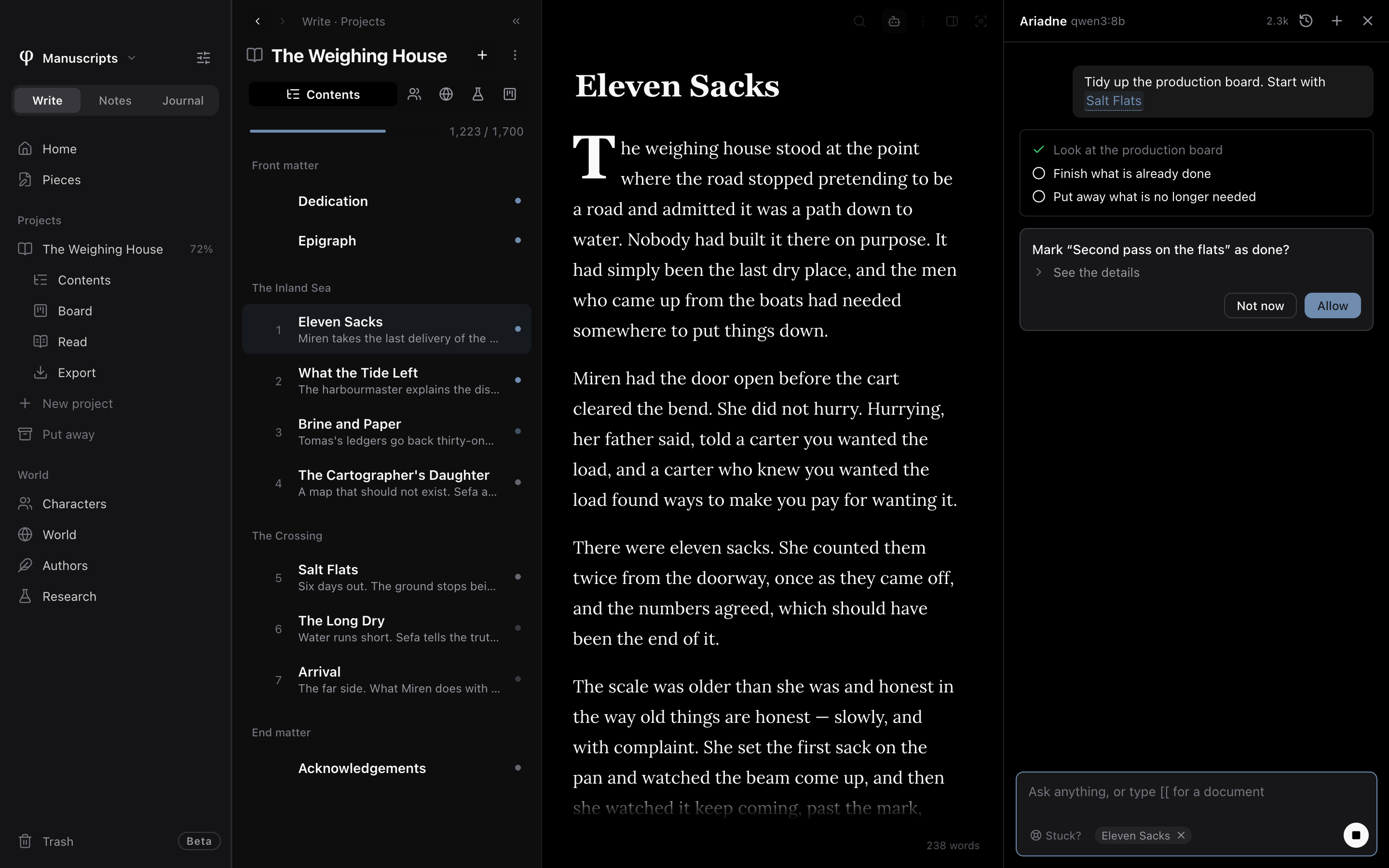
Link a document
Type [[ in your message and pick a document. The link stays in your sentence, as in the editor.
When you're stuck
Choose Stuck? in the message box for questions about your piece, prompts, angles to try, an outline of what could come next, or what your own notes already say. You can also start a 5, 10 or 15 minute freewrite timer, which doesn't use AI.
Suggestions stay in the panel. To keep a reply, hover over it and choose Save to a note, and it goes to your Inbox. A note saved this way, or written by an agent, doesn't count toward your words.
Past chats
The clock button lists past chats. You can search, rename and delete them.