Notes & capture
Notes is the mode for everything that isn't the writing itself: an idea, a source, a line you overheard, a thought about chapter four. A note has no status, no word goal and no count to watch, so it costs nothing to make one. You type a thought, press Return, and get back to work.
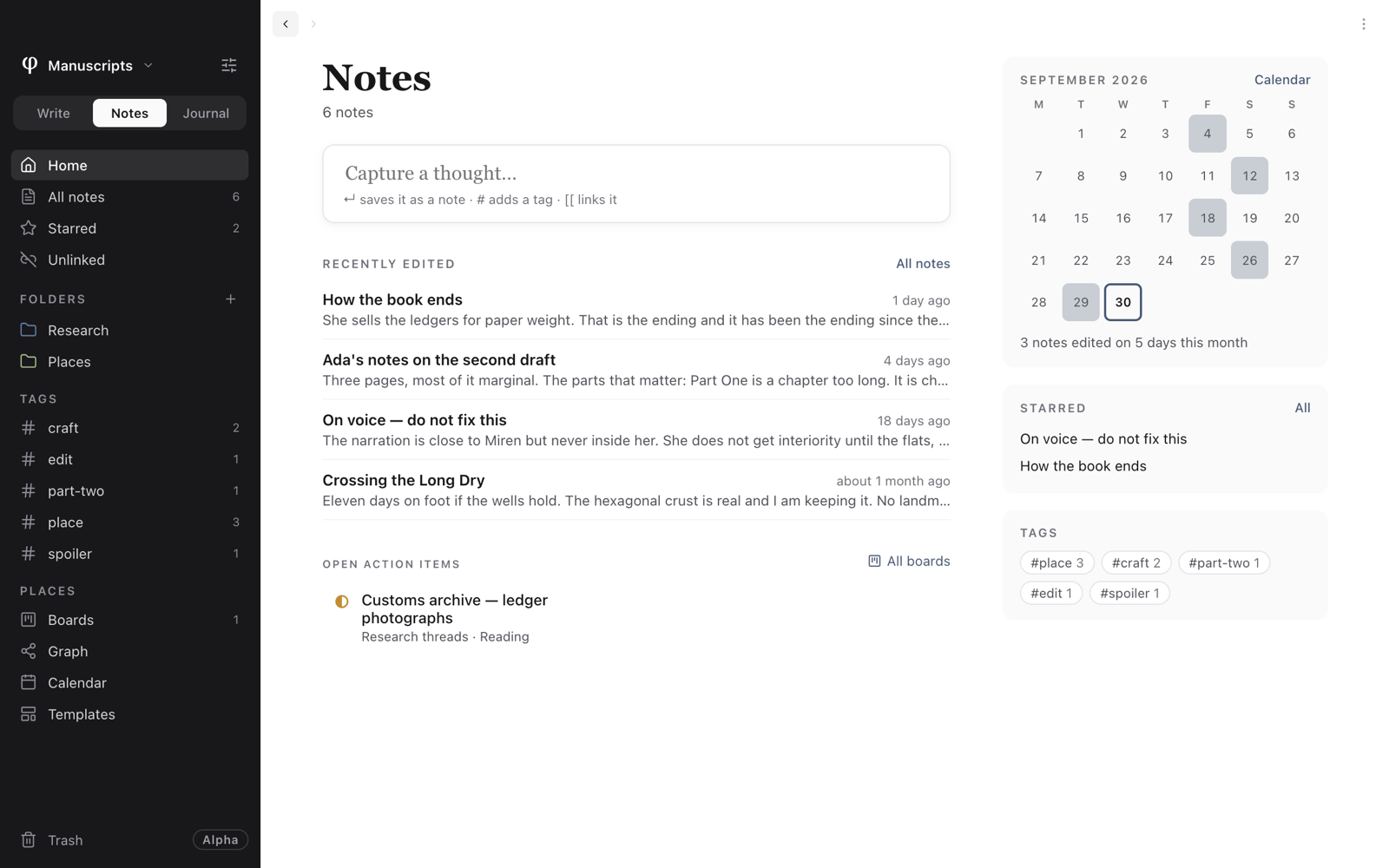
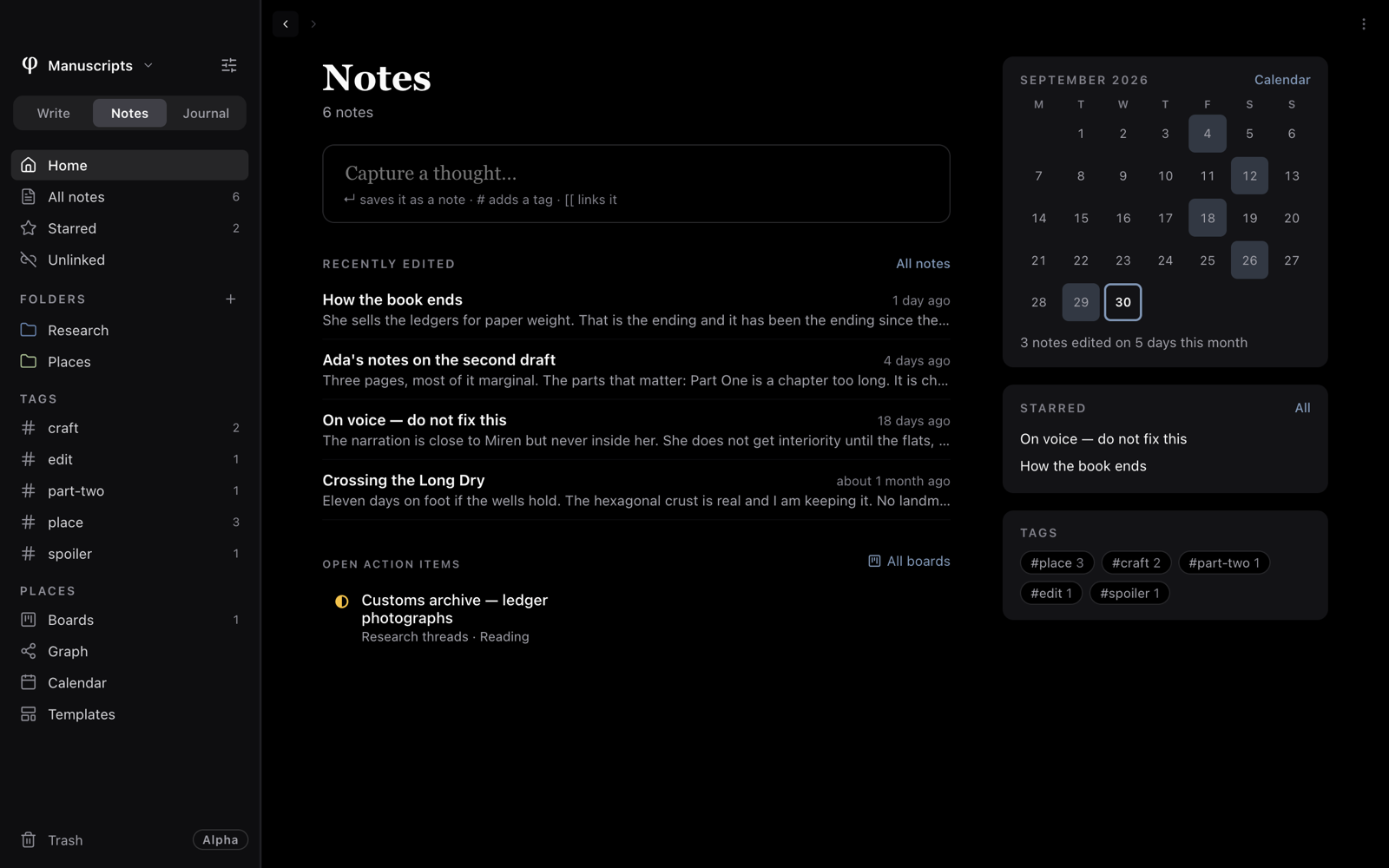
Capture a thought
- Choose Notes in the mode switch at the top of the sidebar (
⌘2). You land on Notes' Home. - Click Capture a thought… and type.
- Add a
#wordto tag it, or[[and a title to link it to a document. - Press Return. The note is saved and the box is empty for the next one.
The note isn't opened; you stay where you were. It shows at the top of Recently edited, and in All notes.
A short thought becomes the note's title. A long one is cut to a title, and
the whole of it is kept as the note's text. Only the first #word becomes a
tag; the word stays in the text as you wrote it.
Capture from a list
The same box sits at the top of the list when you're looking at All notes, a folder or a tag. A note captured there lands where you're looking:
| You're looking at | The note goes |
|---|---|
| All notes | In no folder, tagged with its first #word. |
| A folder | In that folder, tagged with its first #word. |
| A tag | Under that tag, whatever you typed. |
To write something longer, press + at the top of the list (New note),
or ⌘N while you're in Notes. A note made with + while you're in a folder
goes in that folder.
Notes' Home
Home is where Notes opens. On the left:
- Capture a thought…, the quickest way in.
- Recently edited: the last few notes you touched, with how long ago and their opening line. All notes opens the full list.
- Open action items: checklist items from your notes that are on a board and not yet done. It's there only when you have some. See Boards.
On the right, the month (darker days are days you edited more notes, and Calendar opens the calendar), your Starred notes, and your most used Tags. Click a tag to list its notes.
Find a note again
The sidebar in Notes lists the ways in:
| Place | What it lists |
|---|---|
| All notes | Every note that belongs to no project. |
| Starred | The notes you starred. |
| Unlinked | Notes that nothing links to and that link to nothing. Good for finding loose threads. |
| Folders | Your folders, each with how many notes it holds. + beside the heading makes a new one. |
| Tags | Every tag on your notes, with a count. |
Each list has a search field at the top that narrows it by title, opening
text and tags, and a sort: Last edited, Date created or Title.
⌘K finds any document by name from anywhere. See
Search & replace.
Star a note
Star what you reach for most. Any of these works, and choosing it again unstars it:
- The ⋮ at the top of the open note → Star.
- Right-click the note in a list, or its ⋮ → Star.
- The star on the note's Details… page.
Starred notes are listed under Starred in the sidebar and on Home.
Tag a note
A tag cuts across folders, and a note can carry as many as you like.
- Add one: open the note's Details…, type in + Tag and press
Return. Capturing with a
#wordadds one too. - Remove one: click the × on it in Details.
- Browse one: click it under Tags in the sidebar, on Home, or in Details.
A list shows each note's first tag under its opening line.
A note can become a piece of writing, and back. Right-click it (or use its ⋮) and choose Move to Write's pieces. A piece moves the other way with Move to Notes. See Organizing.
See also
- Organizing: folders, sorting, moving and the trash.
- Links & the graph
- Boards: turn a checklist in a note into a card.
- Research: notes kept for a particular book.