Boards
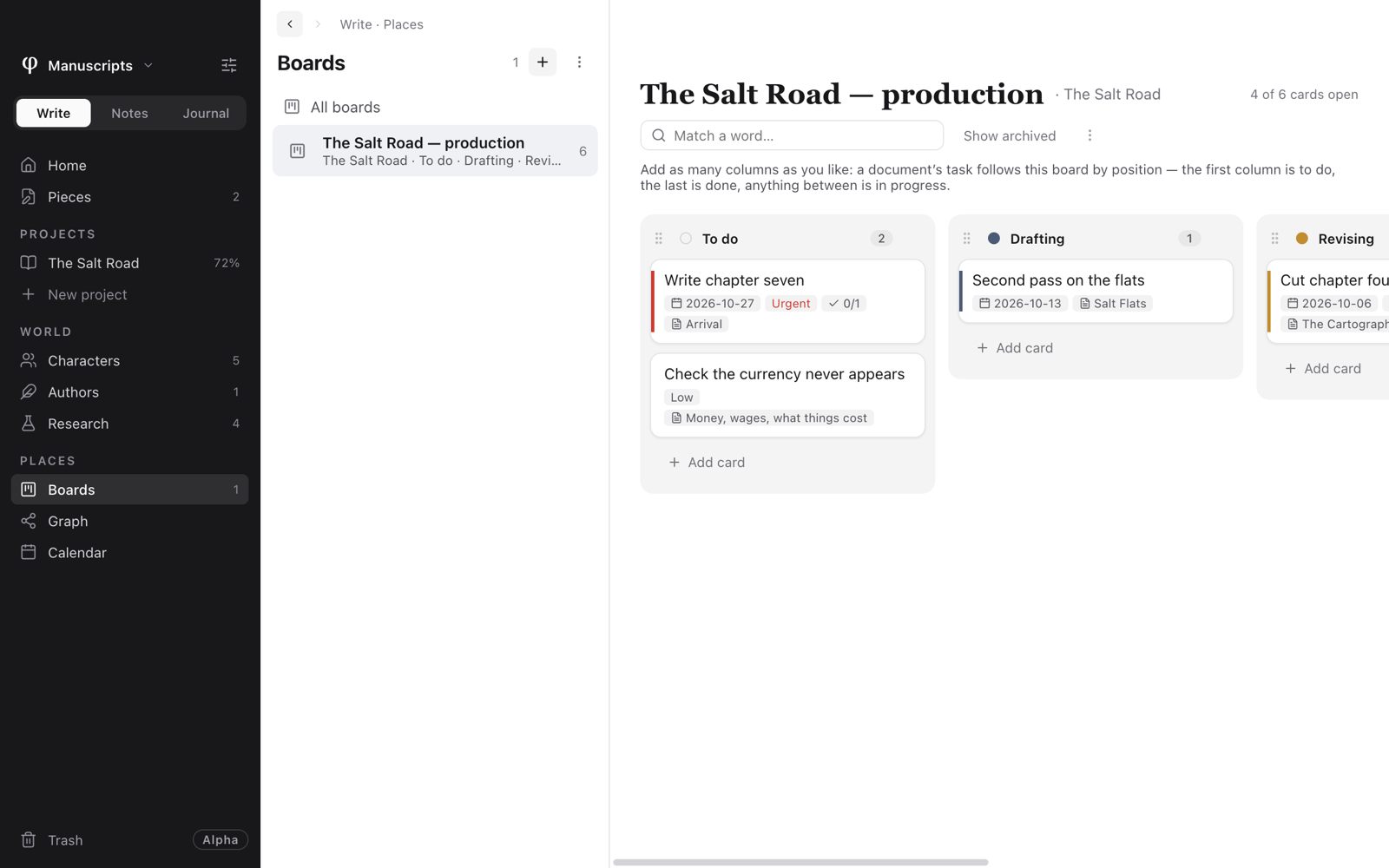
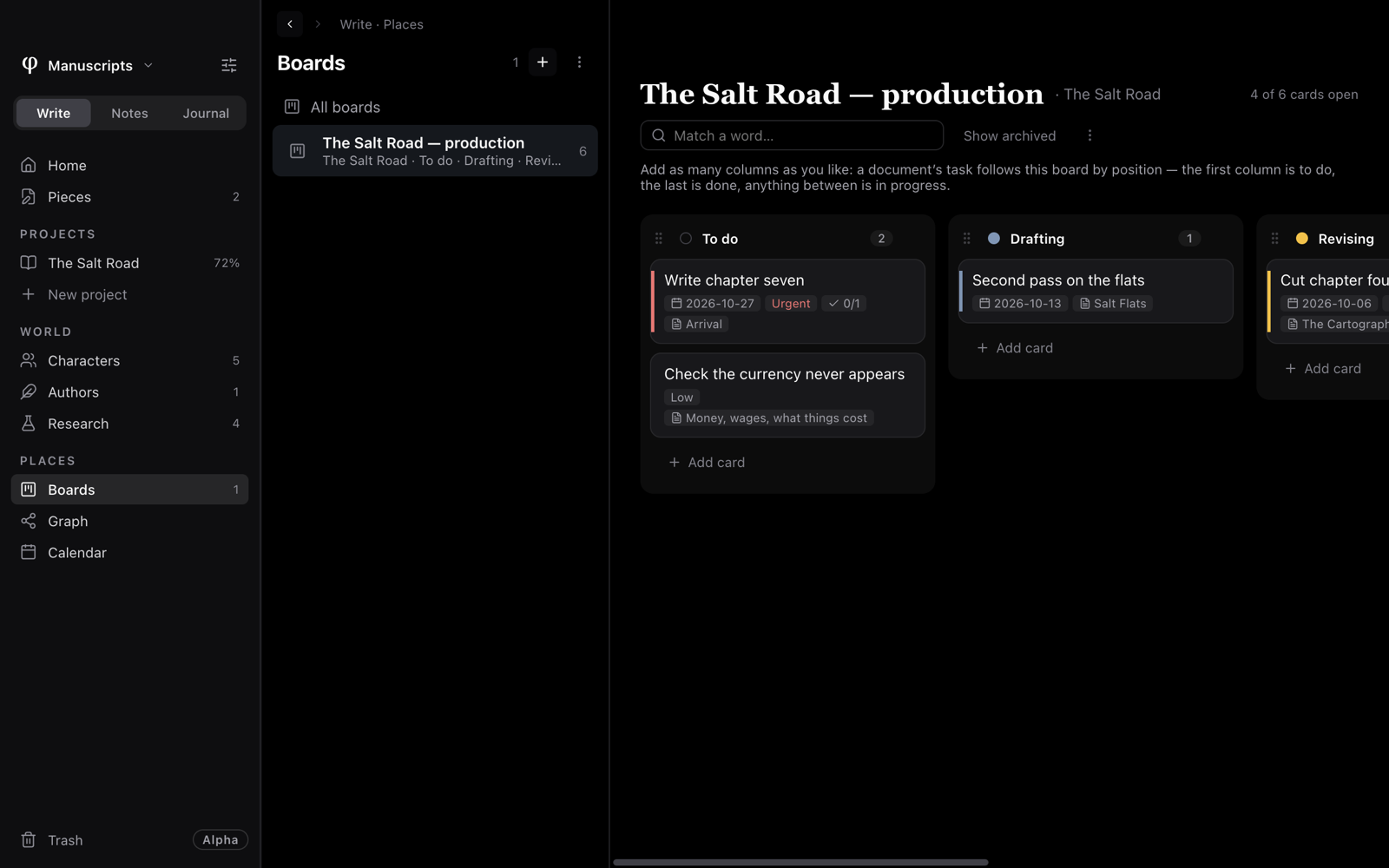
A board is columns of cards: the jobs left on a book, the threads to follow up, anything you want to keep moving. A card can carry a due date, a priority, a checklist and links to your documents. A checklist item in a note can live on a board too, and ticking it in one place moves it in the other.
Make a board
- Open Boards under Places in the sidebar. In Write, open the project the board is for first.
- Press New tasks board or New custom board.
- Name the board.
- Press Add card at the foot of a column, and type what needs doing.
| Kind | Columns | Use it for |
|---|---|---|
| Tasks board | To do, Doing, Done | Things to finish. The first column means to do, the last means done, and anything between is in progress. Only a tasks board can track checklist items. |
| Custom board | Column 1, Column 2, Column 3 | Anything else. The columns mean whatever you name them. |
+ at the top of the Boards list makes a tasks board too, and the list's ⋮ has New custom board.
Which boards you see
Each mode keeps its own boards:
- Write shows the boards that belong to a project.
- Notes shows the boards that belong to none.
With no board open, the page shows each board as a tile: its columns and how many cards are open. Click one to open it.
Work with cards
Drag cards between columns, and up and down. Click a card to open it:
| Field | What it holds |
|---|---|
| Title and Notes | What needs doing, and a description. |
| Checklist | Steps: type one and press Return. |
| Linked to | Documents, characters and projects. Click a link to open it. |
| Column | Where the card sits. |
| Due | A date. The card shows on the calendar that day, and under Due this week on Write's Home. |
| Remind | A date and time. |
| Priority | Low, Normal, High or Urgent. |
| Label | A colour, or No label. |
Archive card puts it away without deleting it. Delete card moves it to the trash; Restore there puts it back in its column.
Arrange the columns
- Rename: click a column's name and type.
- Colour: click the dot beside the name, or No color.
- Move: drag a column by its handle. On a tasks board the order is the meaning, first to do and last done.
- Add: Add column, at the end of the columns or in the board's ⋮.
- Remove: the × on an empty column. Move its cards first. A tasks board keeps at least two columns.
Keep a board tidy
The board's header shows how many cards are open, a Match a word… field, and Show archived. Its ⋮ has:
- Hide what is done: keeps the last column's cards out of view.
- Archive what is done: puts every card in the last column away at once. Archived cards stop showing and counting, but stay in the board's file. Show archived brings them back struck through, and a card's Put back on the board returns it.
- Add column.
- Board settings: the board's Name; its Project, or Standalone to show it in Notes; its columns; and Delete board, which moves it to the trash.
Track a checklist item on a board
- In a note, write a checklist item: type
[]or use/checklist. - Open the Info panel (
⇧⌘I) and choose Tasks. Every checklist item in the note is listed. - Press Track beside one, and choose a tasks board, or make one.
The card links back to the note, and the two stay in step: tick the item and the card moves to the last column; move the card and the item follows. An item with a nested list takes it along, as the card's checklist.
Notes' Home lists the Open action items from your Notes boards, with a link to All boards.
New checklists can be started in notes and research pages. To start them in Write or Journal as well, open Settings → Setup, find the mode under Modes, and turn on Checklists. A document that already has a checklist always keeps it.
Put a whole document on a board
Open the document's ⋮ → Add to board… (also at the foot of the Info panel's Outline tab). Give the card a title and pick a tasks board. The card links to the document, and the document's Details… lists the card.
A project's chapter board
Every project has a board you never have to keep. Open the project and choose Board under it in the sidebar, or Open project board from its ⋮. It shows the chapters as cards in status columns, Todo, Draft, Revised and Final. Drag a card and the chapter's status changes. The project's tasks boards are listed below it, with New tasks board for this project. See Projects.
See also
- Notes & capture
- Calendar: due dates, by day.
- Projects
- Organizing: restoring from the trash.