Print a book
The Print book tab makes the two files a print-on-demand service asks for: the interior, as a print-ready PDF, and the cover, front, spine and back on one page. φ works out the margins, the blank pages before chapters, and the spine from the page count.
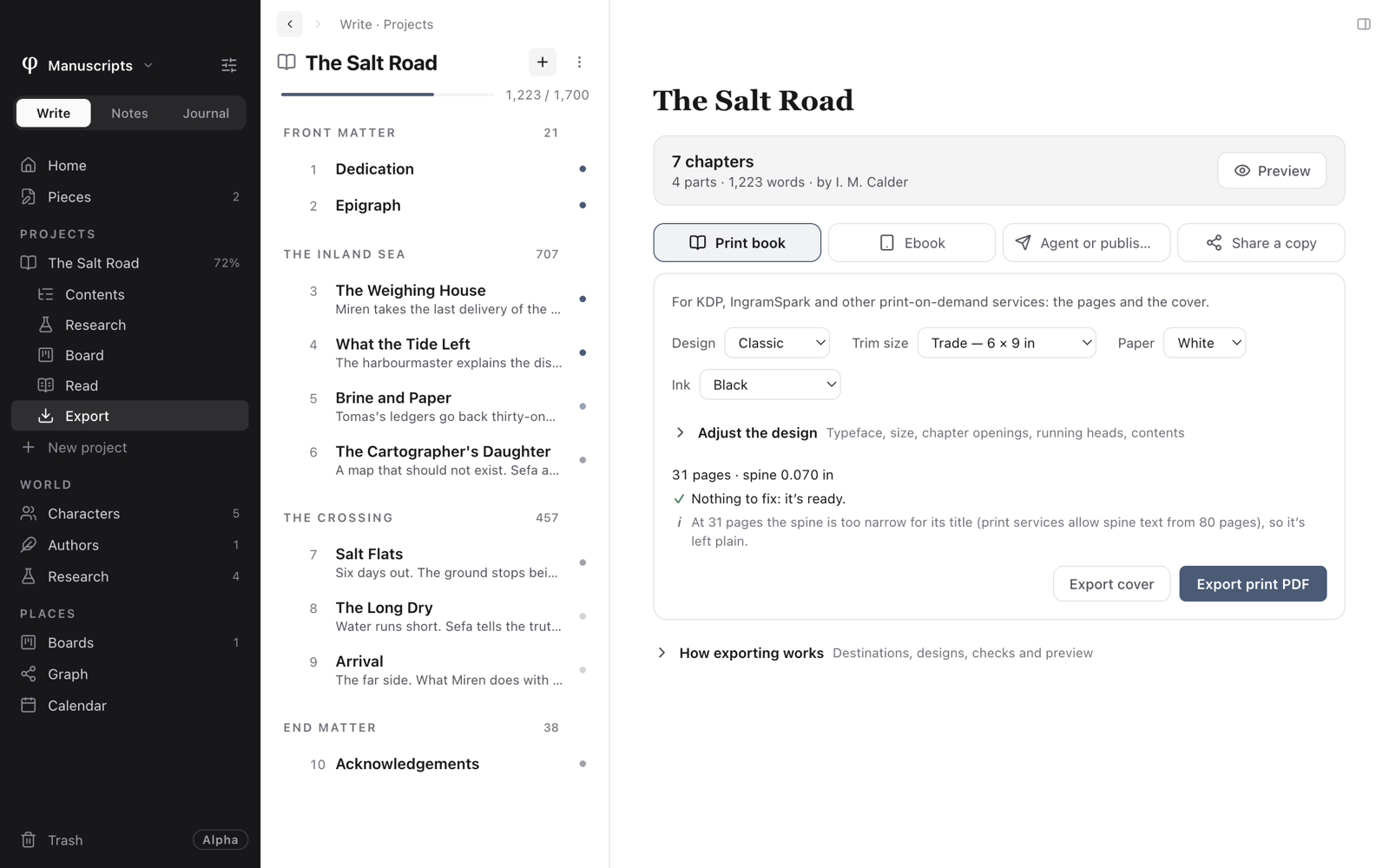
Make the files
- Open the project's Export page and choose Print book.
- Choose the four things a print service asks for:
- Design: how the book is set (see Designs).
- Trim size: the size of the printed page.
- Paper: White or Cream.
- Ink: Black, or keep φ's colour.
- Read the check below the choices, and fix anything it lists.
- Press Export print PDF for the interior.
- Press Export cover for the full-wrap cover.
- Upload the two files to your print service separately.
Choosing the trim size
| Trim size | Usual for |
|---|---|
| Pocket — 5 × 8 in | Mass-market paperbacks |
| 5.25 × 8 in | Shorter novels |
| Digest — 5.5 × 8.5 in | Novels, memoir, poetry |
| Trade — 6 × 9 in | Most fiction and non-fiction; the safe choice |
| Royal — 6.14 × 9.21 in | Larger non-fiction |
| 7 × 10 in | Workbooks and illustrated books |
| Letter — 8.5 × 11 in | Manuals and large-format books |
These are the sizes KDP and IngramSpark print. If a project is set to a paper they don't print (A4, say), the tab says so and asks you to choose one.
Paper and ink
Cream is usual for fiction and White for non-fiction. Cream is slightly thicker, so the same book has a wider spine.
Links and citations print in black by default, so no screen colour reaches a printed page. Pictures keep their colour either way. Choose Keep φ's colour only if you're paying for colour printing.
What φ takes care of
- Chapters open on a right-hand page. φ adds the blank page before them when a design asks for it. You can turn this off under Adjust the design.
- Margins for the binding. The inside margin grows with the page count, as print services require, so the text clears the spine.
- Page count limits. A paperback needs at least 24 pages and holds at most 828; the check tells you if the book falls outside that.
- No cover inside the interior. The cover is a file of its own.
- Footnotes at the foot of their page, and running heads and page numbers as the design sets them, with none on chapter openings.
The cover
Export cover makes one PDF with the back, the spine and the front, plus the eighth of an inch of bleed print services trim away.
- The front is your cover art, set at the top of the project's page.
- The back and spine take their colour from the cover art. The back carries the book's description and the first author's short bio, and leaves the corner where the barcode goes clear.
- The spine is sized from the page count and the paper. From 80 pages on, it carries the title and author; below that it's too narrow, and stays plain.
The check warns when the cover art is too small to print sharply: a printed cover needs about 300 pixels per inch.
Before you publish, order one printed proof from your print service. It's the only way to see the colours, the margins and the spine as a reader will.
See also
- Preview: every page of the book, as spreads.
- Designs & adjusting them
- Book details: the title page, copyright page and ISBN.
- Make an ebook: the same book for reading apps.