Research
Research pages hold the material behind a work: sources, facts, places, timelines. Each is linked to what it's about, a chapter, a project or a character, so the research is there when you're writing that part and never gets in the way of the book itself.
Start a research page for a chapter
- Open the chapter and its Info panel (
⇧⌘I), then choose Links. - Under Research, press New research page. The new page is already linked to the chapter.
- Give it a title and write. A research page is written like any document: headings, lists, quotes, links.
- The page shows what it's for under its title (Research for). Click a name there to go to it.
Where research lives
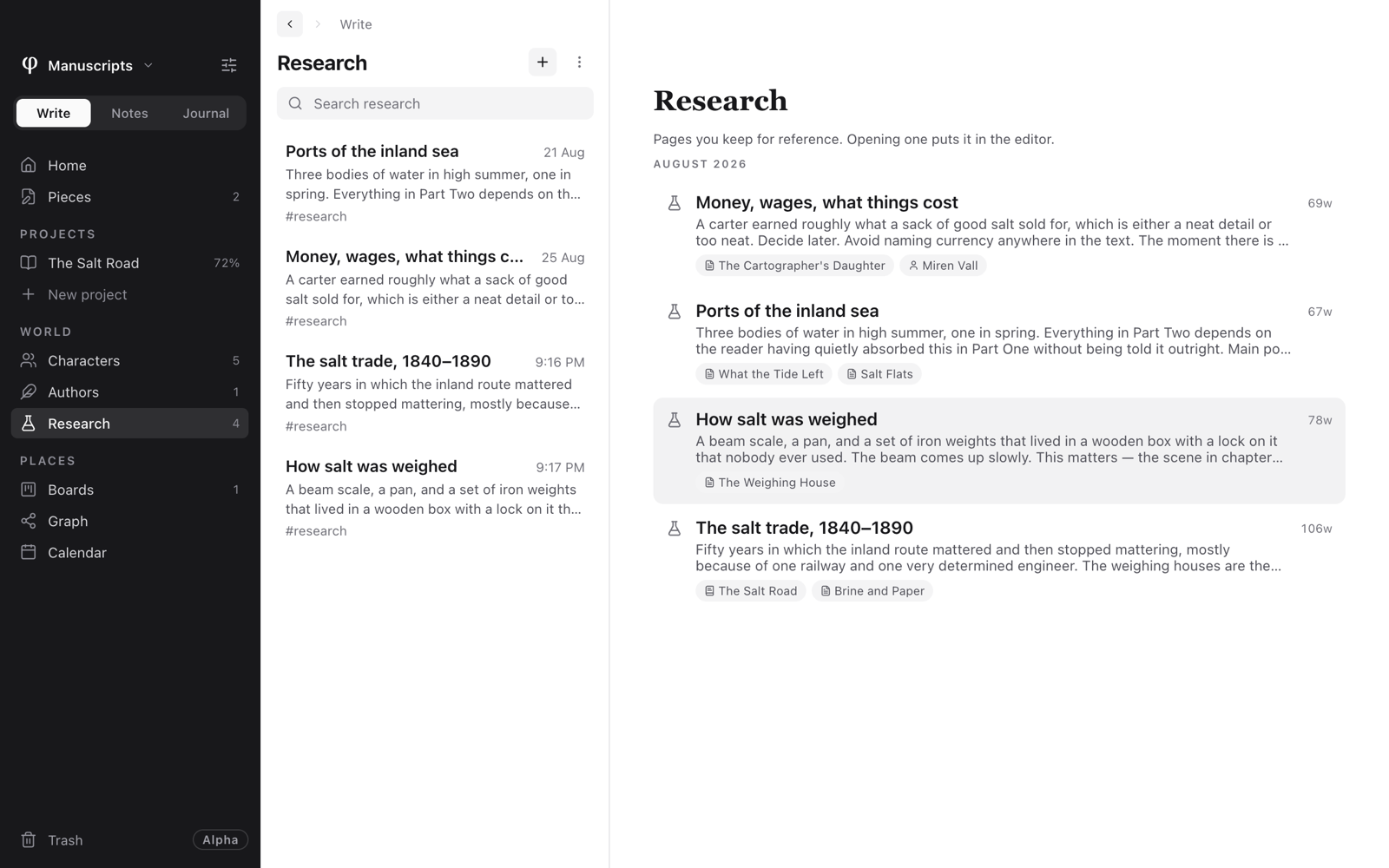
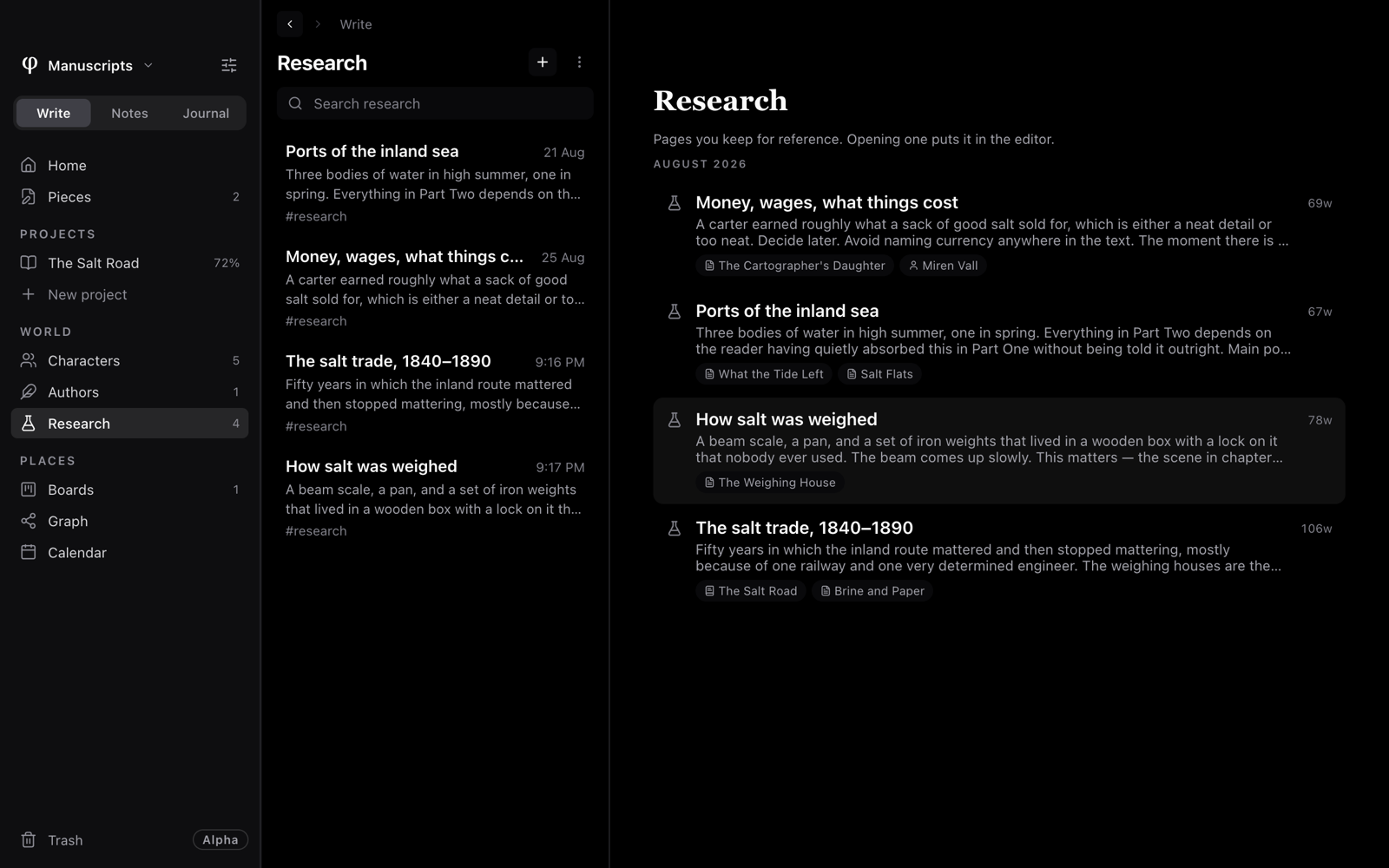
Research belongs to Write. Open World → Research in the sidebar to see every research page. With none open, the page gathers them by month, each with the things it's linked to.
Inside a project, the sidebar shows Research under the project too. That list holds only the research linked to the project or to one of its chapters.
Write's Home shows your Recent research, each with what it's about. Research for a project whose chapters are all marked Final drops off there, since it has done its job.
Make a research page
- + at the top of a Research list (New research page). Made from a project's own Research list, it's linked to that project.
⌘K→ New research page.- New research page under Research on a document's Links tab, a project's page, or a character's page. It's linked to what you were looking at.
Link it to what it's about
- Open the research page's Details… (the ⓘ at the top of the page).
- Under Research for, click Link to….
- Pick a Document, a Project or a Character.
A page can be linked to as many things as you like. Each shows as a chip; its × removes the link.
See the research for something
Wherever you're working, research follows the thing it's about. These places list the research and notes linked there:
- A document's Info panel → Links.
- A project's page.
- A character's page.
Each has two sections. Research lists research pages, with New research page and Link research…. Notes lists ordinary notes linked here, with New note about this and Link a note…. The × beside an entry unlinks it.
Notes and pieces can be linked too, from Linked to on their Details, so a note about a chapter shows up beside it without being a research page.
Research pages stay out of the graph and out of Notes' lists, so neither is crowded with sources.