Preview
Preview shows the whole book as it will come out: as a printed book in spreads, as an ebook on a phone or tablet, as a web page, or as a manuscript. Nothing is saved; change a setting and look again.
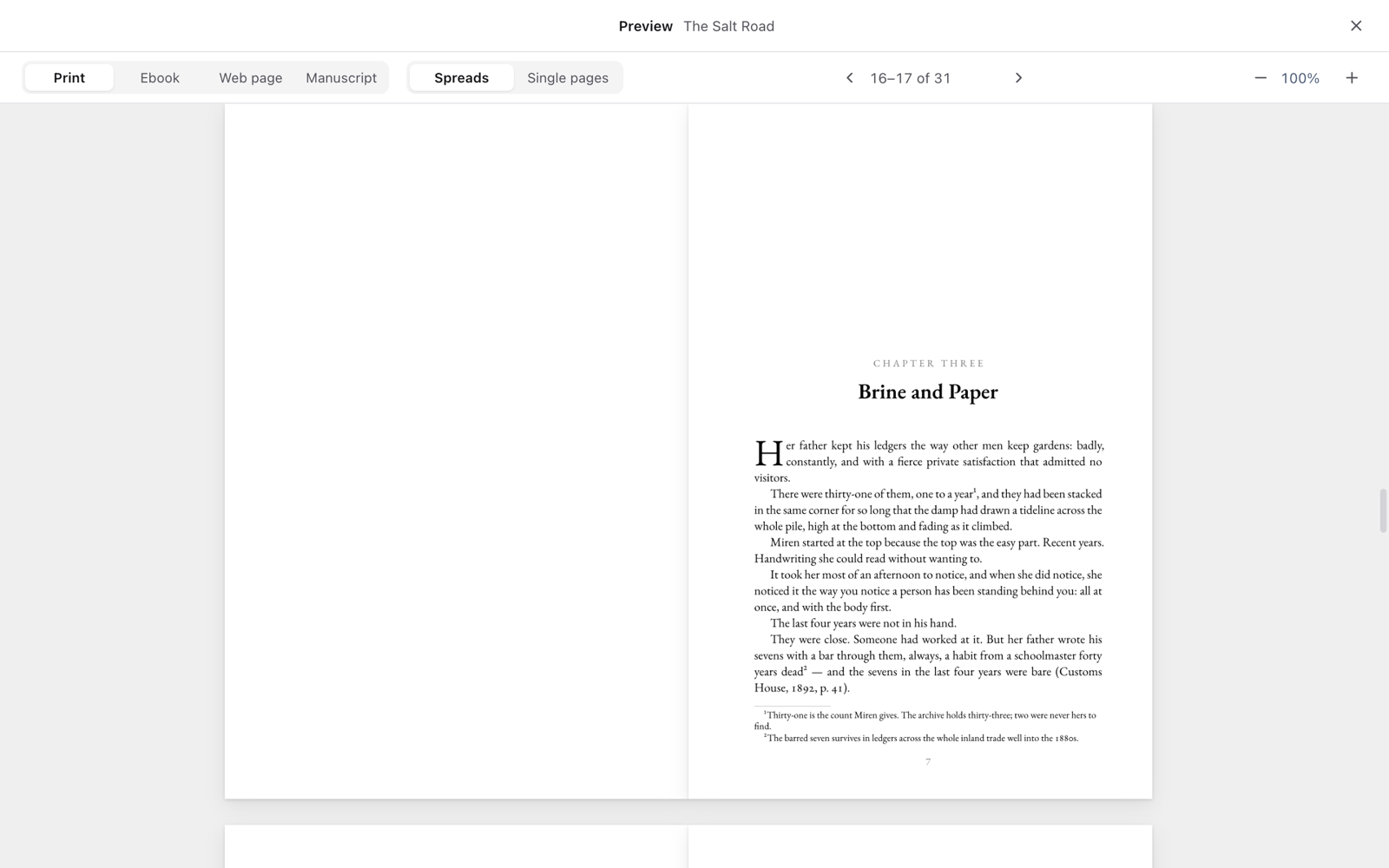
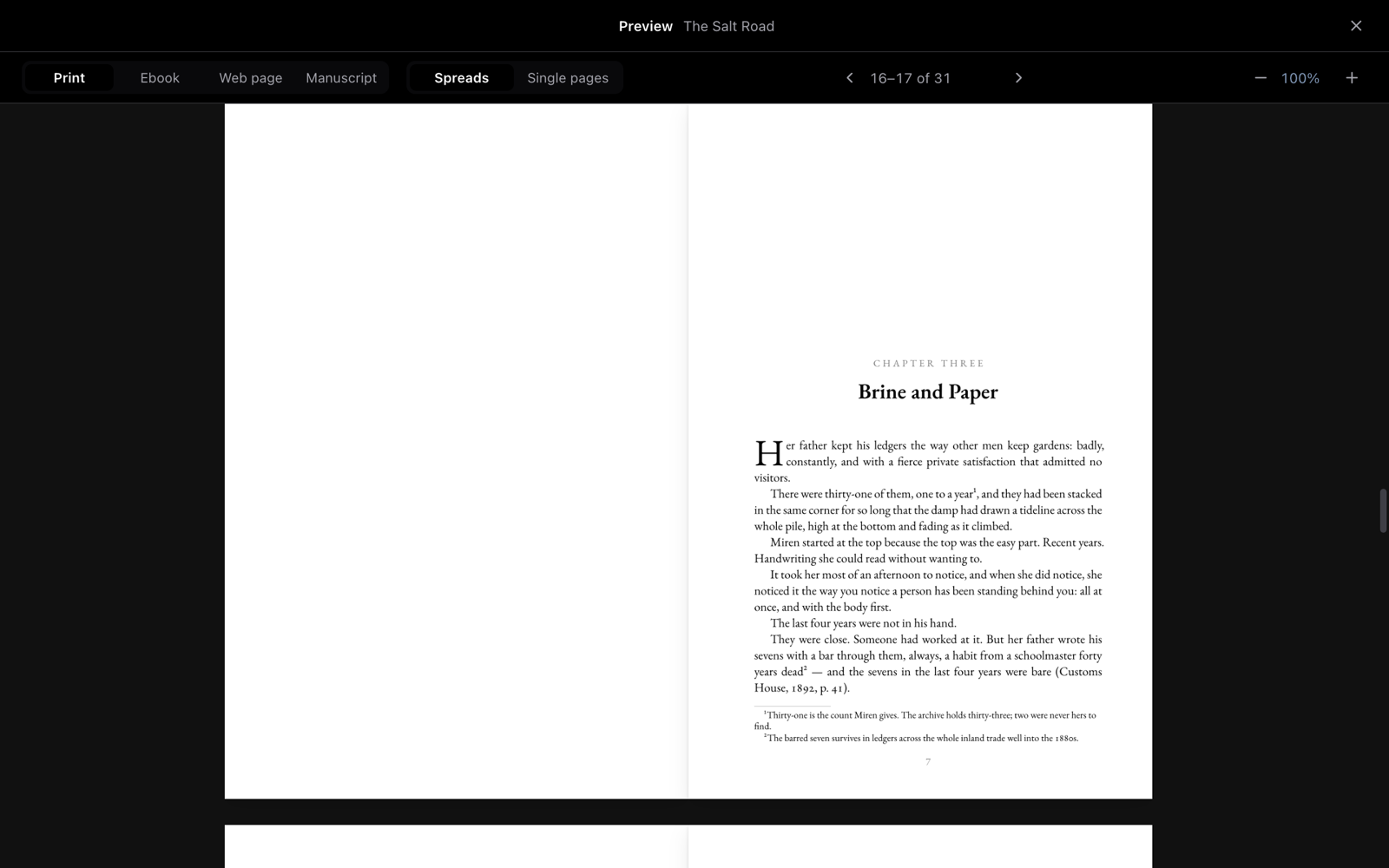
Open the preview
- Open the project's Export page.
- Press Preview, at the top of the page.
- Choose what to look at in the toolbar: Print, Ebook, Web page or Manuscript.
The preview follows what's chosen on the Export page: the design, the trim size, the paper and your adjustments.
Looking through a printed book
- Spreads shows facing pages, as the bound book opens: the cover alone, then left and right pages together. Single pages shows one at a time.
- The arrows step through the book; click the page number to jump to a page.
- Zoom in and Zoom out (the + and −) change the size; the pages stay sharp at any zoom.
Pages appear quickly at first and sharpen a moment later.
The ebook
Ebook pages through the EPUB as a reading app would, on a Phone, a Tablet or a Screen. Readers choose their own type size, so their screens will differ from yours; what to look at is how chapters open, the ornaments, and the book's own pages.