A tour of the window
φ's window has three columns: the sidebar, the list beside it, and the page you write on, with an Info panel you can open on the right. Each mode, Write, Notes and Journal, opens on a Home of its own. Once you know these four parts, you know where everything is.
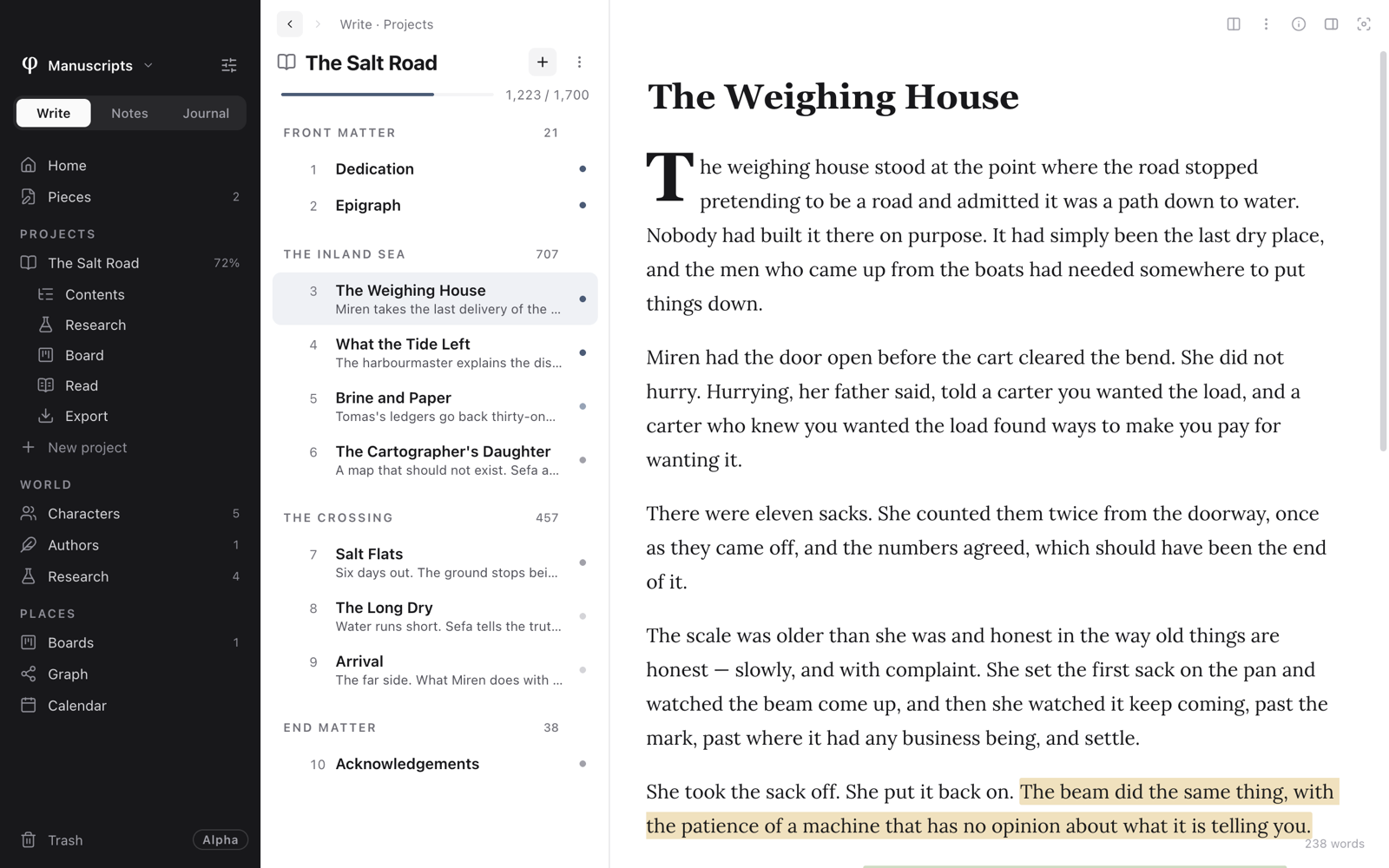
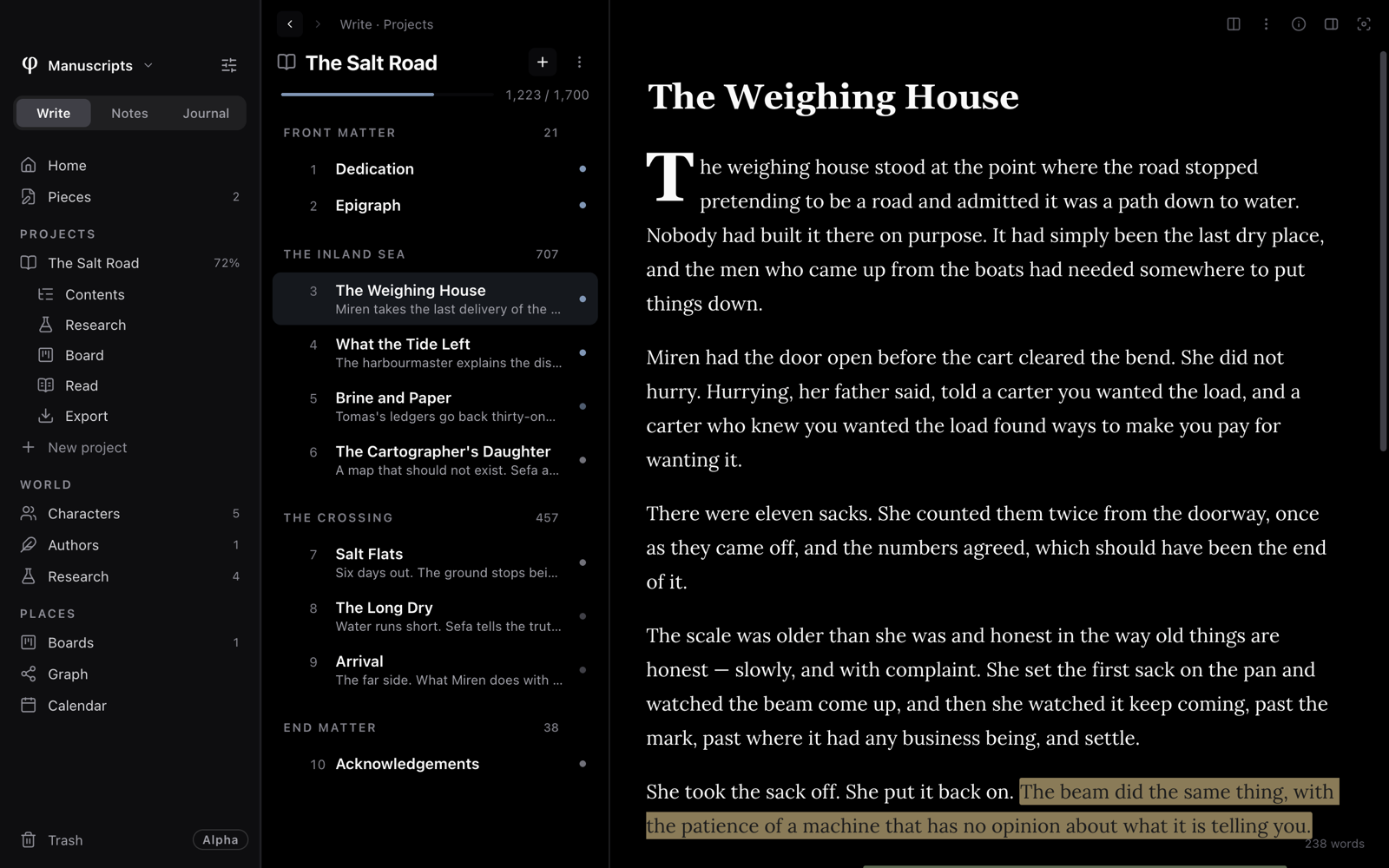
Get around
- Pick a mode at the top of the sidebar: Write, Notes or Journal.
- Pick a place in the sidebar, such as a project or All notes. The list beside it shows what's there.
- Pick a row in the list. It opens on the page, and the list stays put.
- Press
⇧⌘Ito open the Info panel beside the page. - Press
⌘[to go back to where you were.
The sidebar
From top to bottom:
- The vault's name. Click it for your vaults, Open another vault…, New vault…, Show in Finder and Import…. With more than one vault, it also offers Merge into another vault…. See Vaults.
- The sliders beside it open Settings (
⌘,). - Write · Notes · Journal, the mode switch.
⌘1,⌘2and⌘3take you to each mode's Home. A vault that uses only one mode has no switch. - The mode's places, in groups (below).
- At the foot: what the vault is doing (Saving…, Indexing…), the Trash, and the Alpha badge, which is also how to send feedback.
| Mode | What the sidebar lists |
|---|---|
| Write | Home, Pieces, Projects (each project, and New project), World (Characters, Authors, Research), Places (Boards, Graph, Calendar) |
| Notes | Home, All notes, Starred, Unlinked, Folders (with a + for a new folder), Tags, Places (Boards, Graph, Calendar, Templates) |
| Journal | Home, Today, All entries, Morning pages, Sealed, Places (Calendar) |
Click a project and its own page opens, with its outline in the list. While you're in it, its parts sit under it in the sidebar: Contents, Research, Board, Read and Export.
Right-click a project or a folder for its menu. Drag a note onto a folder in the sidebar to file it there. Which places each mode shows is yours to change in Setting up.
The list
The second column lists whatever you picked: a project's chapters, your pieces, a folder of notes, the journal's days, the boards, the trash.
Along its top:
- ‹ ›: back and forward, with where you are beside them (Write · Projects, say).
- The title of what's listed.
- The sort on pieces and notes: Edited, Created or Title.
- +: make a new one here. In a project it offers a new chapter (
⌘N) or a new part (⇧⌘N), named for the kind of project. - ⋮: what you need less often. In a project, it also holds the project's pages and settings: Contents, Icon…, Colour…, Overview, Research, Read, Open project board, Export manuscript… and Delete project….
Pieces, notes, characters, authors and research have a search field under
the title that narrows the list as you type; Esc clears it.
All notes, a folder and a tag also carry a Capture a thought… box.
Type a line and press Enter, and it's saved as a note, in the folder or
under the tag you're looking at. In All notes or a folder, a #word in
the line tags it.
Folders open in place. Open a folder in Pieces or in Notes and the list shows what's inside, with the path above it (All › Essays › Drafts). Click a step of the path to go back out. Drop a document on a folder, or on a step of the path, to move it there.
The page
The page carries the title and the words. With a document open, the buttons at the top right are:
| Button | What it does |
|---|---|
Split view (⌘\) | Opens a second pane beside this one. See Documents side by side. |
| ⋮ | The document's menu: star, add to a board, read mode, typewriter scrolling, check spelling, save a version, export, move to the trash and more. |
| Details… (the ⓘ) | The document's status, synopsis or description, word goal, tags, colour and where it lives. See Organizing your work. |
Info (⇧⌘I) | Opens or closes the Info panel. |
Sanctuary (⌘.) | Hides everything but the page. See Sanctuary & writing sessions. |
The word count sits in the bottom-right corner, or your words against the goal if the document has one. Click it to open Info on its Outline; click it again for the full Document stats.
The Info panel
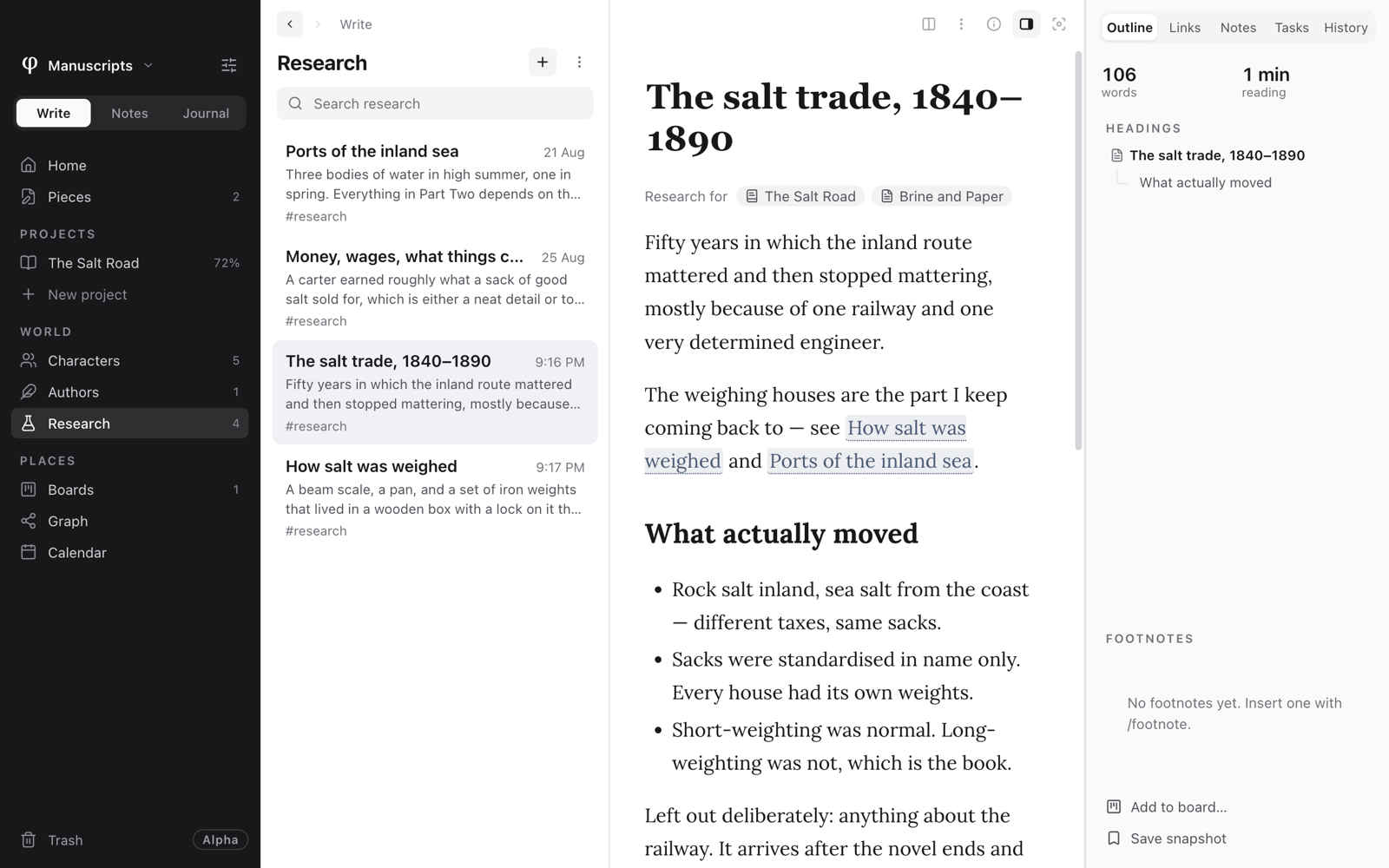
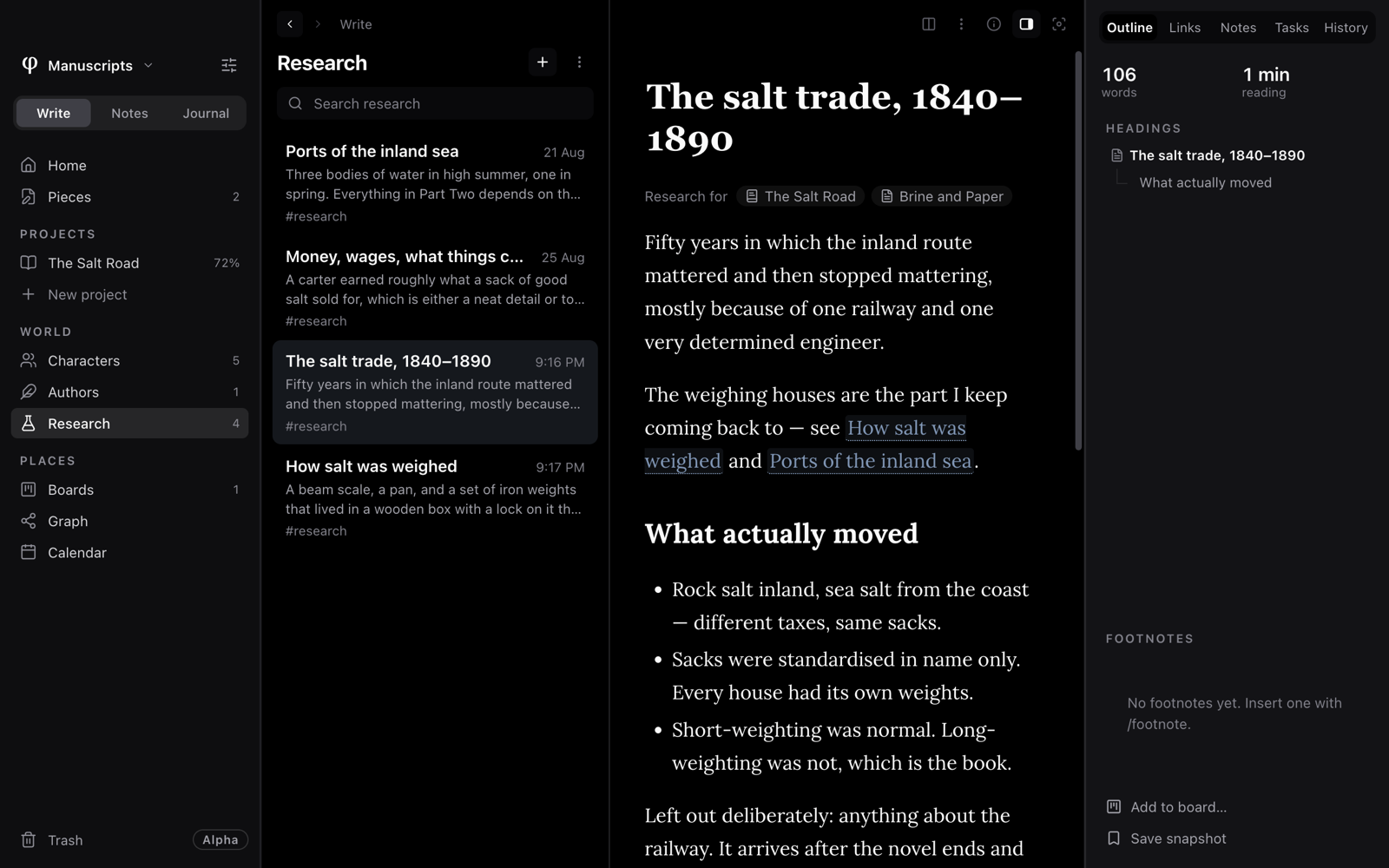
Info (⇧⌘I) opens a panel on the right of a document, in five tabs:
| Tab | What it shows |
|---|---|
| Outline | Words, reading time and the goal; the headings and footnotes; Add to board… and Save snapshot. |
| Links | What this document links to and what links to it, the notes linked to it, and Local graph. See Links & the graph. |
| Notes | Its highlights, comments and margin notes (⇧⌘A). See Annotations. |
| Tasks | Its checklist items, and the board cards tracking them. |
| History | Its versions. See Versions & backup. |
The dictionary joins them as a sixth tab while you use it
(⇧⌘D). A morning page shows The practice and History instead, and a
project's own pages show the Project.
The panel stays open until you close it. Once closed, it stays closed for every document, even after you quit, until you open it again. When the window is too narrow for everything, it steps aside.
Drag the thin divider between two columns to resize them, or focus it and use the arrow keys. φ remembers the widths for each vault. Double-click the Info panel's divider, or drag it most of the way closed, to close the panel.
Each mode's Home
⌘⇧H, or Home at the top of the sidebar, takes you to the Home of the
mode you're in.
- Write greets you with the chapter to Continue, the projects you're Working on, recent Pieces and Recent research. Beside them: Today (words today, your streak, this sitting, days this week), the month, and what's Due this week on your boards.
- Notes opens on Capture a thought…, with what you Recently edited and your Open action items. Beside them: the month, your Starred notes and your Tags.
- Journal opens on today's entry, This week and the days before. Beside them: today's Morning page, the month, and On this day: what you wrote on this date in other years.
Find anything: ⌘K
⌘K (File → Find a Document…) finds a document, a project or a
character by name. Before you type, it shows:
- Open now: the documents you've opened and not closed. The one on screen is marked here now.
- Go to: Home, the modes and places; more of them as you type.
- Create: a new document, and more as you type.
Type and it searches every document by title and by what's in it, across all three modes, and says which mode each one is in.
| Key | What it does |
|---|---|
Enter | Opens the highlighted result. |
⌥↵ | Opens it beside the document you're in. |
⌘↵ | Opens it and keeps the palette open, so you can open several. |
⌘W | Closes the highlighted open document; the palette stays. |
Esc | Closes the palette. |
Run a command: ⌘P
⌘P (File → Command Palette…) holds the commands: new documents,
exports, versions, vaults, typewriter scrolling, checking for updates and the
rest. Before you type, it shows what you've run Lately; type to search
every command.
Go back and forth
| Keys | What they do |
|---|---|
⌘[ / ⌘] | Back and forward through where you've been, in the list and on the page. Your mouse's side buttons do the same. |
⌥⌘← / ⌥⌘→ | The document above or below in the list: the chapter before or after, the next note, the day before. |
⌘W | Closes the document and keeps its list. A document opened from somewhere else (the calendar, a board, the graph) closes back to where you opened it. With no document open, ⌘W takes you to the mode's Home. |
⌘⇧H | The mode's Home. |
Press ⌘/ to see the main shortcuts together, and ⌘/ or Esc to close
them. The full list is in Keyboard shortcuts.