Search & replace
φ answers two questions. ⌘F looks through the page in front of you, and
⇧⌘F looks through every document in the vault. Both can replace what they
find, so renaming a character or fixing a spelling everywhere is one step.
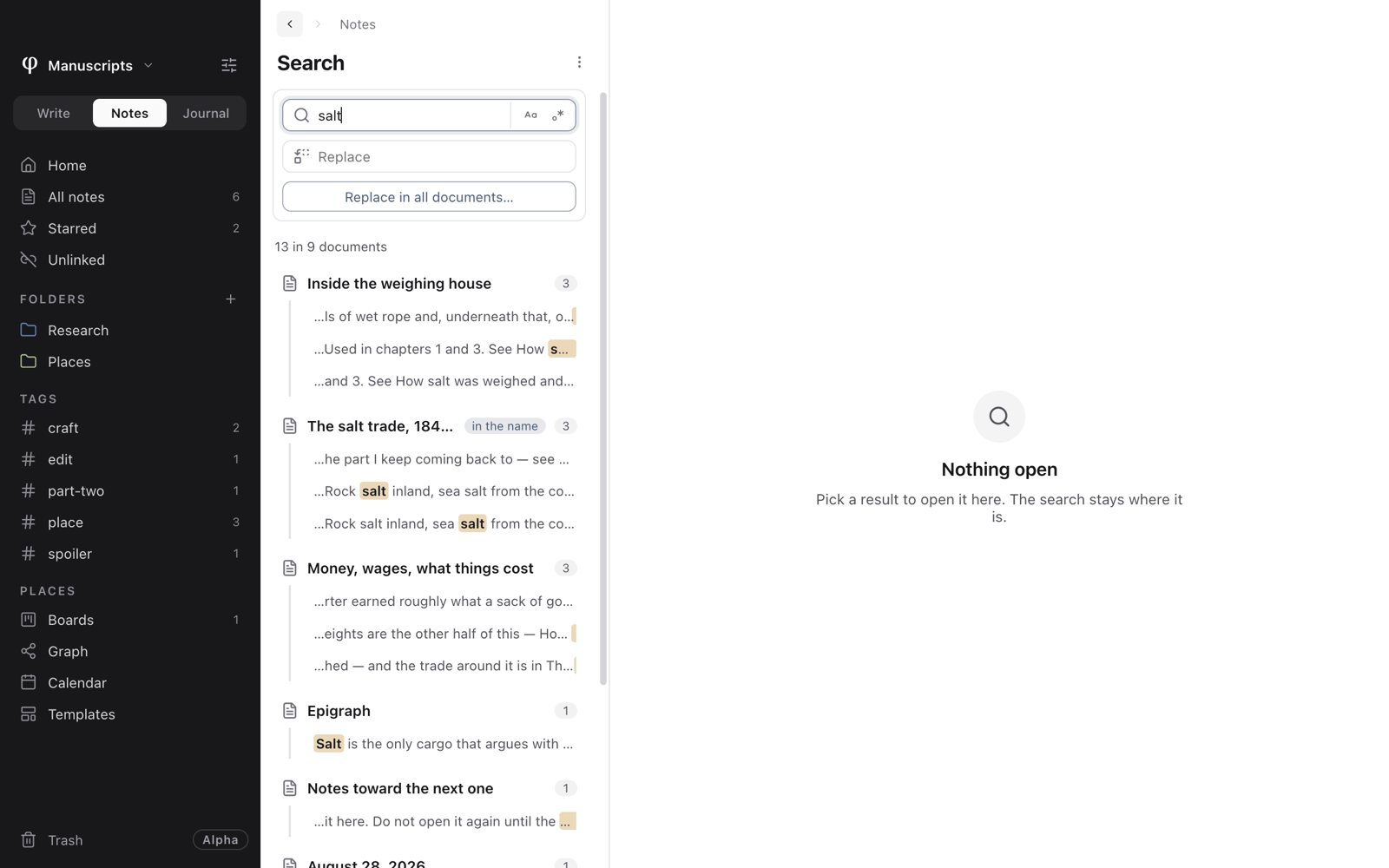
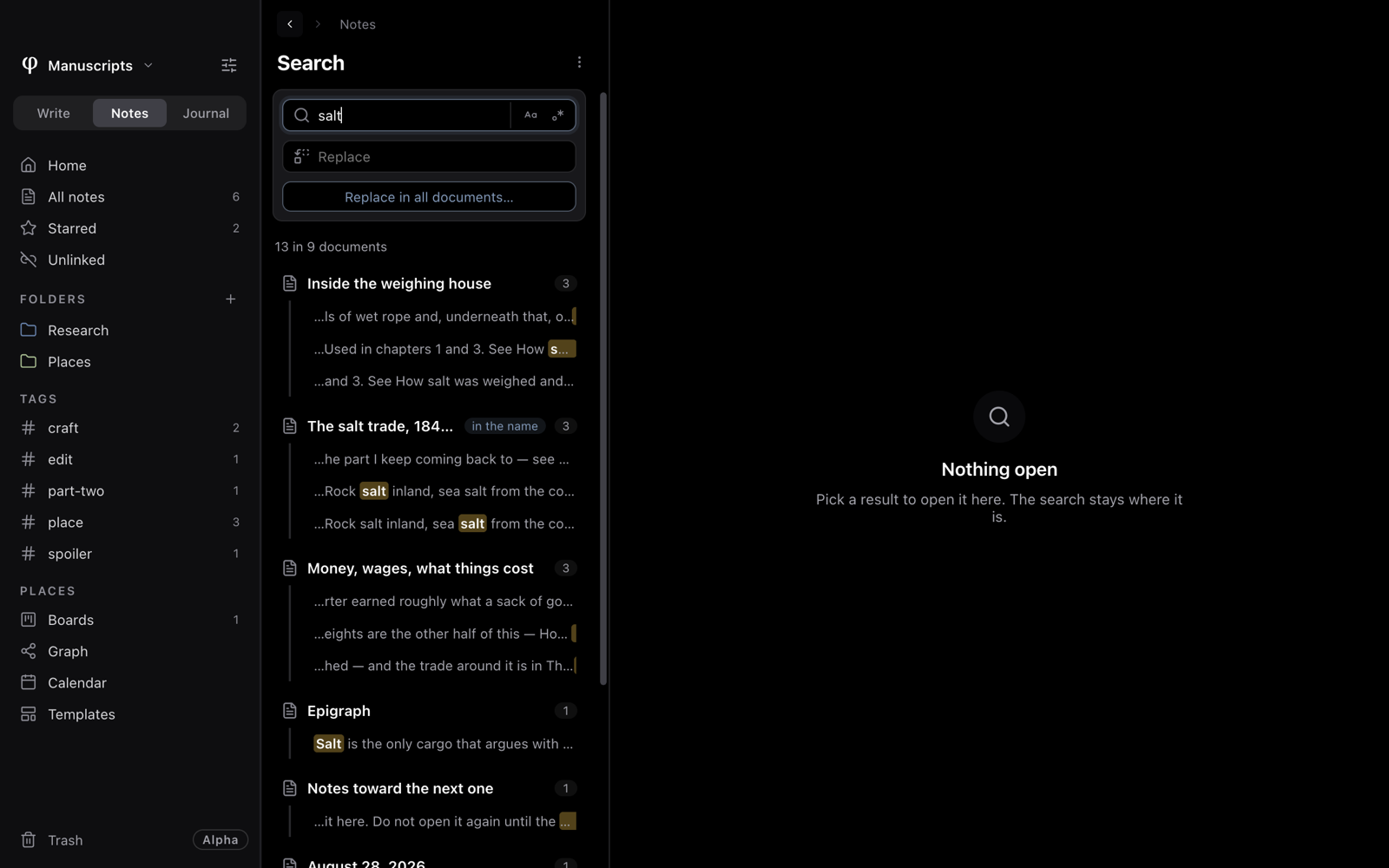
Change a name everywhere
- Press
⇧⌘Fto open Search. - Type the old name in Find in every document….
- Look over the matches, grouped by document.
- Type the new name in Replace, then press Replace in all documents….
- φ tells you how many it will change in how many documents. Press Replace everywhere to go ahead.
If versioning is on, φ saves a version of the whole vault first, named after what you replaced, so you can go back. If it's off, φ says so before you confirm, because the change can't be undone. See Versions & backup.
Find in this document
Press ⌘F (Edit → Find in Document). A bar opens above your text,
starting with any words you had selected. φ highlights every match as you
type.
- The counter shows where you are: 3 of 12, or No results.
- Return goes to the next match and
⇧Return to the one before; the arrow buttons do the same. - Match case (the Aa button) makes capitals count.
- Regular expression lets you search with a pattern.
Esccloses the bar and clears the highlights.
With no document open, ⌘F opens the Search page instead.
Replace in this document
Press Replace on the bar, or ⌥⌘F (Edit → Find & Replace in
Document) to open the bar with it showing. Type the replacement, then:
- Replace changes the current match and moves to the next.
- All in document changes every match here at once.
A replacement here is an ordinary edit, so ⌘Z undoes it.
Search every document
⇧⌘F (Edit → Find in All Documents…) opens Search in the list
column. A result opens on the page beside it, and the search stays put for
the next one.
Type at least two characters. φ reads every document in the vault, morning pages included, and lists those that match, the busiest first, each with its matches in context. A document found by its title is marked in the name. Match case and Regular expression work as they do on the bar.
Click a document, or one of its matches, to open it with that very match selected.
Other ways to find things
| To find | Use |
|---|---|
| A document, project or character by name | ⌘K. See Finding your way. |
| Something in the list you're looking at | The search field under the list's title. It narrows by title, opening text and tags. |
| A command | ⌘P. |