Characters & authors
Characters are the people in your work, each kept on a sheet, so that
typing @ finds them wherever you write. Authors are the names you
publish under. An author profile signs your books: the byline, "About the
author", and the contact details on a manuscript you send out.
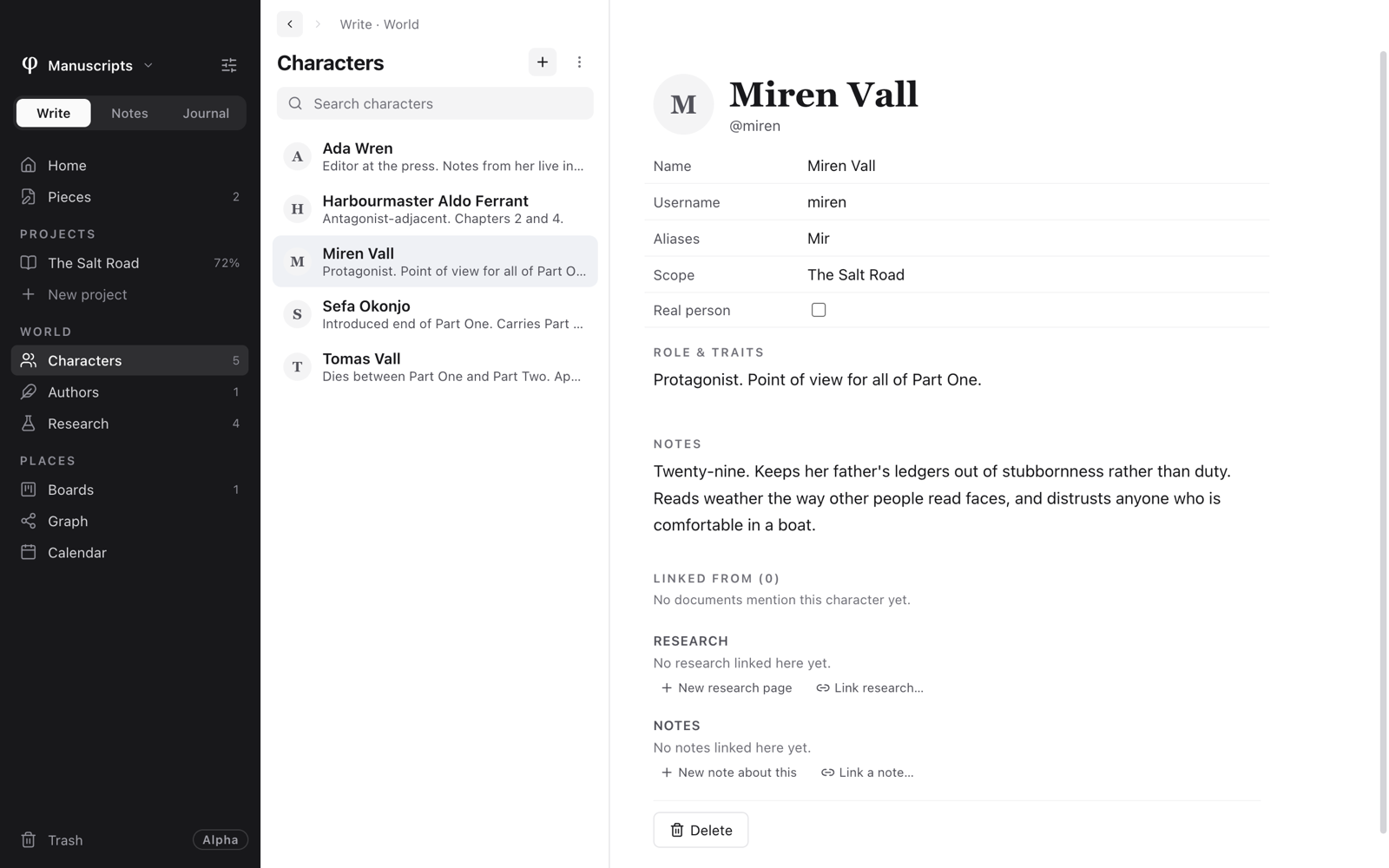
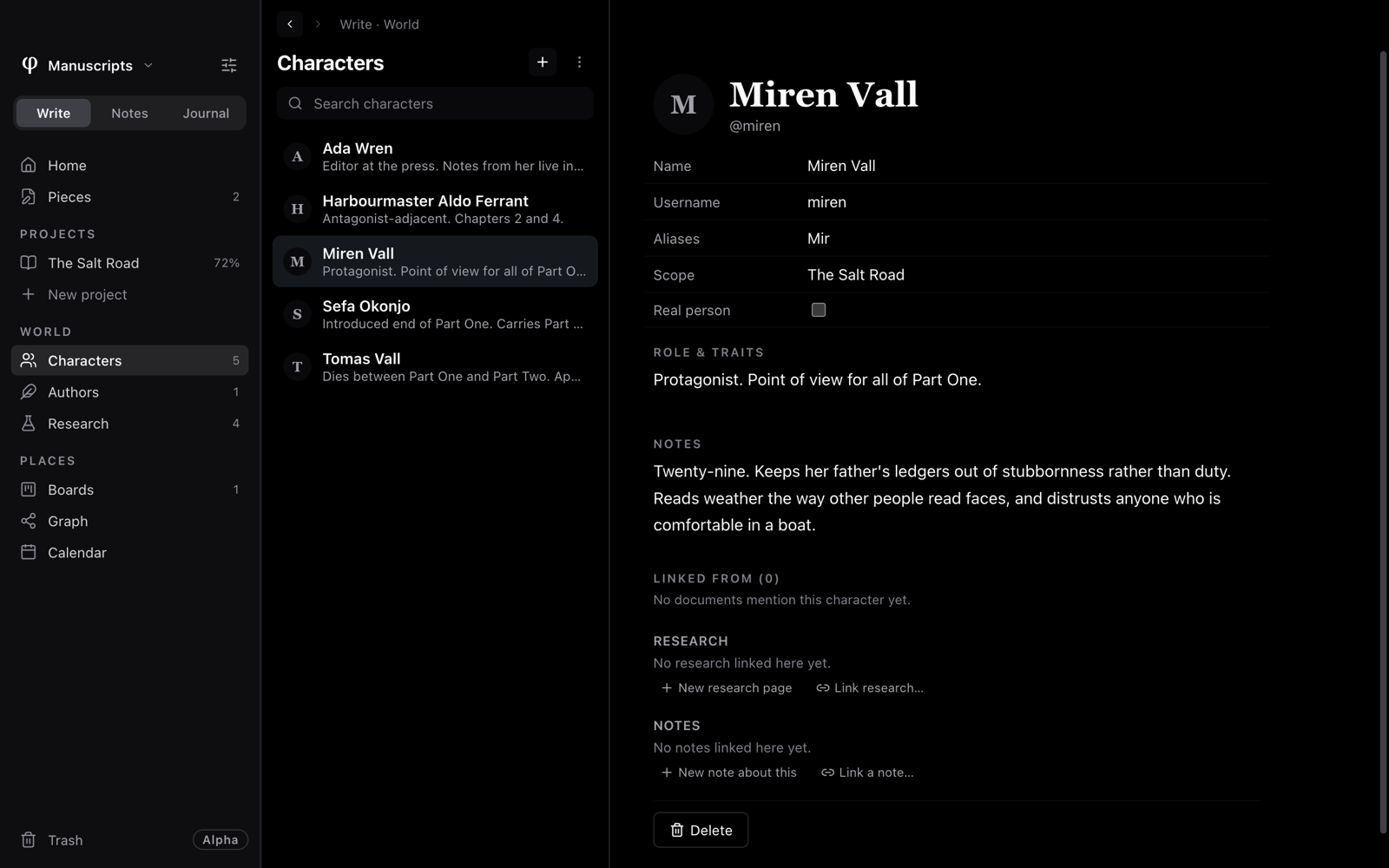
Both live in Write, under World in the sidebar. ⌘K finds a
character by name from any mode, and goes to either list.
Add a character
- In Write, click Characters under World.
- Click + (New character).
- Fill in their sheet. Each field saves as you leave it.
- In any document, type
@and the start of their name to mention them.
A character's sheet
| Field | What it's for |
|---|---|
| Name | Their full name. |
| Username | The @handle. |
| Aliases | Other names, comma-separated. Each one works with @, and all lead back to the same person. |
| Scope | Global (any document), or one project, so a character from one book doesn't crowd another. |
| Real person | Tick it for someone real; Role & traits becomes Details. |
| Role & traits | A few lines on who they are. |
| Notes | Background, appearance, arc, anything. |
| Linked from | Every document that mentions them, with a count. Click one to open it. |
| Research and Notes | Research pages and notes about them: New research page, Link research…, New note about this and Link a note… (see Research). |
Delete, at the foot of the sheet, moves the character to the trash. The list's search field matches names, usernames and aliases.
Mention a character
Type @ in a document and start a name. φ suggests the characters in scope,
which means the global ones and those of the project you're in, once for
their full name and once for each alias. It doesn't mind accents: "jose"
finds José. Pick one and the mention goes in.
- A mention by full name follows the character if you rename them later.
- Click a mention to open the character's sheet.
- Type a name nobody has yet, and the last suggestion is New character. Pick it and φ makes the character and mentions them in one go.
In an export, a mention becomes plain text: the name or alias you chose,
without the @. Morning pages have no @ suggestions, to keep their page
bare.
Make an author profile
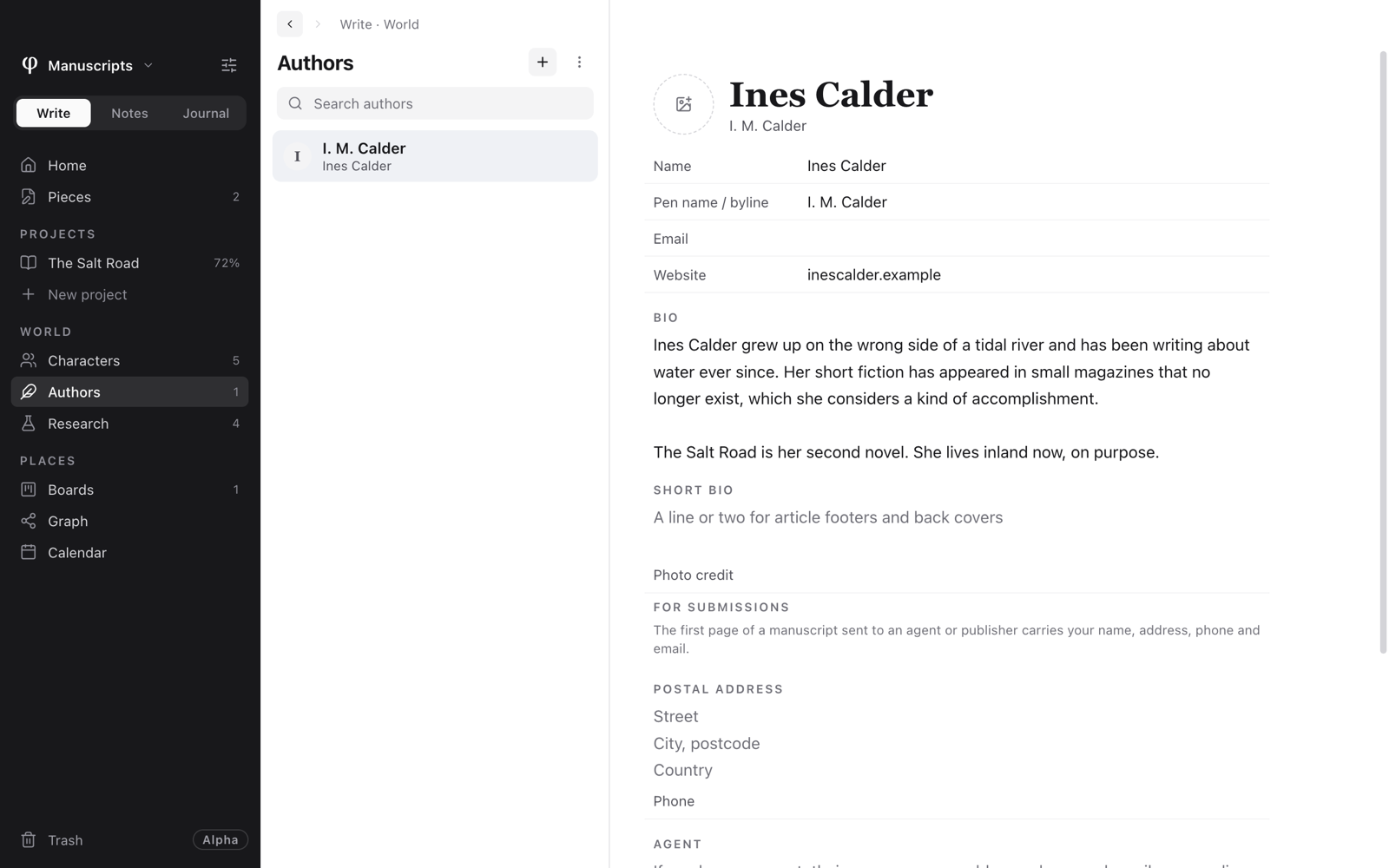
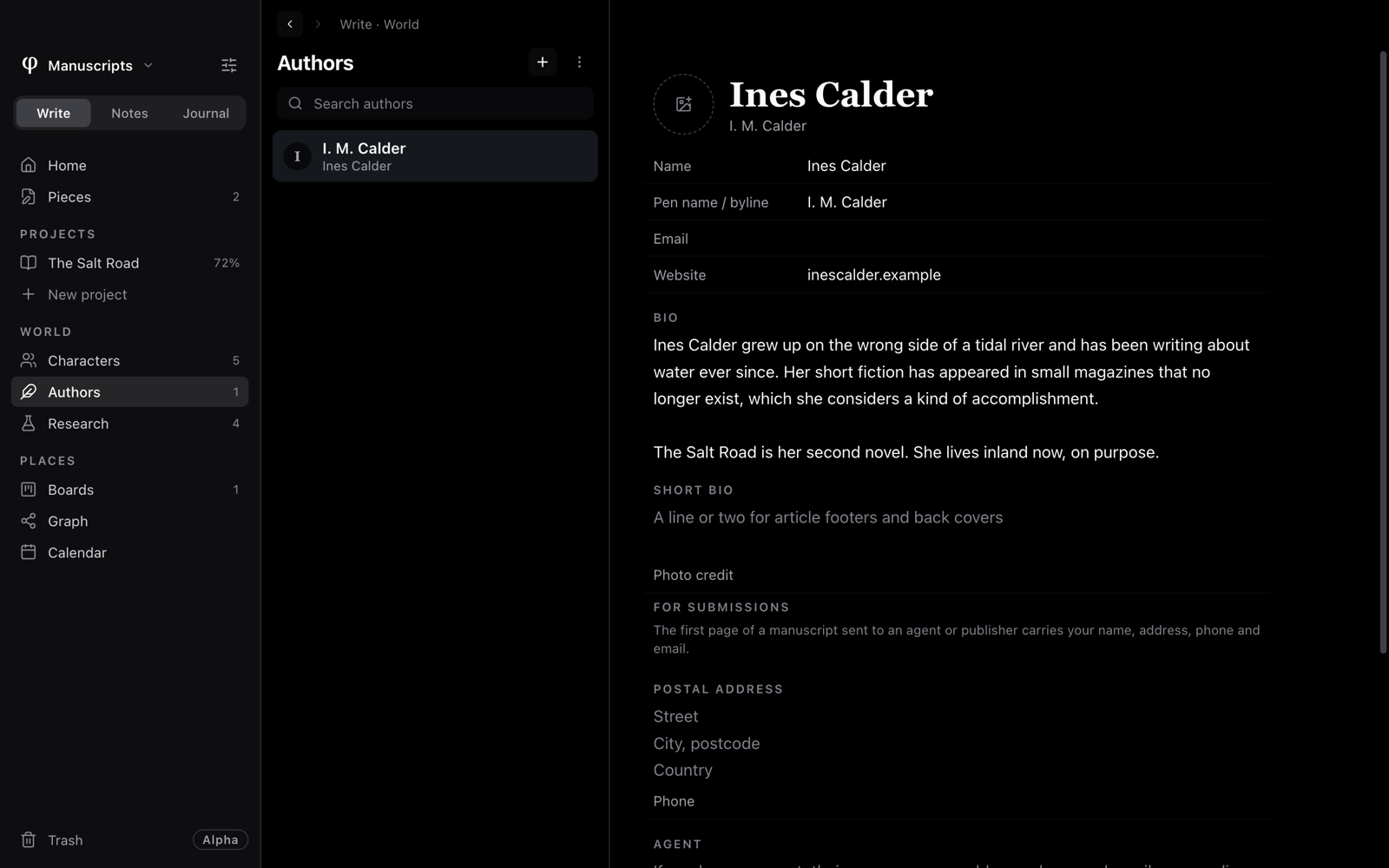
- In Write, click Authors under World, then + (New author).
- Fill in the profile. Each field saves as you leave it.
- Put the profile on a project: on the project's page, choose it under Settings → Author profile, or add it under Book details → People (see Book details).
What each part of the profile signs
| Field | Where it appears |
|---|---|
| Name | Your legal name. It heads the contact block on a manuscript's first page, and gives the surname in its running head. |
| Pen name / byline | The name on the book: the cover, the title page, the byline. Leave it empty if it's the same as your name. |
| Photo | Click the square beside the name to add one. It goes with "About the author". Remove photo takes it away. |
| Photo credit | Printed under the photo. |
| Bio | "About the author" at the end of the book, from the first author's profile. |
| Short bio | A line or two for the back cover. Without one, φ uses the first paragraph of Bio. |
| Email and Website | Your email also goes in a manuscript's contact block. |
| Postal address and Phone | Under For submissions: the rest of the contact block on a manuscript's first page. |
| Agent | If you have an agent, their name, agency, address, phone and email, one per line. It replaces your own details on the manuscript's first page. |
| Other titles (the "Also by" page) | Your other books, each with a year if you like. They make the "Also by" page at the end of a book. |
| Bylined on | The projects that carry this byline. Click one to open it. |
When you make a manuscript for an agent, the export tells you what the first page is missing and offers Open the author profile (see Send to an agent or publisher).
Delete moves the profile to the trash.
See also
- Book details: who wrote, translated or edited the book.
- Send to an agent or publisher: the manuscript and its first page.
- Research: pages linked to a character.
- Links & graph